Strange EXE processes, antivirus showing Access denied, and searches redirecting to ads together mean it's time to scan before normal Windows starts. Run a supported offline scanner before trying to force the process closed.
Use a trusted device to sign into your accounts. An unfamiliar filename alone doesn't identify malware. The warning signs matter together: security won't start, and several browsers send you away from the address you selected.
In this guide
1. Protect accounts and record the symptoms
Disconnect Wi-Fi or unplug Ethernet while you arrange the scan. Use a different trusted device for banking, email and password changes. On a work computer, report the symptoms to IT before running cleanup tools.
Write down the complete security error and suspicious filename. A picture taken with your phone lets you save the message without opening more programs on the affected PC. Also record the page address you land on after a redirect.
The historical question included 0x80070005 while starting Microsoft Security Essentials. That code means access was denied; it doesn't name the infection or mean the error is unknown. Keep the program name with the number.
Don't delete files just because their names look random. Similarly, System Idle Process isn't a virus to remove. It represents unused processor time, so a large number beside it doesn't mean it's using up your PC's processing power.
For MpGear.dll missing at sign-in, an unwanted launch requested a fake DLL in a confirmed case; the repair removed that entry instead of supplying the file.
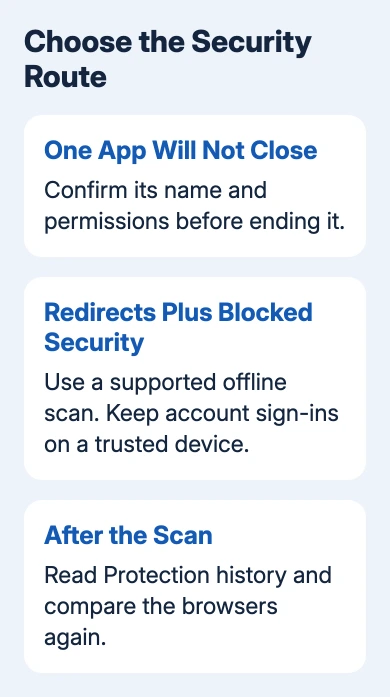
If the only symptom is one app refusing to close, the Task Manager access-denied checks fit that narrower problem. Redirects and blocked antivirus need the security route here.
2. Run Microsoft Defender Offline on a supported PC
Open Start > Windows Security > Virus & threat protection > Scan options. Choose Microsoft Defender Offline scan, then Scan now. Approve the request and let the computer restart into its scanning environment.
Save open work first. If BitLocker protects the system drive, follow your administrator's instructions to suspend its protection before this scan and have the recovery key available. Otherwise, the restart may ask for that key.
Microsoft's offline scanning guide explains that it scans before the usual Windows session loads. That gives malware less opportunity to hide or interfere with removal while Windows is running.
This built-in route applies to Windows 10 version 1607 and later and Windows 11. This offline scanner doesn't support ARM Windows, including ARM Windows 11 laptops. Ask your security provider or IT for help scanning an ARM device.
Windows Security can be opened directly from Start on either current version. On Windows 10, you can also open it through Settings > Update & Security > Windows Security. The labels inside the app are the same ones used for this scan.
If another antivirus product is active, the Defender controls may be unavailable. Open that provider's app and ask its support team which rescue scan to use. Don't install several real-time antivirus packages together.
3. Read Protection history after Windows returns
Once the scan ends and Windows starts again, open Windows Security > Virus & threat protection > Protection history. Read the newest entries and complete the action offered for a detected threat.
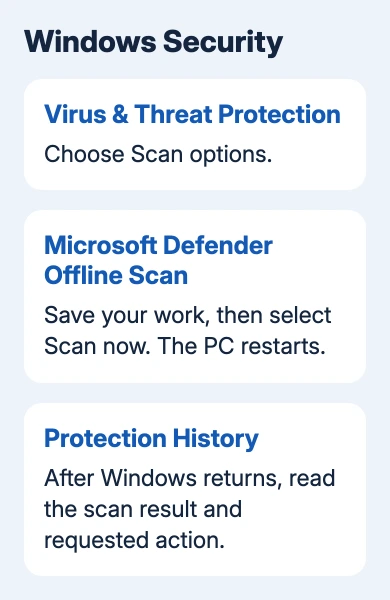
Record the detection name, file path, action and time. Quarantined, removed and allowed mean different things. If you allowed an item by accident, review that choice with the controls shown. An allowed item isn't necessarily clean.
Reconnect when you're ready to update security and check the result. In Virus & threat protection, choose Protection updates > Check for updates. Then choose Scan options > Full scan > Scan now to check files and programs.
The Windows Security scan controls distinguish the full scan from the offline scan. The offline option uses a quick scan in the recovery environment; it isn't a full scan of every file.
If the offline scan never starts, open administrator Command Prompt and run reagentc /info. A Disabled Windows RE status means its recovery environment needs repair before the scan can run. Give that result to IT or security support.
If Windows Security won't open or Access denied returns, keep that exact result for security support. Repeating the same button without a scan or result doesn't tell you whether the device is clean.
4. Check whether the redirect survives cleanup
Open a fresh browser window and enter a known address directly. Then try a search result that redirected you before. Check another installed browser too, without signing into sensitive accounts during the comparison.
When only Edge redirects searches, follow the Edge search-redirect repairs to remove the extension or changed browser setting. Resetting a search engine alone won't repair a Windows security service that remains blocked.
If several browsers still redirect, record the destination domain for your antivirus provider. Ask them to review the continuing symptoms. They need to know the redirect hasn't stopped after the scan.
I'd keep the security history until the browser and protection service both work normally. Support can work from the recorded detection and action instead of guessing what a collection of installed cleaners did.
5. Treat Windows XP and old rescue advice separately
The original question dates to 2011 and discusses old security products. Its asker later said the suggested solutions didn't work. The answer marked as accepted doesn't show that its long list of scanners removed their infection.
Windows XP doesn't have the Windows Security interface described here. The Windows 7 SP1 and Windows 8.1 offline-media route in the vendor documentation is also different from today's built-in button.
Don't substitute random copies of old rescue disks or rename a modern scanner to copy that thread's recipe. Ask a repair technician to recover personal documents safely and move the machine to a supported operating system.
When the security service still won't run
Contact your antivirus provider or workplace security team from a trusted device. Send the scan result, security error, suspicious file path and redirect domain. Ask whether the PC needs offline cleanup or a clean reinstallation.
For persistent suspected infection, the Windows recovery guidance recommends reinstalling with installation media. Have important personal files backed up and checked before a technician erases the system.
Reinstallation is an option when security tools remain blocked. Secure exposed accounts from a trusted device. Follow your organization's incident process if work information was on the PC.
For Defender damaged by a cracked-game tool, follow the recovery decision through trusted installation media and a protection check before restoring files.
The Short Version
Run a supported offline scan, review Protection history, then finish a full scan and compare browsers. Keep account activity on a trusted device. If the symptoms continue, ask your security provider whether you need a clean reinstallation.
Checked November 26, 2026.
 If you have any business, I can build it online