Rolling back the fingerprint reader's driver fixed Windows Hello's recognition error for several owners after an update. Try that before removing more fingerprints, especially if enrollment opens but never registers a touch.
A dirty sensor can also miss your finger. If Windows says the reader is unavailable, check its driver or hardware. Start by checking which of those screens you have before deleting a sign-in method that still works.
In this guide
1. Check whether the reader can register a finger
Sign in with your PIN or password. Wipe the fingerprint sensor with a soft, dry cloth and use a clean, dry finger. Try the enrolled finger in its normal position without sliding it across a touch-style sensor.
Open Settings > Accounts > Sign-in options > Fingerprint recognition (Windows Hello). If enrollment opens, enter your PIN when asked and follow the touch-and-lift prompts. Check whether any part of the fingerprint picture fills in.
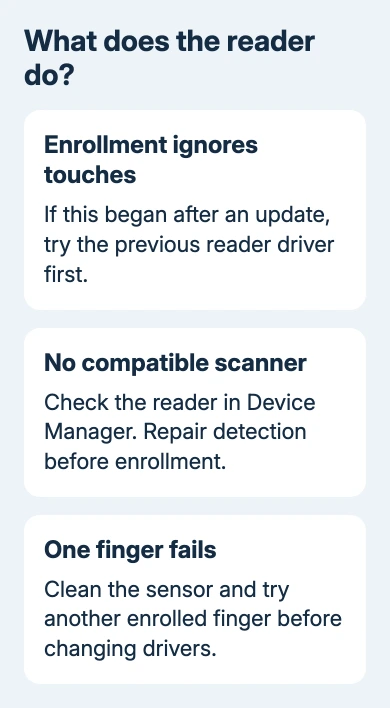
In the reported case, enrollment opened but every touch returned Your device is having trouble recognizing you, try again. Removing their existing fingerprint hadn't helped, and adding another finger failed too.
When every touch fails like this, try the driver fixes next rather than treating it as one poor scan.
If the option instead says no compatible scanner can be found, go to Device Manager in section 4. A missing device can't be repaired by repeatedly enrolling a finger.
If another finger works, the saved scan of your first finger may need to be set up again.
For Windows 10, the route is also Settings > Accounts > Sign-in options, though the expandable item may be labeled Windows Hello Fingerprint.
Use the control for fingerprint sign-in, rather than facial recognition's separate improvement setting.
2. Roll back the reader driver after an update
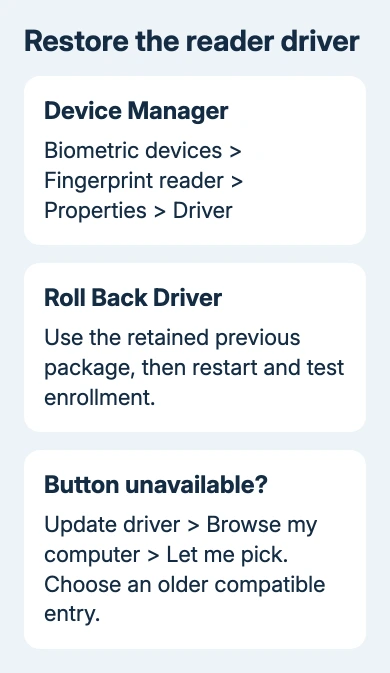
Press Windows + X and choose Device Manager. Expand Biometric devices and find the fingerprint reader.
Some models list related hardware under Human Interface Devices, so check the device name against your PC's specifications if needed.
Right-click the reader and choose Properties, then open the Driver tab. Note the provider, date and version. Those details help the PC maker identify which driver changed, rather than guessing from the Windows update date.
Select Roll Back Driver, choose the reason that fits and confirm. This needs administrator permission. Save open work and restart Windows if requested, then return to fingerprint setup and check whether touch registration works.
Microsoft's driver rollback instructions explain how an older driver can resolve a failure introduced by an update.
Windows can disable this button if the previous package is no longer stored.
Several owners confirmed this repair in the fingerprint thread. One returned to a 2021 driver, but that date belongs to their reader. Don't search for an arbitrary 2021 package for a different laptop.
I'd try rollback before uninstalling the reader. It reverses the driver change linked to the failure and uses the previous package Windows already has for your reader. If the button is gray, try the compatible-driver list next.
3. Select a retained compatible driver when rollback is gray
In Device Manager, right-click the same fingerprint reader and select Update driver.
Choose Browse my computer for drivers, then Let me pick from a list of available drivers on my computer.
Keep Show compatible hardware enabled if that checkbox appears. Check whether the list offers another version for the same reader. If it does, choose the earlier compatible package and follow Next to install it.
One owner restored the reader by choosing an older driver from this list.
Choosing from this list differs from the automatic search, which can simply report that the installed driver is already the best available.
If only one compatible entry appears, don't turn off compatibility filtering to force an unrelated sensor driver. Without an older package in that list, you'll need to get the driver another way.
Restart after the change and test enrollment again. If the fingerprint picture now advances as you lift and replace your finger, complete setup. Lock the PC with Windows + L and check an actual fingerprint sign-in as well.
4. Reinstall or repair the correct reader package
If Windows hasn't kept a usable older driver, use the PC maker's installed support app to check for a fingerprint driver for your exact model. For example, Lenovo Vantage can check supported Lenovo systems for driver updates.
Other makers have their own tools.
Check the model number or serial number shown in the manufacturer's app, rather than choosing a driver for a laptop with a similar marketing name. Different versions of one laptop family can contain different fingerprint sensors.
To let Windows attempt a fresh device installation, right-click the fingerprint reader in Device Manager and select Uninstall device > Uninstall. Restart the PC.
Windows then tries to detect and install the reader again; check whether it returns without a warning symbol.
For this first attempt, keep the existing driver package if the removal dialog offers a choice. Windows can then use that saved package when it detects the reader again.
If the reader doesn't return, use the maker's support app or support team to restore its package.
A device showing an error in Properties > General needs that specific code checked. Give the manufacturer the code, hardware name and driver version. Repeating enrollment won't resolve a device Windows can't start.
5. Re-enroll only after the reader responds
Once the sensor can register touches, return to Sign-in options > Fingerprint recognition (Windows Hello). Use Add a finger if offered.
Follow the prompts, changing the angle slightly so setup captures the finger's edges as well as its center.
Remove an old enrollment only after confirming that PIN or password sign-in still works. Then set up fingerprint recognition again and test it from the lock screen.
Keep your PIN or password available even after fingerprint sign-in works.
An error about a fingerprint being too similar is a different reader-storage problem.
Use that route only when those are the words Windows displays, rather than applying its deeper resets to this recognition failure.
When the reader still ignores every touch
When you contact the laptop manufacturer, include your model number, the winver build, the enrollment error and the reader drivers you tried.
Ask them to check sensor firmware and hardware detection, especially if their diagnostics also fail to detect touches.
If fingerprint sign-in works after Restart but fails after a full shutdown, compare the shutdown-only fingerprint fault.
That fault has a different update history from a reader that fails every attempt to set up a finger.
The Short Version
Wipe the sensor, then try its previous driver when recognition fails following an update. Try an older retained compatible driver if rollback is unavailable.
Repair device detection before re-enrolling, and keep your PIN or password working throughout.
Checked November 27, 2026.
 If you have any business, I can build it online