ATLauncher's current location error means it couldn't create or write a test file in its data folder. Move the launcher and any portable data out of a read-only location, then reopen it from a folder your Mac account can write to.
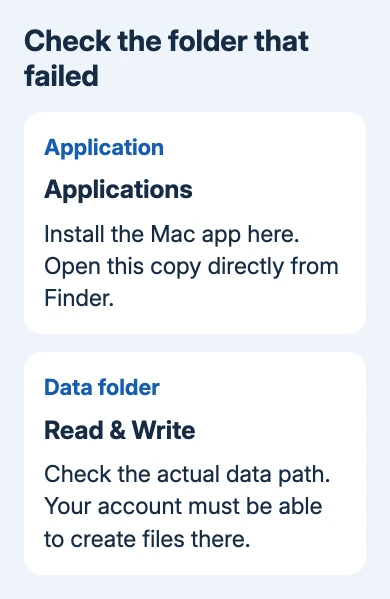
The Mac application download belongs in Applications. If the error returns, check the data folder in the launcher log. Moving the app won't repair access to a separate folder it uses for storage.
In this guide
1. Identify the location that failed the write check
Read the complete dialog before closing it. The error is about saving files, not signing in to Minecraft or downloading a particular modpack. The launcher needs somewhere it can save its data before it can continue.
ATLauncher's source code checks a file named .test in its main data folder. A failure to create or write that file triggers the location error. The code also tries to reveal the affected directory in Finder.
If Finder reveals a folder with the error, note its path. View > Show Path Bar displays its location. Keep that information: the data folder isn't necessarily beside the application.
If no folder opens, keep the launcher log available for support. The exact data path matters: a folder in your home account and a folder on a mounted image need different treatment, even when the application looks identical.
Even if you can see a .test file, the launcher might not have permission to change it. Don't delete unrelated launcher files while trying to solve that one access failure.
2. Install the Mac app in Applications
Quit the launcher. For the standard macOS application download, extract the downloaded ZIP and move ATLauncher.app into Applications. The developer's installation instructions specify that location for the Mac package.
Open Finder > Applications and start that copy directly. That way, you know you're opening the installed app, rather than an older copy in Downloads or a shortcut pointing somewhere else.
If an older copy is inside a disk image you've opened in Finder, copy it out before starting it. The disk image holds the downloaded files. It isn't a suitable place to run an app that needs to save data.
Keep any existing instances and saved worlds while sorting out the installation. Moving the app doesn't require erasing its data. I'd keep the old folder until the launcher opens and your Minecraft instances appear in its list.
If the launcher opens from Applications, check for your usual instance. If the write error persists, examine its data folder. Moving the app again won't fix access to a separate data folder.
3. Test the folder using your own Mac account
Open the data folder identified in the first section. Try File > New Folder in Finder. Give the temporary folder an obvious name, then remove that empty test folder after the check.
If Finder refuses, your account can't create folders there either. Check that location's access settings next. If creation succeeds, look more closely at the launcher's exact path and existing files.
Select the affected folder and choose File > Get Info. Expand Sharing & Permissions and find your user account. For a folder you own and want to use for launcher data, your account needs Read & Write.
Apple's file-permission instructions explain how to unlock that panel and change an account's privilege. Make the change on the affected folder, rather than changing permissions across the whole disk.
Don't grant other accounts access or apply permissions across unrelated system folders. If work or school owns this Mac, ask its administrator for a folder where the launcher can save data instead of bypassing restrictions.
If Finder can create a folder but ATLauncher still stops, tell support both results. With those results, support can check for a file the launcher can't change, a different path, or access blocked only for the app.
4. Keep portable launcher files together
A portable or JAR setup needs different handling from the normal Mac application package. When the error asks you to move the complete folder, keep the launcher files and their data together. Choose somewhere your account can save files.
Use a folder owned by your account, such as a dedicated folder in your home directory. Avoid choosing a removable disk just to get past the message unless you also intend to keep that disk attached whenever the launcher runs.
The official instructions offer a JAR version that runs directly with Java, mainly for problems with other packages. It's a different setup to manage. You don't usually need to switch packages just to fix access to one folder.
After moving a portable setup, start the launcher from the new folder. Check the instance list before launching Minecraft. If the list is empty, check where the launcher is looking for its data before downloading every pack again.
For an application that never opens or reaches this write dialog, use the Mac application permission checks for that separate alert. That alert is about opening the program. This error happens when the program tries to save files.
5. Send the remaining failure with its folder path
If another app also refuses to open, the Mac app startup checks can help distinguish an app failure from a wider macOS issue. That page's model-specific startup steps apply to an Intel 2019 MacBook Pro.
For a persistent write error, reach ATLauncher support through its website's Help link. Include macOS and launcher versions, download type, the folder path, and whether Finder could create a folder there.
Include the relevant log and full dialog text. Explain whether the launcher was freshly installed or moved from another account or disk. Those details help someone check the actual storage setup without guessing which folder is failing.
You'll know it's fixed when ATLauncher opens without the write dialog and can use its intended data folder. A Minecraft authentication or modpack crash afterward is a new issue with a different log.
The Short Version
Install the Mac app in Applications, then check the actual data folder if the write error continues. Keep portable files together, preserve worlds, and give support the failing path plus the result of a Finder write check.
Checked November 27, 2026.
 If you have any business, I can build it online