Charging without a visible Kobo drive can mean the cable carries power but no data, or the reader is waiting for Connect. Use a data-capable cable directly to the Mac first.
If Computer detected appears, tap Connect, then look for KOBOeReader in Finder.
In this guide
1. Get past the Kobo's Connect prompt
Wake the reader and attach its USB cable to the Mac. On the Kobo, look for Computer detected. Tap Connect to let the computer access the reader's storage.
The battery icon tells you the reader is getting power, but it doesn't show whether the Mac can access its storage. A charge-only cable won't transfer books, and a data connection still needs you to accept the reader's prompt.
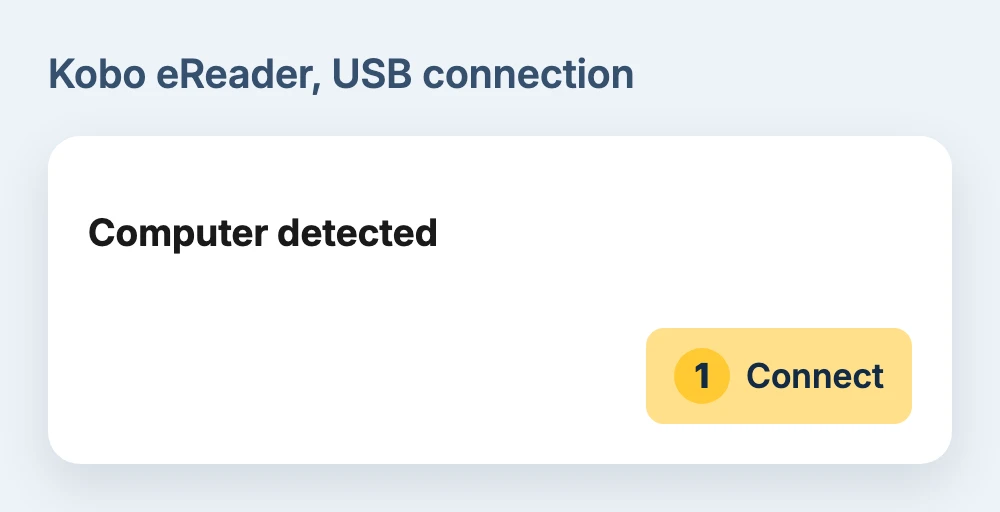
Kobo recommends starting with the connection prompt.
If it never appears, work on the cable, power, and USB connection before looking for a missing Finder icon.
After you tap Connect, open a Finder window and check its sidebar. A drive called KOBOeReader is the expected result. The name is different from the Kobo Books app on your Mac.
Keep the reader connected while checking Finder. Disconnecting it to inspect the cable also removes its storage from the Mac, so reconnect and accept Connect again before checking again.
2. Replace a charge-only cable and remove the hub
Try another cable you've used to transfer files. Charging a phone isn't enough to show that a cable carries data. A cable previously used for file transfer is a better comparison.
Match the plug to the reader. A Kobo Glo, for example, has a micro-USB socket; other models use USB-C. Check the connector shape before inserting it.
Remove docks and USB hubs for the check and connect as directly as the Mac's ports allow. If a simple adapter is necessary, compare another compatible adapter or cable instead of leaving the same hub connected.
Some USB-C hubs don't detect the reader. A direct connection may help on macOS Sonoma 14.4. That suggestion applies to that macOS version; trying a direct connection doesn't require installing an older macOS.
I'd borrow a known data cable before buying anything. If the prompt appears with that cable on the same Mac port, you've found a useful replacement without changing the reader's data.
If it still doesn't appear, try a different Mac port. Note which cable and port you used so you don't accidentally repeat the same failed combination in the next step.
3. Show external disks in Finder
If you accepted Connect but can't find the drive, click Finder and choose Finder > Settings. Open Sidebar, then enable External disks in the Locations section.
For a desktop icon, open the General tab and enable External disks there too. These controls affect where the drive appears; the desktop and sidebar choices are separate.
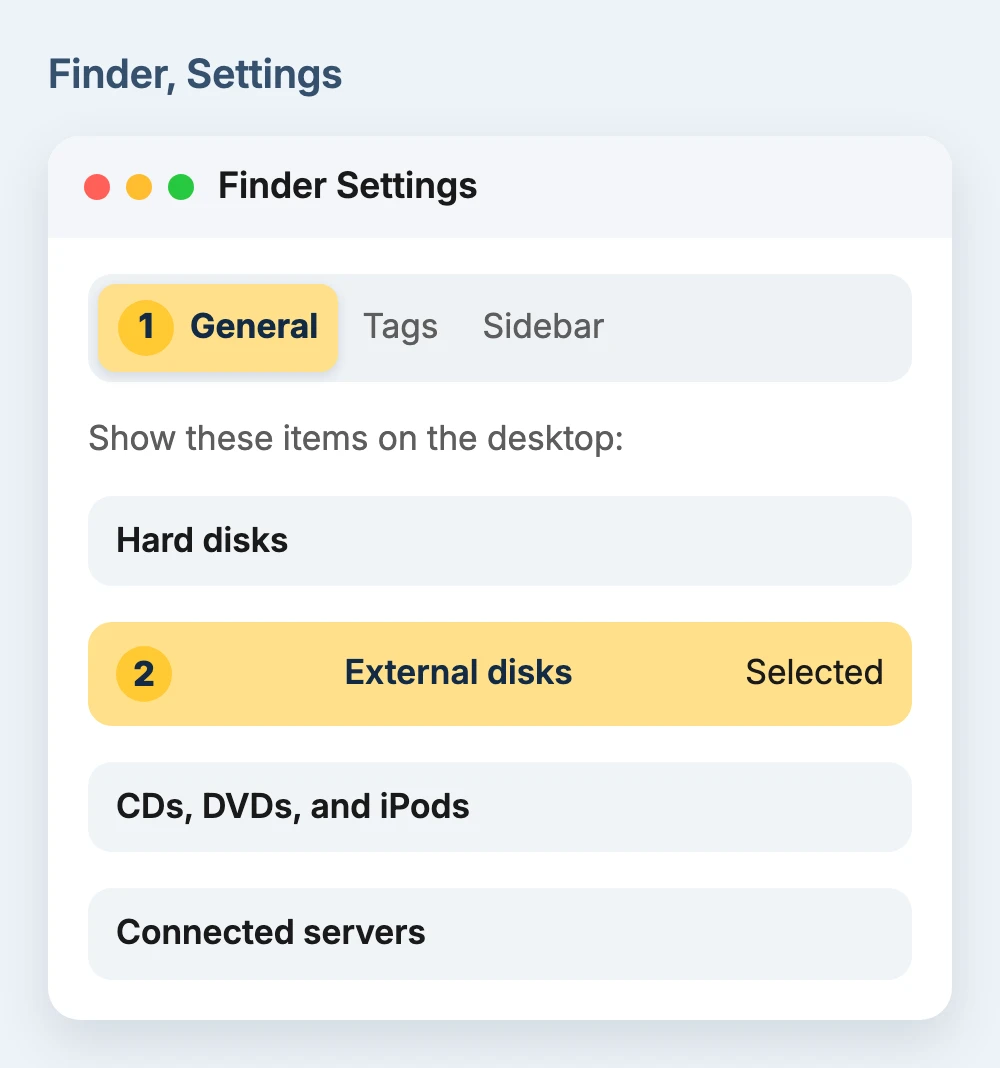
Apple's connected-device display instructions cover both locations.
Older macOS versions call the Finder menu item Preferences instead of Settings.
Check Finder's Locations heading as well as the desktop. If the reader appears in one place, that is enough to open it. A missing desktop icon alone doesn't mean the USB connection failed.
The Mac SD card guide explains the same distinction between hidden storage icons and a device that hasn't connected. Use the cable checks if the reader is absent everywhere.
If a connection-permission prompt appears on an Apple silicon Mac laptop, approve it if it's the Kobo you just connected. The reader can still charge even when the Mac hasn't allowed data access.
4. Charge and restart before another connection attempt
A reader left unused for a long time may not detect the computer right away. Connect it and let it charge for at least an hour. The troubleshooting instructions suggest three hours for a fuller charge and checking whether it turns on.
A wall USB power adapter is another way to charge it before trying the Mac again. Once the reader responds, reconnect the data cable and watch for the Computer detected prompt.
Check the reader's port for anything blocking the connector, a loose connection, or visible damage. Don't force the plug or try to repair a damaged port by bending it back. A loose port needs a repair assessment.
Restart the Mac and try the connection again. If the Kobo can connect to Wi-Fi, sync it so available reader software updates can install; those updates may address USB problems.
Reconnect after the update and check the prompt before Finder.
If other storage devices also don't appear on the Mac, the external drive mounting guide covers the wider Mac storage problem.
5. Compare another computer before resetting the reader
Try the same reader with a known data cable on another computer, connected without a hub if possible. The result helps you work out whether the reader or the Mac needs attention.
If it connects there, tell support which Mac and macOS version failed. Include whether the Kobo showed Computer detected and whether Finder ever displayed KOBOeReader. Don't report only that the app couldn't see it.
If it won't connect to either computer, tell Kobo Support the reader model, which cables you tried, whether it charged, and whether the port is damaged. Ask them to check the USB connection or service options before agreeing to a reset.
A factory reset comes late in the troubleshooting steps. It removes local data and setup, so protect personal files and confirm how you'll restore your books first. Rule out cable problems before erasing the reader.
Once KOBOeReader is visible, you can copy supported, non-protected PDF and EPUB files to the drive. Use Eject on the drive when the transfer finishes, then unplug the cable and let the reader import them.
If the drive is visible but a particular book doesn't open, the USB problem is solved. Check that file's format and protection rather than changing Finder settings again.
The Short Version
Connect the reader directly with a data cable and accept Connect. Show external disks in Finder if needed. Charge and update the reader, then compare another computer before considering a reset or arranging USB-port service.
Checked November 27, 2026.
 If you have any business, I can build it online