To download an image from Notes on Mac, use the Attachments Browser's Save Attachment command. It saves the photo as its own file, without exporting the surrounding note as a PDF.
This route is useful when an image is buried among several notes. A map preview, a locked note, and a scanned document behave differently, so first identify the attachment type before saving.
In this guide
Find the photo in the Attachments Browser
In the Mac Notes app, choose View > Show Attachments Browser. Click Photos & Videos to find image attachments across your notes. The browser works with iCloud and On My Mac notes.
Look for the photo you need, select it, and press Space for a larger preview. That helps you tell two similar thumbnails apart before saving the wrong picture. Close the preview to return to the browser.
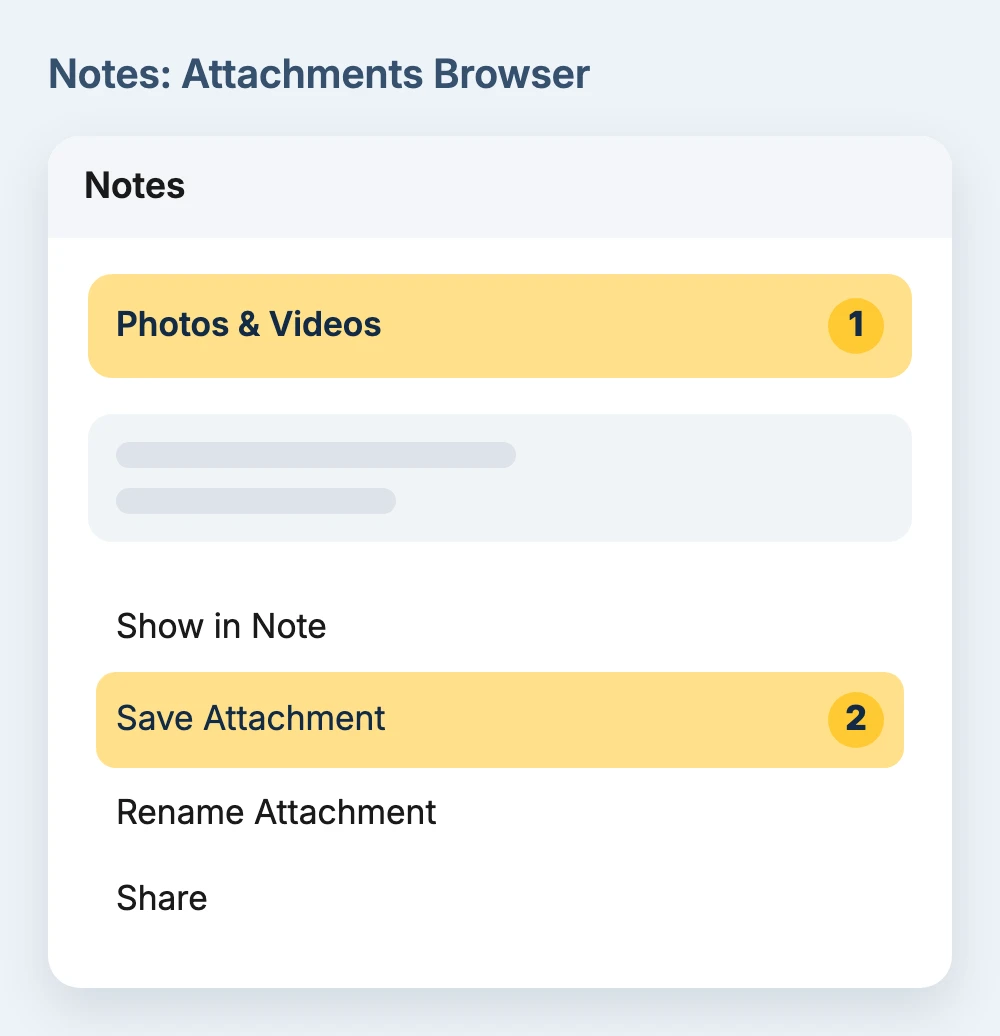
To see where the picture came from, Control-click it and select Show in Note. That opens its note, useful when several pictures share a name or the surrounding text tells you which version to keep.
Apple's attachment instructions list the browser's save control. They also explain why an attachment can be visible in its note yet absent from this combined view.
The browser doesn't include attachments from locked notes, even after you've entered the password to unlock those notes. It also leaves out drawings. If an expected image is missing, open the original note before treating it as deleted.
Save the attachment and check the file
In the Attachments Browser, Control-click the photo > Save Attachment. Save the file in a folder you'll recognize later. Use a folder for the project or trip instead of leaving several indistinguishable copies on the desktop.
Open the destination in Finder and open the saved image. Check that it's the picture you wanted and that nothing is missing. A thumbnail inside Notes isn't enough to confirm the separate file has been saved correctly.
If the filename already exists, decide whether to replace it or save another copy. I'd keep both until I've opened the new one, especially when several photos have generic names that don't describe their contents.
This file is separate from the note's surrounding text. It won't include the checklist, caption, or other pictures simply because they were beside the photo in Notes. Save those items separately when they matter to the recipient.
The note remains in Notes after an attachment is saved. Deleting the note isn't part of exporting the photo, and you can keep it alongside the new Finder copy.
For a complete readable copy instead, use the whole-note export options. Those are useful for a receipt with explanatory text or when the images need to stay in the note's layout.
Open an image from the original note when needed
Open the note containing the image and double-click the attachment. It opens in its default app, such as Preview for image files. This is useful when the combined Attachments Browser doesn't show that item.
For a locked note, unlock it first and work from the note itself. When a thumbnail is missing from the browser, that doesn't mean the photo failed to download or the note is no longer locked.
In Preview, File > Export saves an image in a chosen format and location. Use that route when you need a new image file from the opened attachment, especially if the app you're sending it to needs a different file type.
Other account providers may offer fewer Notes features than iCloud. Check the note's account in the sidebar; a missing browser feature doesn't mean the original attachment has disappeared.
If the image is on your iPhone but hasn't appeared on the Mac, finish the Notes sync checks between iPhone and Mac first. Exporting a different local note won't bring over a missing photo.
Choose JPEG or PNG only if a conversion is needed
A website or another app may ask for JPEG or PNG even though the attachment opens normally on your Mac. Open the saved image in Preview, choose File > Export, and select the required type from Format.
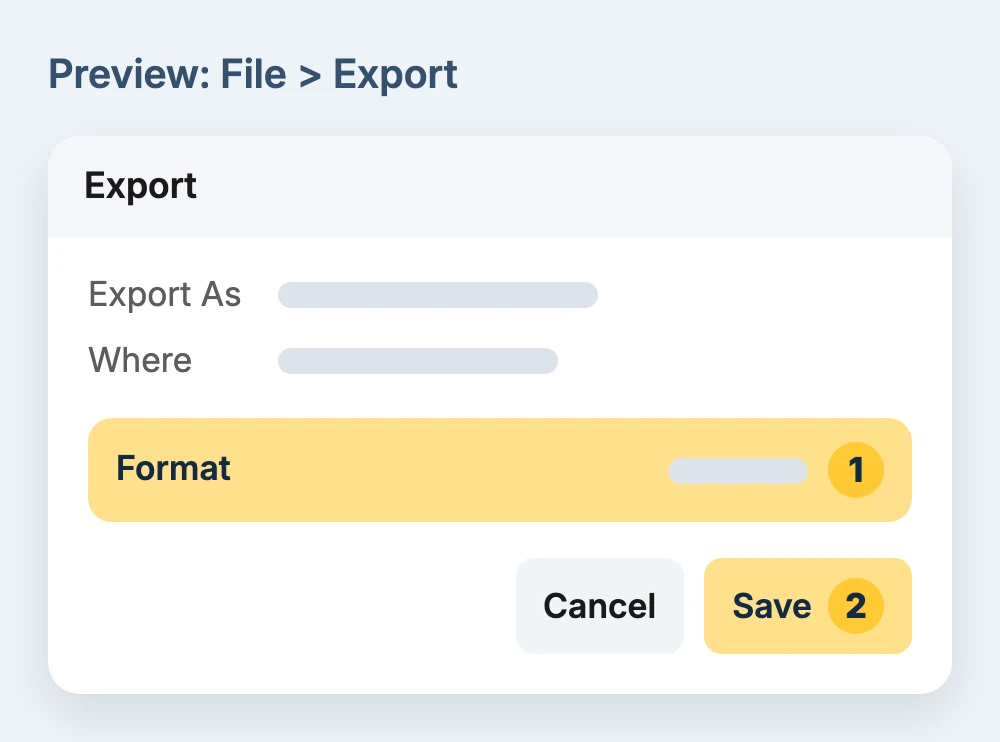
Give the converted file its own name and location, then save it. If Format doesn't show a needed older or specialized type, open that menu with Option held to display extra formats.
JPEG export can include a quality setting. Open the saved file at a readable size; a smaller file may have lost fine text. If the image contains small writing, keeping it readable matters more than making the file tiny.
Don't rename a filename ending from one type to another as a substitute for exporting. Changing the name doesn't carry out the conversion that Preview's Export command performs.
Keep the original attachment file if the converted copy is only for an upload or message. That lets you go back to the original instead of repeatedly converting a copy that's already been compressed.
Handle scans, drawings and previews according to their type
Notes treats a scanned document as a document attachment. Open its note, use the control beside the document name, and choose Open Attachment. It opens in Preview or your default PDF app.
A multi-page scan isn't necessarily a single photo. Check the pages in the opened document before deciding to export an image. Saving just the visible page wouldn't preserve the rest of a multi-page record.
Maps and webpage previews can't all be saved using Save Attachment. That limitation doesn't mean every ordinary photo in the note is blocked too. Check whether the item is an actual image or a preview of something else.
Drawings don't appear in the Attachments Browser. Work from the original note and decide whether the whole-note PDF is the better copy. Deleting and recreating the note won't turn a drawing into a photo attachment.
If an ordinary photo still won't open or save, use Apple Support's Notes for Mac > View attachments instructions. Report the macOS version, note account, lock status, and whether the same image opens on another synced device.
The Short Version
Open View > Show Attachments Browser > Photos & Videos, then Control-click the image and choose Save Attachment. Open the saved file in Finder. Use Preview's Export command when the recipient needs JPEG or PNG.
Checked November 27, 2026.
 If you have any business, I can build it online