Another Terminal session on a Mac is one shortcut away: press Command+N for a new window or Command+T for a new tab while Terminal is active. The existing session stays open, so a running command can continue while you work in the new one.
Use a window when you want both sessions visible beside each other. Use a tab when you want another shell inside the same window. Neither choice requires opening a second copy of the Terminal app.
In this guide
Bring Terminal forward before using the shortcut
Click the Terminal window you already have open and check the menu bar. It should show Terminal beside the Apple menu. Keyboard shortcuts work in the app you're currently using, so Command+N in Finder opens a Finder window instead.
Press Command+N. A separate Terminal window should appear with a shell prompt ready for input. The original window remains available, including any output or command that is still running there.
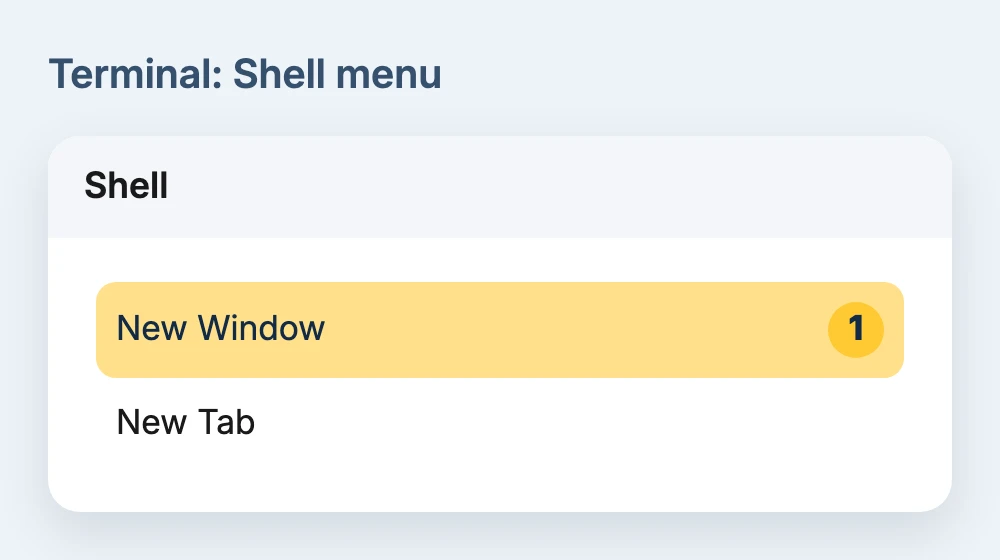
Apple describes both choices in its new Terminal window and tab instructions. The menu route is Shell > New Window, followed by the profile you want to open.
A profile is a saved Terminal setup that controls appearance and can include startup behavior. Choose your normal profile if you simply need another place to type commands; changing the profile isn't required to create a session.
I'd use a separate window for a long-running job and a second command that needs monitoring. With both windows visible, you can see which command produced a message without repeatedly switching tabs.
Add a tab when another window would get in the way
With Terminal active, press Command+T. The app adds another tab to the current window. Select the tab you want before typing; that's where your command will run.
The menu alternative is Shell > New Tab, then a profile from its submenu. This is useful when your keyboard layout changes the shortcut or another tool has reassigned a key combination.
Check the prompt in the new tab before continuing. The old tab can still be busy while the new tab accepts input. Starting a new tab doesn't pause a command, cancel a download, or stop a local server in the original session.
If the tab bar is hidden, Shift+Command+T is Terminal's show-or-hide shortcut. Select tabs in the tab bar to move between sessions. Check the app menus when a shortcut differs on your keyboard.
A new tab gives you another session; it doesn't split the window into side-by-side panes. Choose New Tab when you just need another command prompt. You don't need another terminal app for this task.
Choose the profile used by new sessions
Open Terminal > Settings > General. Look for New windows open with and New tabs open with. These settings choose whether the new session uses the default profile or the profile of the active window or tab.
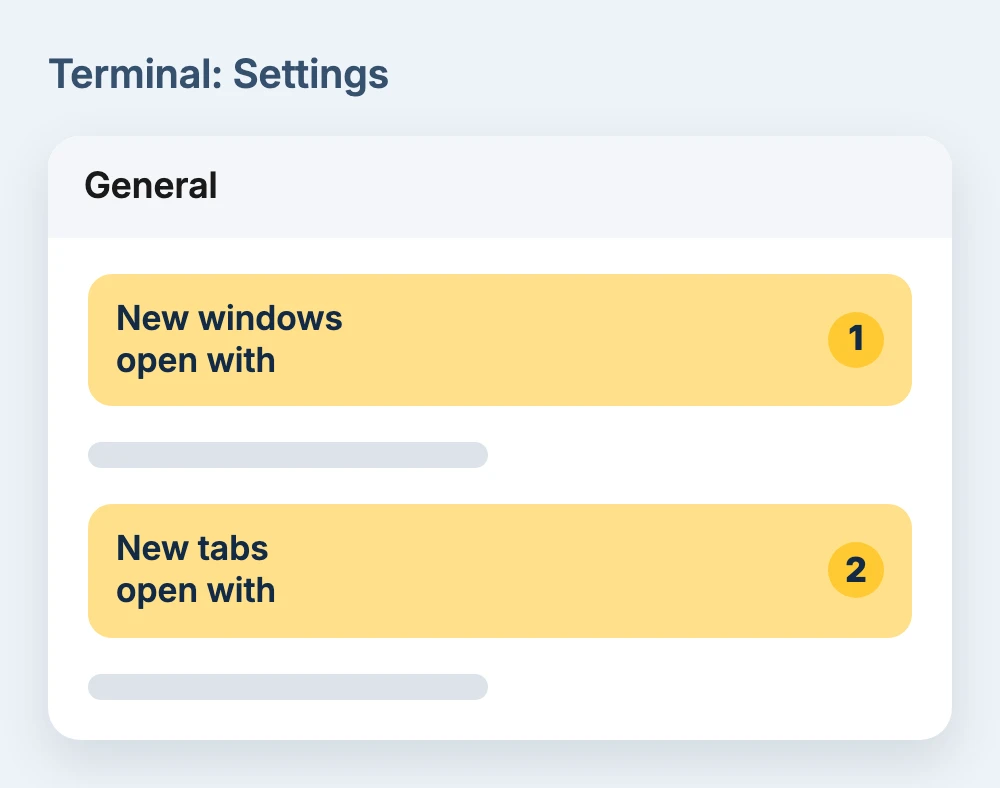
If no default profile has been chosen, Terminal uses Basic. A different background color in the new window can therefore come from the profile choice rather than a broken shortcut or a second Terminal installation.
For a one-time choice, use Shell > New Window or Shell > New Tab and choose the profile in the submenu. The shortcut follows the General setting; choosing a profile by name applies it to that session.
Another window route is Terminal > Settings > Profiles. Double-click a profile's icon in the profile list to open a window using it. This is useful when the setup you want is easier to recognize in that list.
A profile's appearance doesn't tell you which project folder or Python environment a shell is using. Check the session itself before running project-specific commands, especially when two windows look identical.
Check the working folder and project setup
Run pwd in the new session to display its current folder. Commands that use a filename without its full path look in that folder. Check the path rather than assuming the new session has opened in your project folder.
To work in a particular folder, use the Finder-to-Terminal folder route. That guide covers launching at the selected folder, which is a separate choice from opening another window with a keyboard shortcut.
For Python work, activate the required project environment in this new shell. Activation in another tab doesn't configure this one. Use the activation command supplied by your project's setup instructions.
The Homebrew shell setup checks are useful if a package command is available in one session but missing from another. Compare each shell's setup before adding a duplicate installation.
Wait for a ready shell prompt before entering a command. Text entered into a session that's running an interactive program goes to that program, which is another reason to create a fresh tab instead of typing over a busy job.
Close the session you intended to close
Finish or stop the work in the selected session before closing it. Opening a window adds a session; it doesn't move running work out of the original one.
Check which tab is selected before using Command+W to close it. Quitting Terminal can affect your other open sessions too. Follow any warning about running work rather than dismissing it without reading.
If a shortcut still opens the wrong thing, select Shell > New Window directly and check Terminal's active menu bar. Report whether the menu works and the shortcut fails when asking Apple Support for Terminal windows and tabs help.
Include your macOS version, keyboard layout, and the window or tab you wanted. Name any profile that fails. With those details, support can focus on why the session won't open rather than checking folder permissions.
The Short Version
Activate Terminal, then use Command+N for a window or Command+T for a tab. Check the new session's folder and project setup. General settings choose its profile; the old session keeps its own running work.
Checked November 27, 2026.
 If you have any business, I can build it online