ScreenConnect's shared clipboard can fail on a Mac while the session stays connected. Try Essentials > Send Clipboard Keystrokes for short text. If copying freezes the session, reconnect and update both clients.
Copying text, screenshots and files can each fail in different ways. A text workaround won't transfer a picture, and recent owner reports show that installing a newer release hasn't ended every clipboard problem.
In this guide
1. Send short text through the Essentials menu
Copy a short, harmless line of text on the Mac. Click the remote session and put the cursor in an ordinary text field on the other computer. Then choose Essentials > Send Clipboard Keystrokes.
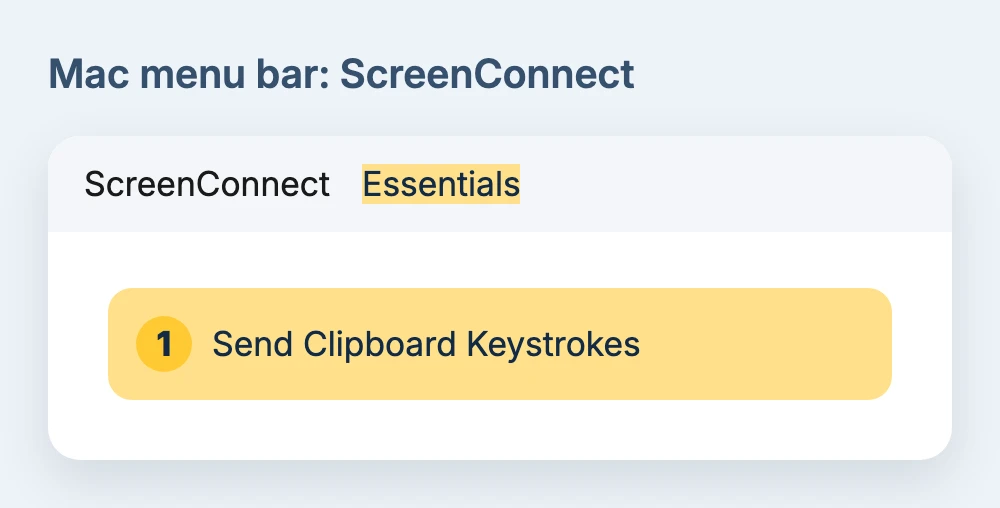
On the Mac host client, look at the Mac's top menu bar. You may find the command there instead of in the toolbar of the window showing the remote computer. Make the session active before looking for its menus.
The command sends the copied text as typing. Use it to type a URL or brief note when clipboard sharing stops delivering text.
Owners in the ScreenConnect clipboard discussion could send keystrokes while pasting failed or crashed the session. A Mac owner also used the send command to enter a URL during an input fault.
Check the resulting characters before using them. Owners also reported trouble with special characters and long scripts, so stick to short text with this workaround.
Don't try the first check in a password box or terminal. A plain text document lets you see whether characters arrived correctly without submitting a password or running a command.
If the text arrives, carry on with the urgent task and check clipboard sharing next. If the command does nothing, note whether remote typing works normally; you'll need to check that typing problem too.
2. Check sharing and the direction of the copy
Open the session's Essentials menu and check Share Clipboard. If your organization allows sharing, enable it for the session. An administrator may restrict the feature, so an unavailable option needs an IT check.
Copy a new short line on the Mac, then paste into the remote computer's text editor. Next, copy different text in the remote editor and try pasting it into a local Mac document.
Use the Mac's Command + C and Command + V shortcuts in local apps. Apps on a remote Windows desktop normally use Ctrl + C and Ctrl + V. Use the apps' Copy and Paste menus if shortcuts don't work as expected.
Record which direction fails. Mac-to-Windows failure, Windows-to-Mac failure and both directions failing are different results. Also note whether Paste inserts old text, inserts nothing or freezes the remote view.
If local copying also fails between two Mac apps, the problem affects more than ScreenConnect. Check that local behavior before changing the remote computer.
The general Windows clipboard checks apply when the remote Windows PC can't copy between its own apps. They don't replace checking ScreenConnect's transfer between the two computers.
3. Close extra sessions and reconnect the affected one
Save work in the remote apps, then close the affected session window and connect again. Copy fresh text after reconnection instead of relying on the clipboard item from before the failure.
If you have several ScreenConnect sessions open, finish or close the others and retry with one session. The vendor's thread identified clipboard failures when sharing was enabled in two or more active host clients.
Trying one session tells you whether having several open triggers the problem. It doesn't mean the computer's local clipboard needs clearing, or that the remote machine needs to be restarted immediately.
One owner reported that reconnecting let them use the send-clipboard command after normal copying locked the session. Others described only temporary relief, so note how long copying works after reconnecting.
Don't repeatedly press Copy while the session is unresponsive. Wait for it to recover or reconnect, then test once. Queued actions can leave you unsure which copied item arrived.
For Microsoft's built-in Remote Desktop, the Remote Desktop connection guide covers a separate client.
4. Update the server and both client ends
Ask the ScreenConnect administrator to check the installed server release and the clients on both computers. Updating the technician's Mac alone can leave the remote guest client on an older build.
ConnectWise's discussion asked users to update host and guest clients for the 26.3.11 clipboard fixes. That was the recommended version then. Ask your administrator which release is supported now instead of installing the old one.
Have your administrator select the supported update for your setup, whether it runs as a cloud service or on a server your organization hosts. Reconnect after the client update so the next check uses the updated software.
Retest plain text first, then a screenshot and a file separately. The forum includes a Mac-to-Windows report where text improved but copied images still crashed the session. Even when text pastes, you'll still need to check images.
Later owners continued reporting trouble on 26.4 and 26.6 releases. Updating is still an important repair step, but clipboard trouble can continue afterward.
If an administrator is planning a server upgrade, have them follow the supported backup and upgrade procedure. Don't downgrade a remote-access server just to copy a screenshot around a bug.
5. Transfer pictures and files through their own route
When only screenshots trigger the failure, capture a screenshot file rather than sending image pixels through the clipboard. Use the session's file-transfer feature if your organization has enabled it.
One later owner reported that file transfer through the menu still worked while pasting hung. Once the transferred file arrives, inspect it at the destination to confirm the right image or document arrived.
Send Clipboard Keystrokes is for text. It won't recreate an image, an attachment or a folder tree. For those items, use file transfer or your organization's approved shared storage rather than retrying the typing command.
If file transfer is blocked by policy too, have the administrator arrange an approved alternative. Keep your original until the recipient can open the transferred file.
Give support a repeatable clipboard example
Ask your ScreenConnect administrator to open a ConnectWise support case with the server, Mac host and remote guest versions. Include each operating system and whether one or several sessions were open.
Describe the source and destination apps, transfer direction and content type. Say whether the session freezes, whether either client crashes, and whether Send Clipboard Keystrokes or file transfer still works.
A harmless sample line and screenshot are enough to show the difference. Keep private clipboard contents out of the support sample, especially when the fault involves passwords or account information.
The Short Version
Send urgent short text as keystrokes, check sharing and reconnect with one session. Update both clients and the server. Use file transfer for images that crash the clipboard, then report the remaining fault.
Checked November 27, 2026.
 If you have any business, I can build it online