To record slow-motion video on iPhone, select Slo-mo in Camera before recording. It captures extra frames so the action can play back slowly. For a clip already in Photos, the editing choices depend on its original recording format.
Supported newer Pro models also offer 120 FPS capture in Video mode. Start with the dedicated Slo-mo control unless you need to record at that higher frame rate in Video mode.
In this guide
Set the slow-motion frame rate in Camera settings
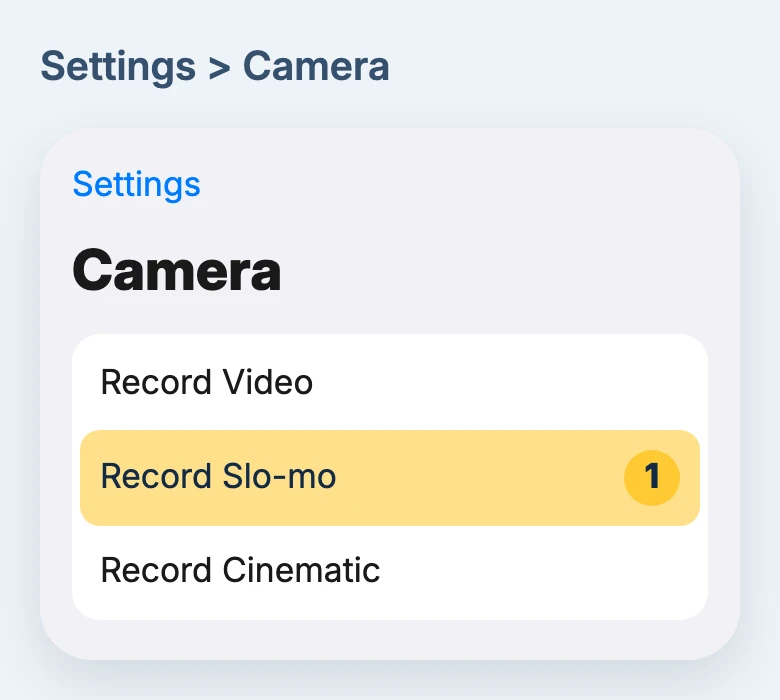
Open Settings > Camera > Record Slo-mo. Pick a resolution and frame rate from this iPhone's available formats, then return to Camera.
Frame rate is the number of separate pictures captured each second. The setting is written as fps. Capturing more frames gives the phone more pictures of the action to show during slow playback.
Apple's guide lists back-camera Slo-mo at 1080 HD at 240 fps, with 1080 HD at 120 fps available as another choice. It lists front-camera Slo-mo at 1080 HD at 120 fps.
Supported models also offer 4K at 120 fps from the back camera. That choice isn't present on every iPhone, so use the actual Record Slo-mo list rather than expecting your phone to match another model's screen.
The settings for Record Video and Record Slo-mo are separate. Changing the regular Video setting doesn't mean the dedicated slow-motion mode is now using that same resolution or frame rate.
After changing the setting, make a fresh short Slo-mo clip. The new recording uses your chosen setting. Changing it won't add extra frames to a clip you've already saved.
Choose Slo-mo before pressing Record
Open Camera and select Slo-mo from the camera modes. Check the selected mode before you start. Video and Time-lapse produce different results, even though all three record movement.
Tap the Record button to begin and tap it again to finish. Either volume button can also start or stop the recording. Models with Camera Control support that control as another recording option.
Keep the action inside the frame through the whole moment you want to slow down. The clip can contain both normal-speed and slow-motion sections, so record enough of the action to choose that section later.
On supported models, the camera-switch control lets you use the front camera in Slo-mo. If that choice isn't available, use the back camera rather than searching for a universal selfie slow-motion setting.
Play the short test from the thumbnail in Camera. Check that the clip saved and that you can open and watch it. If the recording itself failed, don't spend time adjusting playback settings on an older, different clip.
Apple's video recording instructions describe the dedicated mode and its supported controls. The available cameras and recording formats depend on your iPhone.
Use 120 FPS Video capture on supported Pro models
This option supports iPhone 16 Pro, iPhone 17 Pro, and iPhone 18 Pro models, plus iPhone Duo. They can record slow-motion video through Video mode. Check the model's available formats before choosing this route.
Open Camera, select Video, and tap the format and resolution values shown on the screen. Select 120 FPS when it is offered. Record and stop as you would another video.
Recording this way captures extra frames so you can choose how to play the video later. Use it when you need that format; you can still choose the separate Slo-mo mode in Camera.
If 120 FPS isn't offered in Video mode, return to Slo-mo and check Record Slo-mo in Settings. A missing choice on an unsupported model isn't something an app reset will add.
Don't confuse a display's refresh rate with Camera's recording frame rate. A screen specification doesn't tell you which camera modes or resolutions the phone can capture.
Decide whether you're recording or changing an old clip
A clip recorded in Slo-mo already has a slow-motion section that can be adjusted in Photos. A regular clip needs the playback options available for its own captured format.
In Photos, you can slow videos captured at a high frame rate. The recording format determines which playback choices you'll see. Don't expect the same speed choices for every video in your library.
For an existing slow-motion clip that should play normally, use the iPhone video speed guide. Its Photos section explains changing the slow portion without recording the action again.
For trimming and other changes after capture, the iPhone video editing guide explains how to edit a saved clip. Finish recording first, then edit the clip that actually contains the action.
I'd make a short sample in the chosen camera mode before recording an event you can't repeat. Watching the saved result answers whether the mode and format give you the motion you want.
Check the clip on the device that will receive it
Review the saved recording in Photos before sharing it. Check that it includes the complete action and that the intended part plays slowly. The thumbnail alone doesn't show how the finished clip moves.
When another app plays the result differently, watch the original in Photos for comparison. Keep that original while checking the receiving app's video support and the way it handles a shared clip.
If a video plays correctly in Photos but differently after sharing, check the receiving app's playback options. Changing Camera's recording settings won't change the copy that has already been sent.
For a recording fault, give Apple Support your phone model, iOS release, camera mode, and Record Slo-mo format. Say whether a fresh short clip can be recorded and played in Photos.
For a missing format, ask whether the exact model supports that recording option. That is more useful than resetting every Camera preference to chase a format the hardware doesn't offer.
The Short Version
Select Slo-mo in Camera before recording and choose its format under Settings > Camera > Record Slo-mo. Supported Pro models also offer 120 FPS in Video mode. Existing clips need Photos editing choices suited to their captured format.
Checked November 27, 2026.
 If you have any business, I can build it online