Chrome downloads fail when a full disk or a folder you can't save to stops the file being saved; Forbidden and Needs authorization point to website permissions. Read the message in Downloads before adjusting Chrome's security settings.
If nothing starts, check the download link and whether the site is trying to save several files together. If a file finished but won't open, the download itself may already be complete.
In this guide
1. Read the result in Chrome's Downloads list
Open Chrome's three-dot menu and select Downloads. On Windows, Ctrl+J opens the list; on Mac, use Command+Shift+J. Look for the file and read the status shown beside it.
Check whether the download is paused, failed or finished. Each needs a different response. If the list is empty, return to the website and click its actual download link once, watching for a save dialog or permission prompt.
For a paused file, use Resume in the download controls. If it fails again, note the displayed message rather than repeatedly pressing the original link and building a list of identical failed attempts.
A completed item with Show in folder or a folder control points you to the saved file. Check that location before downloading another copy just because the app you expected to use it in didn't open automatically.
Google says its download error fixes depend on whether saving, website access or security checks failed. Choose the matching error rather than working through every possible repair.
2. Repair a save-location failure
For Insufficient permissions or System busy, cancel the failed download. Right-click its link on the website and choose Save link as, then select a folder your account can use, such as Documents.
If the link opens a webpage instead of the file, use the site's proper download control again. Save link as is useful for a direct file link, not every button that runs a website's download process.
To change the regular destination, open Settings > Downloads in Chrome. Beside Location, choose Change and select a folder on your computer that you can save to.
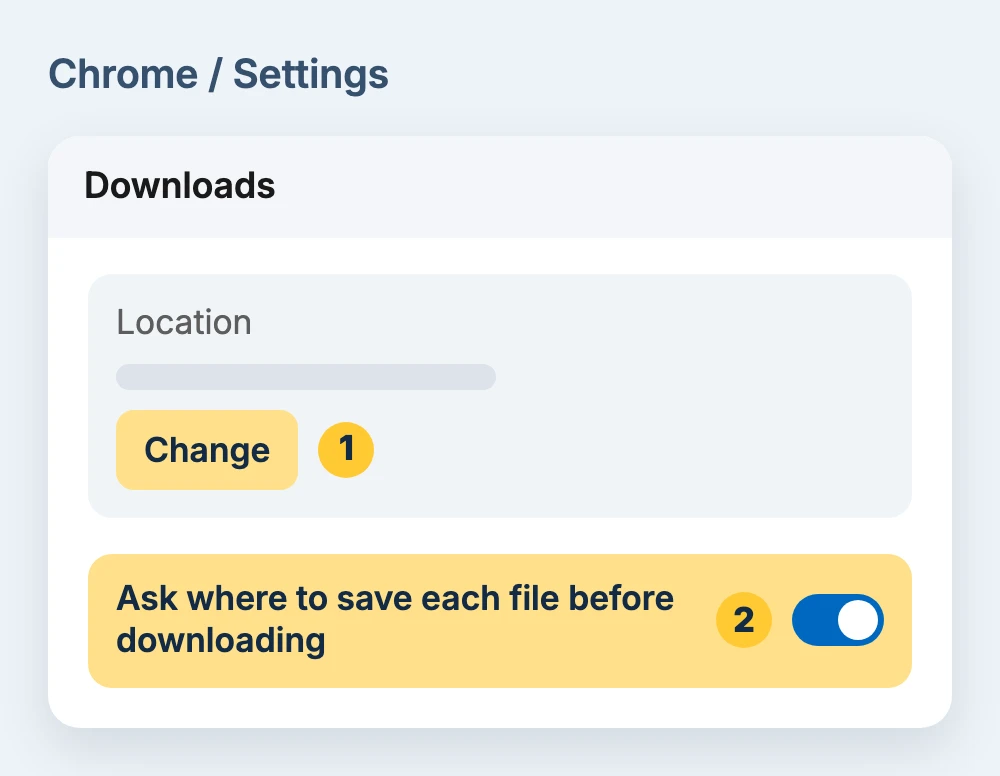
Enable Ask where to save each file before downloading to select a destination for every transfer. This also makes an unexpected old folder easier to spot before another attempt fails there.
If saving to the new folder works, check the original destination's permissions or availability. A disconnected drive or denied folder access needs to be reconnected or have its access fixed outside Chrome.
On a managed work computer, ask IT about the approved download folder if this setting is locked. A company policy can set the location without offering a usable Change button.
3. Free space for a Disk full error
A Disk full message means there isn't enough space to save the file. Delete unwanted files on the destination drive, then empty the Recycle Bin on Windows or Trash on Mac when you're ready.
Check the drive receiving the download, especially if Chrome saves to an external disk. Freeing room on another drive doesn't make space at the selected destination.
Retry the file after space is available. If a different message replaces Disk full, follow that new message; freeing space can solve one problem while another still prevents the download.
If the file is transferring but taking much longer than expected, use the slow Chrome download checks. Speed and available storage are different questions, so repeated retries won't fix either one by themselves.
4. Refresh access to a missing or restricted file
For Forbidden or Failed - Forbidden, go back to the website that hosts the file. Check whether you need to sign in, then start from the current page after signing in.
Needs authorization means your account doesn't have permission to download the file. Request access from the owner, specifying the account you're actually using, rather than resetting Chrome to try to change a server's access rule.
For No file or File missing, the file may have moved or no longer exist at that address. Look for a current download on the maker's own page or contact the website owner about the broken link.
Include the page address and exact error in that report. A link from an old email can fail while the current download page works, and the owner needs to know which link sent you there.
I'd try the current page before changing browser settings. A fresh link that your account has permission to use can solve that failure without removing cookies or signing out of unrelated websites.
5. Allow a trusted site's batch download when only later files fail
A website saving several related files can hit Chrome's automatic-download permission. This fits a first file that saves successfully while the remaining files never start.
Open Settings > Privacy and security > Site Settings > Additional permissions > Automatic downloads. Review the current choice and any site-specific entries.
Allow multiple downloads for the trusted site rather than letting every website save batches of files without asking. Then return to its export or download page and repeat that operation once.
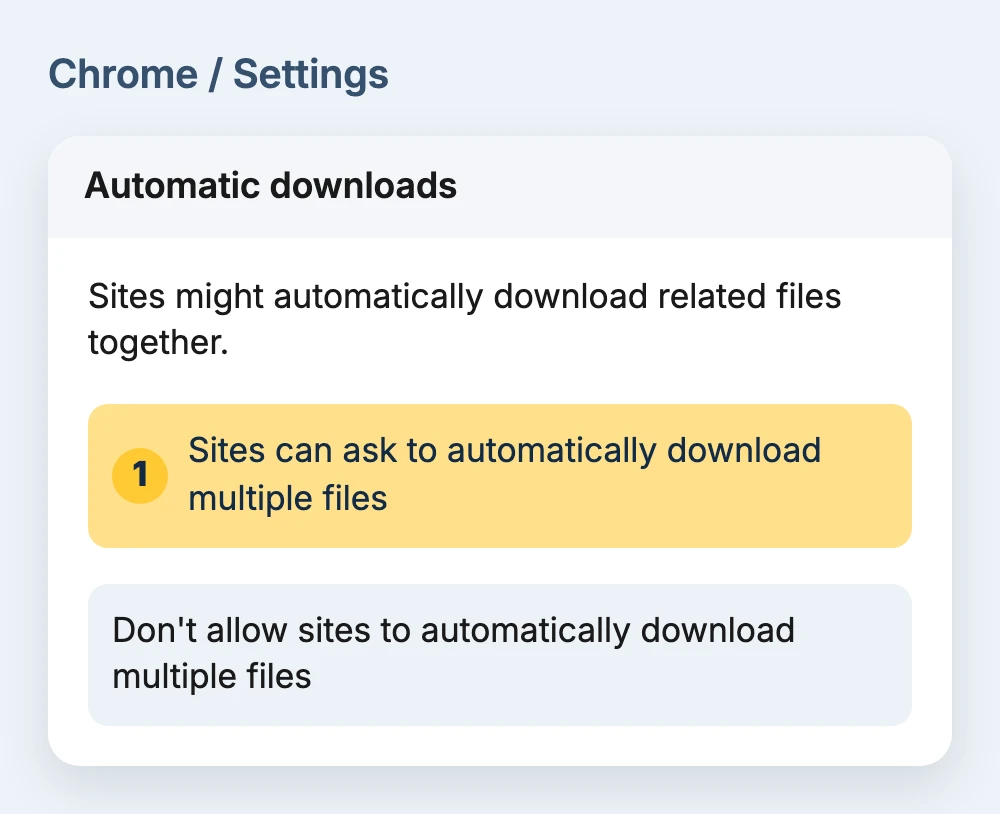
This permission controls related files downloaded together. It doesn't fix Disk full, authorize a private file or make a security warning disappear, so use this change when the first file saves but the rest don't start.
6. Keep connection and security failures on their own routes
If the message names the internet connection, check that ordinary pages load and use the Chrome connection download error checks. An unstable transfer needs that connection repaired.
For Virus detected, Virus scan failed or Download blocked, read the browser and security software's explanation. Don't disable protection just to turn an unknown download into a successful one.
Ask the file's publisher for a current trusted copy if the expected download is blocked. On a work PC, send the warning to IT for a review of the file and its blocking rule.
If other trusted files save, report the failed one to its website owner with the message, link and time. For failures across sites, tell Chrome Help Community which files worked or failed, your browser version and operating system.
The Short Version
Read Downloads first. Fix the save folder for permission errors, free space for Disk full and return to the website for missing or restricted files. Check Automatic downloads when only the later files in a batch fail.
Checked November 27, 2026.
 If you have any business, I can build it online