A chrome.exe application error comes from Windows while Chrome is starting, running, or closing. End any stuck Chrome processes and restart the PC first, then use the exact error wording to decide whether to repair Chrome or check Windows.
An error number matters more than the chrome.exe heading alone. A missing file, blocked access, and a memory-related crash need different checks, and an Aw, Snap message inside a tab needs different troubleshooting.
In this guide
1. Close the failed Chrome process and restart Windows
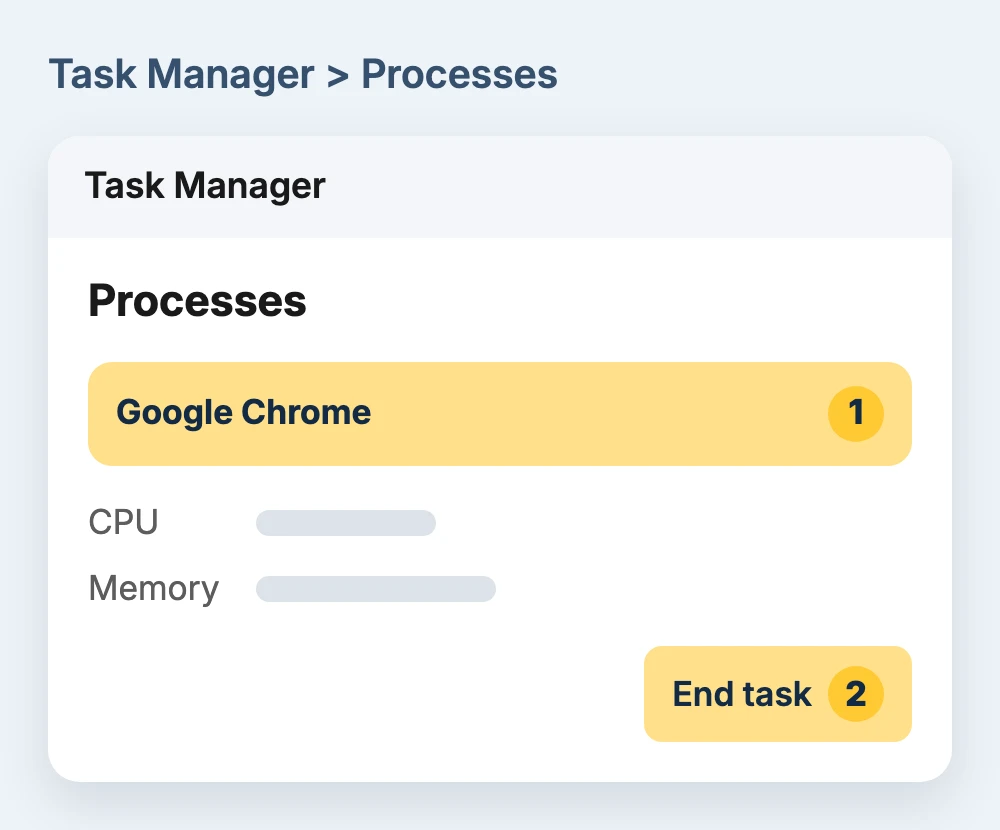
Save work in other apps, dismiss the error, and press Ctrl + Shift + Esc to open Task Manager. Under Processes, select Google Chrome or chrome.exe, then choose End task. Repeat for remaining Chrome entries.
Google says to end background Chrome processes because the app can keep running without a usable window. Ending a process closes its tabs, so unfinished form entries can be lost.
Open Chrome once from Start. If the same error returns, restart Windows through Start > Power > Restart, then try again before opening your usual apps.
If Chrome opens normally now, check whether the error also returns when you close it. Note whether it happens only during shutdown. That gives support a different problem to check than Chrome refusing to open at all.
When the problem repeats, stop relaunching it in a loop. Read the full message next to decide which repair matches your error.
2. Record the full message before choosing a repair
Copy the error code exactly, including the opening 0x. Check whether Windows reports a failed application launch, a file couldn't be found, or memory couldn't be read or written. Save a picture for support if necessary.
Also record when it appears: immediately after selecting Chrome, after opening one site, or when signing out of Windows. A repeatable trigger lets the support team recreate exactly what happened.
For 0xc000007b, use the application startup error guide. That code calls for startup repairs; a browser tab that runs out of memory needs different checks.
If Chrome opens and only a tab fails, switch to the Chrome Aw, Snap error checks. Closing every Windows process or reinstalling Chrome would be too much as a first step for one failed website.
For a missing DLL, keep the exact filename. Don't download an individual replacement DLL from an unfamiliar download page. Repairing the app or its required component is the safer way to restore the correct file.
3. Check whether security software blocked Chrome
Open Start, search for Windows Security, and open Protection history. Find an event recorded around the time of the error, then open its details if your account has permission.
The Protection history page describes recorded threats, blocked apps, and other protection actions. A matching event can explain why a Chrome file stopped loading.
Keep protection enabled while reviewing the result. If a file was quarantined, ask the security software's support team to check it rather than allowing the whole Chrome folder without knowing what was detected.
For a third-party antivirus, check its recent events instead. For a company- or school-managed PC, give IT the error and blocked-file details; an organization policy may control the decision.
If no relevant event appears, continue with Chrome repair. Without a matching event, changing antivirus settings would be guesswork. Leave them alone unless another check points there.
4. Replace Chrome's installation without deleting your data
Before uninstalling, confirm that bookmarks, saved passwords, and other needed browser data are available in your account or a backup. If another Chrome window still opens, check those items there first.
On Windows 11, open Settings > Apps > Installed apps. Find Google Chrome, open its three-dot menu, and choose Uninstall. Windows 10 uses Settings > Apps > Apps & features, then Google Chrome > Uninstall.
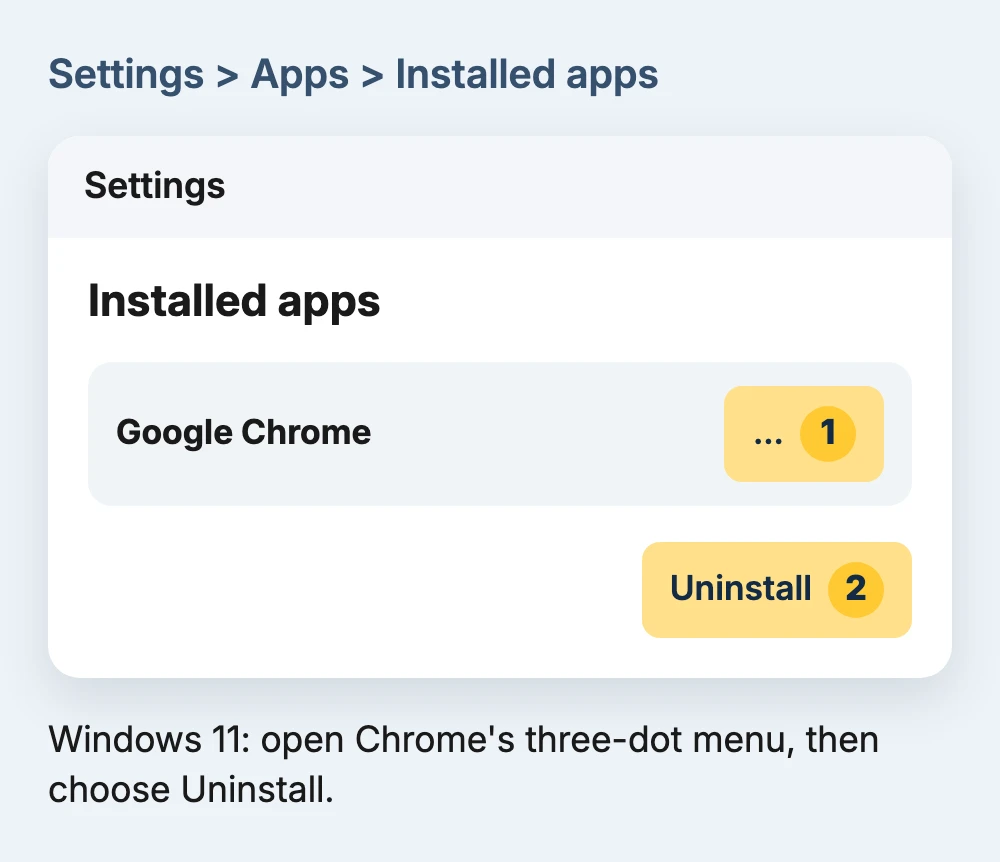
In Chrome's removal dialog, leave Also delete your browsing data unchecked unless you've chosen to remove that data. Replacing program files and deleting a browser profile are separate actions.
Using another working browser, visit the official Chrome download page, download the installer, and run it. Follow the installation prompts, then try Chrome before restoring extra tools or changing more settings.
If the fresh installation opens, check your bookmarks and accounts before proceeding with normal browsing. If the identical Windows dialog returns, note that reinstalling didn't change it and move to the Windows check.
I'd replace the installation before renaming profile folders. Profile folders can hold your only local copy of browser data, and a Windows application error doesn't by itself identify a damaged profile.
5. Repair Windows files when the fault extends past Chrome
If other applications also fail, or Windows continues reporting file-related errors after Chrome is reinstalled, finish any available Windows updates, then restart. Save your work before starting the repair tools.
Search Start for Command Prompt, choose Run as administrator, and accept the administrator prompt. Enter this command, allowing it to finish:
DISM.exe /Online /Cleanup-image /RestorehealthThen run:
sfc /scannow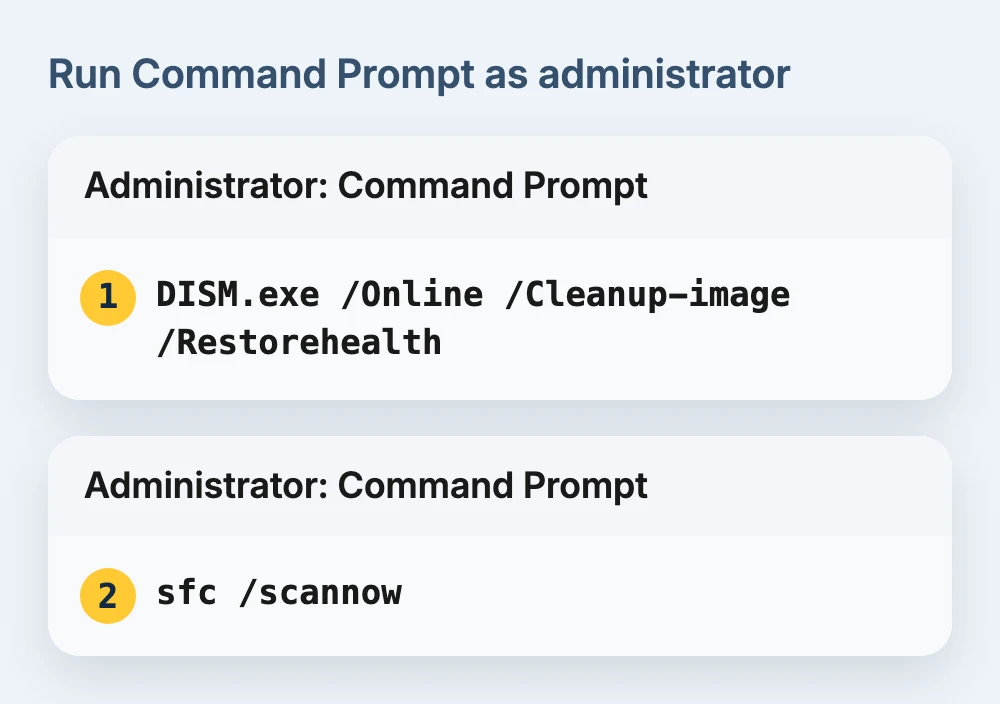
The System File Checker procedure repairs protected Windows files. These tools don't restore Chrome's bookmarks or replace the browser's own installer.
Keep the window open long enough to read the result. Restart after repairs and repeat the failed Chrome action. If either command fails, record its code so support can review the failure.
Get the unresolved error reviewed
For a Chrome-only failure, use the Chrome Help Community to provide the Windows version, exact error, trigger, and reinstall result. Include whether another Windows account or other applications have the same problem if you already know.
If several apps fail or Windows repairs remain unfinished, ask Microsoft or your PC manufacturer to review the recurring error and repair output. A memory reference in the message isn't enough to justify buying RAM.
The Short Version
End stuck Chrome processes, restart, and record the full Windows message. Check security events, reinstall Chrome while keeping your browsing data, and repair Windows files when other applications fail too.
Checked November 27, 2026.
 If you have any business, I can build it online