Missing Chrome extensions can sit in another profile or disappear from the toolbar. Check More > Extensions > Manage extensions: if your add-ons are listed, they're still installed. If the list is empty, check your profile.
A disabled extension is a different case. Chrome can switch an add-on off because it's damaged, unsafe, or no longer supported. Read its message before reinstalling anything, so you don't bring back the same problem.
In this guide
1. Check the extension list before rebuilding it
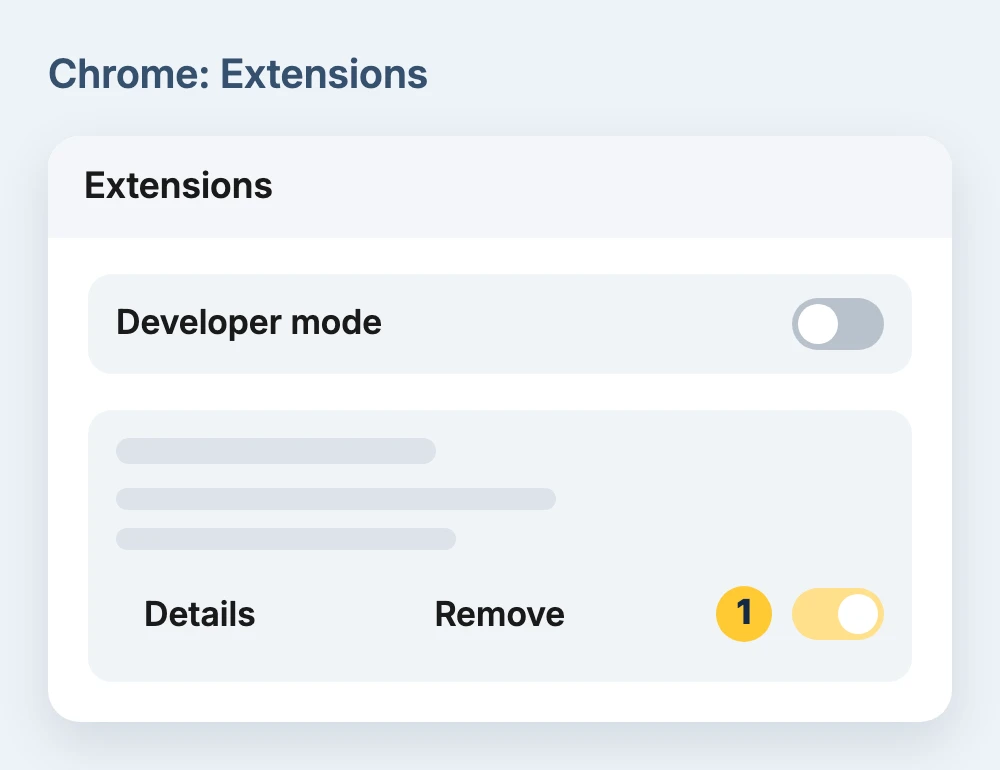
From a normal Chrome window, select the three-dot More menu, then Extensions > Manage extensions. The direct address chrome://extensions takes you there too. This check applies to desktop Chrome on Windows, Mac, and Linux.
Look for the missing add-ons in that list. An entry with its switch off is installed but disabled. Turn it on when Chrome shows no security or compatibility warning, then open a page where you normally use it.
If the extension works again, you don't need to reinstall it to get its toolbar button back. Select the puzzle-piece Extensions toolbar control, find that add-on, and select its Pin control if available.
Not every add-on includes a pin control. Others work only on certain pages, so a dim button on a new tab doesn't mean the extension is broken. Test on the site the extension is meant to change.
If the list is empty, check which profile you're using. Keep this window open while checking profiles, rather than downloading the whole collection again. I'd check the profile first when bookmarks and saved passwords seem different too.
2. Switch back to the profile that owned the add-ons
Select Chrome's upper-right Profile control and look through the other profiles listed. Choose your previous browsing profile, then inspect its extension list. Browser information is stored separately for each profile.
Work, personal, and Guest windows can look alike even when they have different add-ons. Even the profile picture can match across accounts. Check the email address and bookmarks to find the right window.
If the expected add-ons return in the old profile, use that window for your browsing. Chrome doesn't need a repair or a profile-folder transfer for that. Changing a profile's name can make the right window easier to recognize next time.
Google's profile instructions explain how to switch profiles and manage them. Don't delete the old profile during this check: deleting one removes its local browser information.
When the wrong window also seems to have lost favorites, the missing Chrome bookmarks checks help you recognize a profile mix-up. Your familiar bookmarks can help you recognize the right profile before restoring extensions.
3. Leave Guest or Incognito before testing installation
Close the Guest window and open your usual Chrome profile. For an Incognito window, return to a normal browser window instead. Chrome blocks extension installation in both Guest and Incognito browsing.
An extension installed in your normal profile also needs separate permission to run in Incognito. On its extensions-page entry, select Details and inspect Allow in Incognito if you actually need that access.
That setting changes where an existing extension can run. It won't restore an add-on missing from the normal profile. Check a normal window first so a private-browsing restriction doesn't look like a browser-wide loss.
If your regular profile still shows no extensions, continue with the account check. If only one add-on is present but won't run, go straight to its warning or repair control instead.
4. Check the account before restoring absent extensions
Open Profile and check the browser account against the one you used previously. Signing into Gmail in a tab isn't the same action as signing into the browser itself.
Chrome can save extensions and settings to your account, but that doesn't mean every extension in an old local profile was saved there. A newly created profile won't recover add-ons that were never stored with that account.
Open More > Settings > You and Google to check which account Chrome is using. Follow any sign-in or passphrase request shown there, then revisit Manage extensions. Use the account that held the collection, rather than creating another one.
If another computer still has your working collection, check its profile and account before changing it. Leave that working copy alone while you check which account and add-ons you need on the affected computer.
Once the right profile and account are confirmed, an add-on that's still absent can be installed again. Choose familiar add-ons from their original developers. Avoid substitutes promoted by unrelated download pages.
5. Read disabled or damaged extension messages
For an entry marked as corrupted, select Repair, then confirm the repair. Open a suitable page afterward and try its normal action. Repair fixes an existing damaged entry. It won't bring back add-ons that aren't listed in the profile.
A fresh corruption warning after repair can mean suspicious software is changing the extension's files. Check installed programs and security tools before retrying. On a managed computer, involve your IT team.
An unsupported add-on needs a maintained replacement. The unsupported Chrome extensions guide explains that case. Reinstalling the same outdated extension won't remove the compatibility requirement.
A work or school policy can also prevent installation. If Chrome shows that your organization manages the browser, ask its administrator whether the missing extensions were removed or blocked. A new local profile won't override that policy.
6. Reinstall only the add-ons that are actually missing
Open the Chrome Web Store, search for the extension, and check its developer before choosing Add to Chrome. Read the requested permissions and confirm only if they're appropriate for that tool.
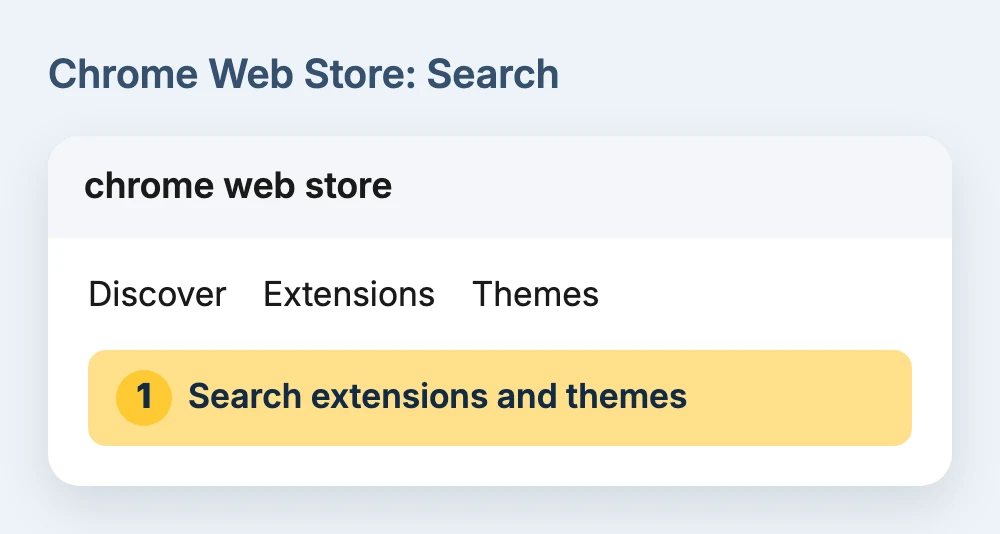
Add one extension at a time, then test it on a relevant page. This helps reveal a replacement that behaves differently or asks for more access than the old version. Pin its button afterward if you need quick access.
If one add-on still fails, look for the developer's support contact on its Web Store listing. For an entire collection blocked on an organization's computer, send IT the profile name and exact message from the extensions page.
The Short Version
Check hidden icons, disabled add-ons, and other profiles before reinstalling. Return to the original account, repair damaged entries, and find maintained Web Store replacements for unsupported extensions.
Checked November 27, 2026.
 If you have any business, I can build it online