This site can't be reached on Android often points to a connection problem. Try another website, then try Wi-Fi and cellular data separately. The result tells you which needs attention: your connection or the site.
A small error code under the message matters too. The fix differs for a disconnected network, an address Chrome can't look up, and a website refusing connections.
In this guide
1. Check the address and read the error code
Tap the address bar and correct any spelling mistakes. Open its home page instead of an old bookmarked page. Then try a different familiar website in the same Chrome window.
If only one address fails, the website or that saved link may be the problem. If several unrelated sites fail, move to the connection checks. Erasing the phone won't bring an unreachable server back online.
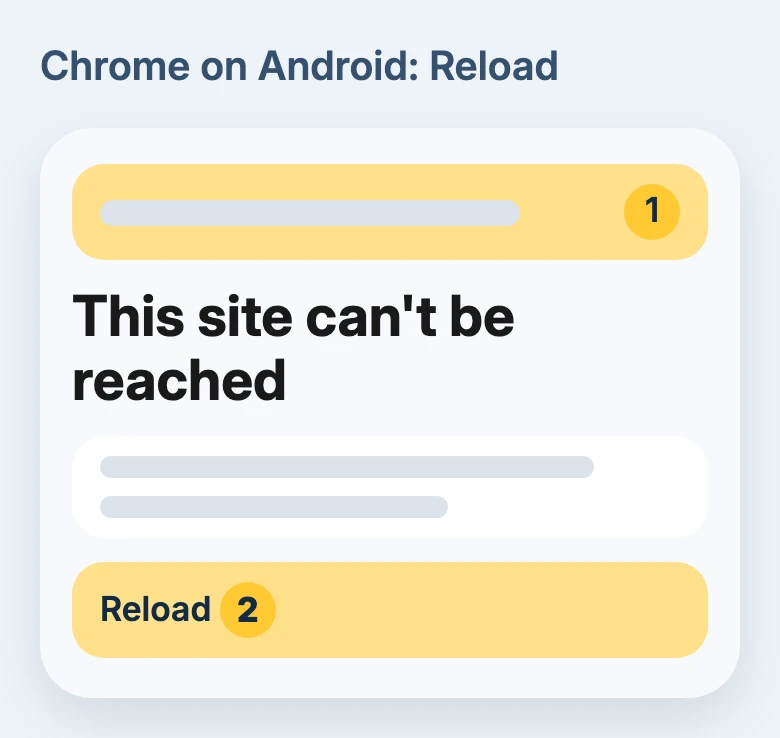
Look for a code such as ERR_INTERNET_DISCONNECTED, ERR_NAME_NOT_RESOLVED, or ERR_CONNECTION_REFUSED. Save a screenshot of that code for support. Support can use that exact code instead of a general description of the browsing failure.
ERR_INTERNET_DISCONNECTED means the internet connection is disconnected. ERR_NAME_NOT_RESOLVED means Chrome couldn't turn the website's name into the address it needs to connect. Correct a mistyped address before changing network settings.
ERR_CONNECTION_TIMED_OUT means Chrome stopped waiting for a connection. The server may be busy or the connection slow. ERR_CONNECTION_REFUSED means the connection was refused or blocked; clearing storage won't remove a server's block.
A certificate or privacy warning needs its own checks. Don't bypass it to make a page load, especially before entering a password. Treat a security warning separately from an unreachable address.
2. Try the other internet connection
Drag downward from the screen's upper edge to open Quick Settings. Turn off Wi-Fi, then try the address using cellular data if your plan includes it. Turn Wi-Fi back on and try again.
If the page opens on cellular data but not Wi-Fi, the Wi-Fi network or its connection to that server needs attention. A page that fails on both, while other sites work, points back toward the address or website.
Turn on cellular data. Turn off Airplane mode if you find it enabled. A Wi-Fi symbol only shows a connection to the router; the router can still have no working internet connection.
If every device on your home Wi-Fi fails to browse, restart the router according to its instructions. Test when its internet connection returns. Report a continuing outage to your provider; Chrome changes won't restore router service.
If only this phone fails, restart the phone. Google recommends comparing connections in its Android troubleshooting steps before trying larger changes.
On hotel, airport, or cafe Wi-Fi, look for the network's sign-in notification. Finish its access screen before returning to Chrome. Ask the venue for the correct sign-in process if the portal never appears.
3. Check a VPN or a managed connection
Pause your own VPN connection, then retry. If that restores browsing, enable the VPN again to compare the result. Give the VPN provider the affected address and the error code.
Employer-issued and school-managed phones can have filters, proxies, or required VPN connections. Ask your administrator whether that website is allowed. Removing management settings can break access to the services the device needs.
Don't install an unfamiliar VPN to fix this message. Test your existing connection software. Make each change separately so the result tells you what helped.
If both Chrome and another browser fail on the same connection, keep working on network access. If the second browser opens the address, concentrate on Chrome's update and stored-data checks next.
4. Update Chrome and reopen it
Open the Play Store, tap your profile picture, then Manage apps & device. Install an available Chrome update. Close Chrome from the recent-apps screen. Open it again and retry the original address.
Updating replaces an older version of Chrome; closing and reopening it starts a fresh app session. A long-running browser session with working internet in other apps is a good reason to try this.
Close unused tabs and other apps if Chrome also crashes or reloads pages unexpectedly. Low available memory can cause loading trouble, but it doesn't explain a site that fails on every device in the house.
If Chrome itself won't stay open, use the separate steps for an Android app that keeps stopping. A browser crash needs different attention from a stable error page.
5. Compare Incognito, then clear the right data
Tap Chrome's three-dot menu and choose New Incognito tab. Type the same address there. This lets you try a fresh browsing session without deleting your regular session's saved website data.
If the page opens there, return to regular Chrome and use Delete browsing data. Tap More options to review the data types. Choose a time range that includes when the trouble began before confirming deletion.
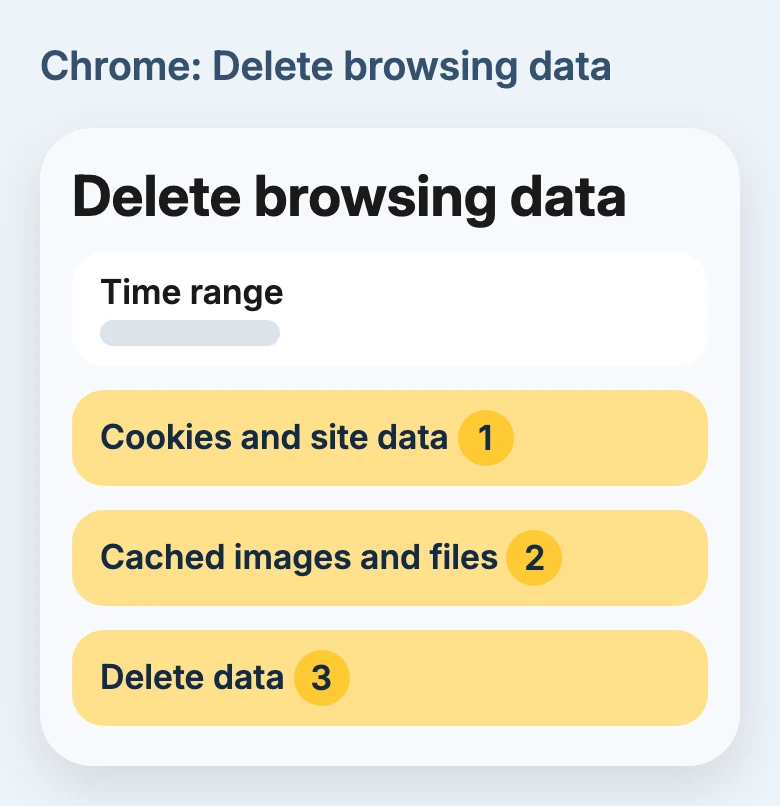
Cookies and cached files are relevant here. Deleting cookies can end website sessions. Have your login details ready. You don't need to select saved passwords to fix a loading error.
For more control over what gets removed, use the guide to clearing cache on Android. Chrome's browsing data and another app's cache are separate controls.
When Chrome still can't reach the site
If one website fails across browsers and connections, email the website operator. Include the address, displayed error, and approximate time browsing failed. Ask whether the server is unavailable or your connection has been blocked.
When several websites fail on one connection, tell the network administrator or provider what happened on the other connection. If only Chrome fails after its updates and data checks, use Help & feedback in Chrome's menu to report it.
Include your phone model, Android version, Chrome version, and whether Incognito worked. That record lets support see the comparisons you already made without relying on your memory.
The Short Version
Compare another website and another connection first. Fix Wi-Fi access or VPN trouble when several sites fail. If only Chrome is affected, update it, try Incognito, and remove the relevant browsing data.
Checked November 27, 2026.
 If you have any business, I can build it online