Scrambled OneNote sections and misplaced controls can come from an NVIDIA driver fault. Update the matching graphics driver first; an owner with a ThinkPad P1 confirmed that a newer Quadro driver stopped this corruption.
The app in that report was OneNote for Windows 10, now retired. You'll also need to move your notes safely to current desktop OneNote. Missing text in every app, a flickering whole screen and a single damaged notebook need different checks.
In this guide
1. Update the NVIDIA driver for the affected computer
Search Start for Device Manager, open it and expand Display adapters. Read the full graphics adapter name. Integrated graphics can appear alongside a separate NVIDIA entry; don't choose a package just from the laptop's brand.
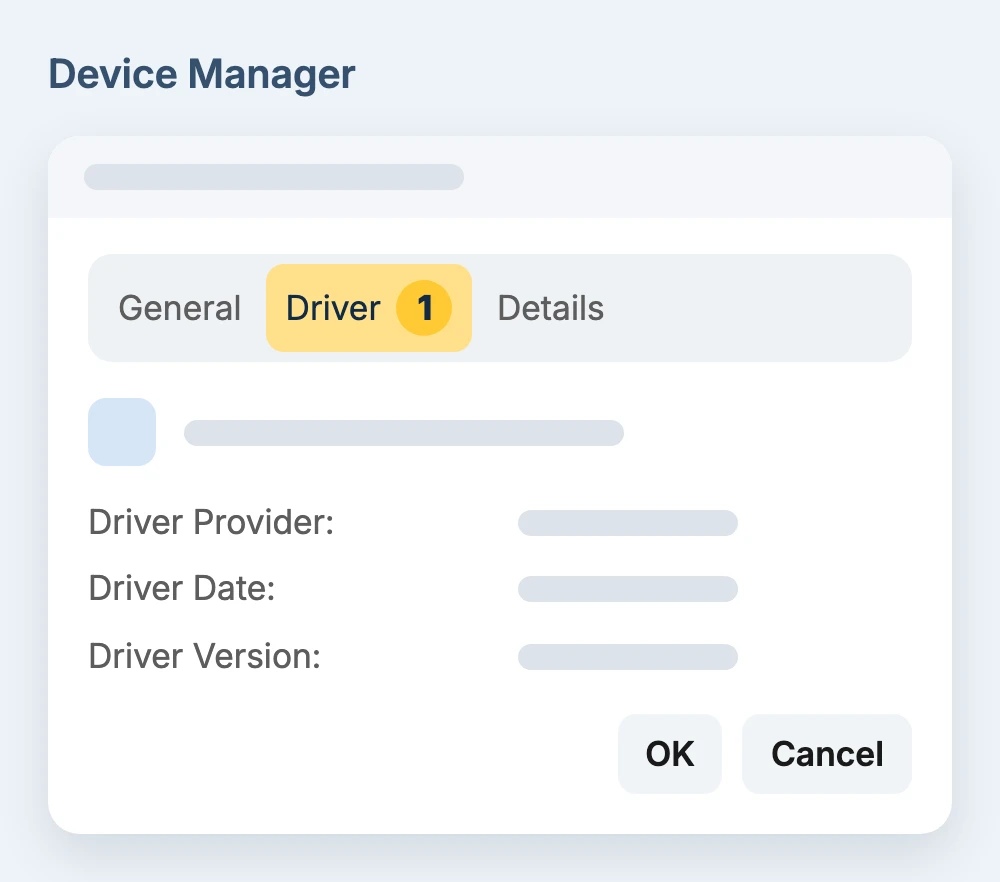
Right-click the NVIDIA adapter, select Properties, then open Driver. Record Driver Version and Driver Date. Check these details again after installation to see whether you've installed a different driver or reinstalled the same one.
Get a graphics driver that your computer maker supports for this model and Windows release. For a managed work laptop, give IT the model and installed driver details so they can supply an approved update.
Another route is a Windows driver search: right-click the adapter in Device Manager, choose Update driver, then follow its search option. If Windows finds nothing newer, the computer maker can still have a newer supported package.
The graphics-driver update guide explains the Windows 11 update routes and how to match a manual package. Keep the driver suitable for your machine rather than downloading a Quadro package meant for another generation.
Save your work, install the driver and restart if requested. Open the affected notebook and scroll or switch sections the way you did when the display went wrong. Look for correctly placed sections and readable page content.
In the Microsoft discussion, an owner said a Quadro release 430 driver dated June 10, 2019 stopped their video corruption. The update fixed it then, but use a driver supported for your computer today instead of that old release.
I'd start here before repairing notebooks. The original fault affected every notebook on the machine, and making a new notebook didn't change it. If the updated driver makes no difference, check which OneNote app is running next.
2. Replace retired OneNote without losing local notes
Look at the app name in Start. OneNote for Windows 10 is the retired Store app. Current desktop OneNote has a File menu. The two names refer to different Windows applications, even when both open the same cloud notebook.
Support ended for OneNote for Windows 10 on October 14, 2025, and it moved into read-only use. Repairing its display doesn't restore supported editing or syncing. Use the current migration instructions to move to desktop OneNote.
Before removing the old app, keep any pages that exist only there. Compare the newest notes with the cloud notebook and save readable missing content separately. Uninstalling or resetting the old app can remove the only local copy.
In desktop OneNote, choose File > Open while signed in as the notebook owner. From the matching OneDrive or SharePoint account, select the original notebook. Reusing the notebook name won't bring its pages into a new notebook.
Check its most recent pages, attachments and handwritten changes. Choose File > Info > View Sync Status to watch the notebook's sync result. A notebook name in the list alone doesn't tell you that its latest content arrived.
OneNote 2016 was the temporary alternative in that discussion. Today, install the current supported OneNote application rather than a 2016 installer. If it displays the notebook correctly, continue working there.
3. Check whether the corruption follows one notebook
Open a different notebook in this app. If its pages draw normally, compare the affected notebook with its online copy using the matching account. That checks whether just this notebook is affected, unlike the original all-notebooks fault.
Use your own signed-in browser for this private notebook comparison. Compare the affected page and its newest edit. If the online page is older and the local page looks scrambled, that doesn't automatically mean your notes were deleted.
If recent changes are absent online, protect the local content before closing that notebook. The offline notebook preparation guide explains how local work and the shared copy differ.
Don't rebuild every notebook because one section looks wrong. First record whether a different notebook displays normally and whether the affected page is readable online. Give those two results to support if the content needs recovery.
If every notebook is scrambled but other applications remain clear, ask support to check the app and graphics driver. If the desktop, browser and other windows also flicker or scramble, follow the whole-screen route next.
4. Treat whole-screen flicker as a Windows display fault
Press Ctrl + Shift + Esc to open Task Manager during the flicker. Check whether it flickers too. Microsoft's screen-flicker guidance uses that difference to separate display-driver trouble from an incompatible app.
If a graphics update started the trouble, open the adapter's Properties > Driver tab and check Roll Back Driver. It needs administrator rights. An unavailable button means no earlier driver is ready for rollback.
Ask the manufacturer which earlier package this model supports. Reinstalling the same new driver won't undo the change that started the problem. After rollback, restart and compare OneNote with the other affected windows.
If the screen looks wrong before Windows starts, have the hardware checked. Software repairs inside OneNote won't correct bad colors or lines already visible on the startup screen.
Send support the app and driver comparison
If desktop OneNote still draws incorrectly, send its support team the Windows release, OneNote build, graphics adapter and driver details. Explain whether every notebook is affected and whether other applications show corruption.
For a ThinkPad or another work laptop, ask its manufacturer or IT to check that the graphics driver is approved for that model too. Include a cropped picture without private notes plus the trigger, such as changing sections or scrolling.
The Short Version
Update the matching NVIDIA driver, then inspect the previously scrambled page. Move from the retired app after saving its local-only pages. Separate a single-notebook problem from corruption across the whole Windows display.
Checked November 27, 2026.
 If you have any business, I can build it online