Frozen Finder windows often recover with Option-Command-Esc, then Finder > Relaunch. Check the drive or network location if reopening it brings back the freeze. Restart instead when the whole Mac is unresponsive.
In this guide
1. Relaunch Finder without shutting down the Mac
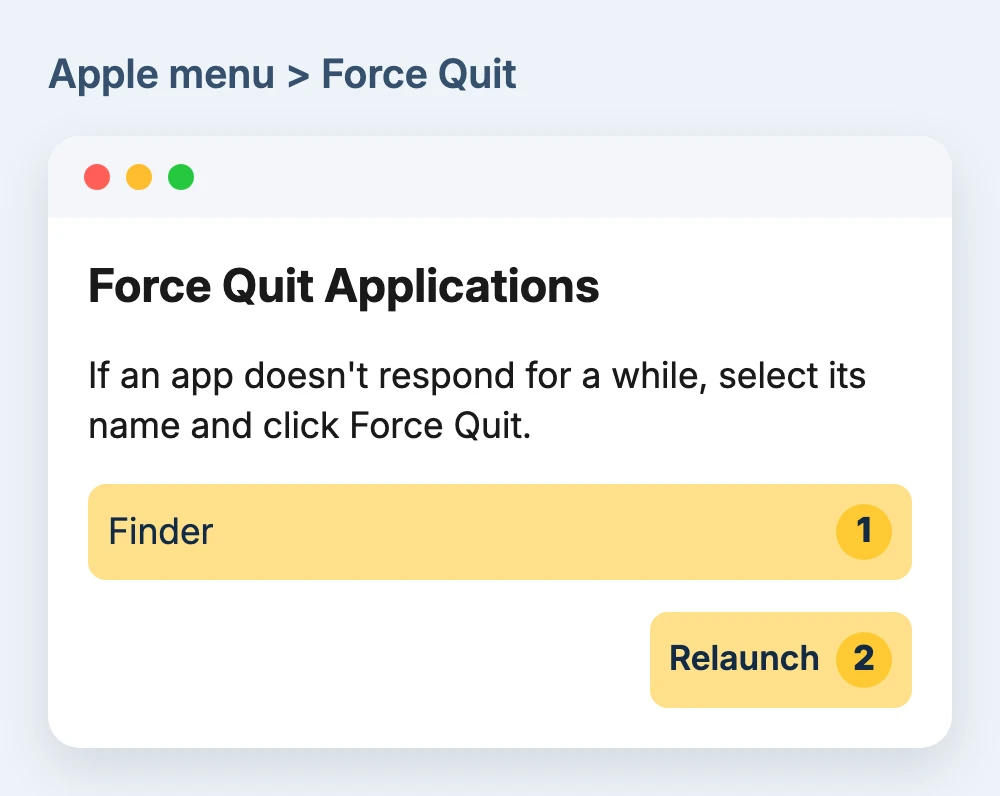
Press Option-Command-Esc together to open Force Quit Applications. Select Finder, then click Relaunch. Finder is part of the desktop, so this button differs from the Force Quit button used for ordinary apps.
Its windows or desktop icons may disappear briefly and return. Open a local folder such as Documents and try selecting files and browsing other folders. If you can browse and select files again, Finder is responding.
Relaunching Finder can interrupt a copy or move. If a transfer was in progress, check both locations afterward before deleting either copy. Don't assume a progress window that vanished means the transfer completed.
If Finder opens normally and stays responsive, stop there. Apple says Relaunch reopens an unresponsive Finder.
If the same folder immediately stalls again, note which location you're opening. A disconnected server or troublesome external disk can freeze that window even when Finder works elsewhere.
2. Compare a local folder with the problem location
Open Go > Home in Finder, or press Shift-Command-H. Try a folder stored on the Mac itself. Then try the location that brought back the spinning pointer. If only the external location hangs, check its connection next.
For an external disk that won't open or mount, follow the Mac external-drive checks. Check the cable, power and disk status there instead of repeatedly reopening the same frozen window.
For a network share, confirm that the server and its network connection are available. For a workplace share, request a server check from its administrator. Relaunching Finder can't bring an offline file server back online.
A folder in iCloud Drive may also contain files that still need downloading. Check the file status and try opening a file already stored on your Mac. An unavailable online original and an unresponsive Finder are different problems.
Don't unplug a disk in the middle of a working transfer. If Finder is responsive enough, use the eject control first. When it can't eject or the disk repeatedly stalls the Mac, shut the Mac down before disconnecting it.
3. Restart when Relaunch doesn't recover the desktop
Try Apple menu > Restart if Finder won't relaunch or soon becomes unresponsive in every folder. Save work in other apps first. A normal restart gives those apps the chance to close their files properly.
When the entire Mac freezes and Restart is unavailable, keep power pressed until shutdown, allowing up to 10 seconds. On laptops with Touch ID, that's also the power button. Press power briefly to start the Mac again.
A forced shutdown loses unsaved changes, so keep it for the Mac that won't restart normally. When the desktop returns, open a local folder before reconnecting nonessential external storage or reopening the network share.
If Finder now works, restore each device connection separately. If local folders freeze again with nothing external connected, move to safe mode. That lets you try Finder with less startup software running alongside it.
4. Compare Finder in safe mode
Safe mode is useful for a recurring freeze, especially after installing software that starts automatically. It also checks the startup disk and clears some caches. The way you start it depends on the Mac's processor.
On Apple silicon, shut down, then keep power held until the startup-options screen opens. Select the startup disk, keep Shift pressed while selecting Continue in Safe Mode. Log in when prompted.
On Intel, restart and immediately hold Shift until the login window appears. Release it and log in. Another login prompt can appear. Look for Safe Boot in the menu bar on one of those login screens.
Test the same local folder and, if appropriate, the problem location. Notice whether the freeze happens in safe mode too; that tells you which steps to try next. Restart normally when you're finished with the comparison.
If normal startup freezes again while safe mode works, check System Settings > General > Login Items & Extensions. Older macOS versions may shorten that page name to Login Items. List the Open at Login entries before removing them.
Remove those startup entries and restart. Restore each entry separately, restarting after each addition. If one brings the freeze back, remove that entry again. The app and your documents stay installed.
5. Use First Aid for a persistent disk-related freeze
If Finder keeps stalling while reading a particular disk, check that disk. Back up readable files before repair. Open Applications > Utilities > Disk Utility and use View > Show All Devices to see the device and its contents.
Select the last volume on the affected device and run First Aid. Work upward through its other volumes, their container and the device itself. Disks have different names and numbers of entries, so don't copy someone else's disk number.

For the Mac's startup disk, open Recovery's Disk Utility instead. Apple silicon opens Recovery through startup options, then Options > Continue. Intel uses Command-R while starting. Choose Disk Utility > Continue in Recovery.
If the disk isn't detected or can't be repaired, ask Apple Support or a repair shop about the storage device and recovering your files. Don't choose Erase as a troubleshooting shortcut when those files matter.
The Mac error -36 guide is more specific when Finder stays responsive but a file copy fails with that error. A failed copy message doesn't automatically mean the whole Finder process has frozen.
When Finder still freezes in local folders
Ask Apple Support to check Finder if it keeps freezing after a restart and in safe mode. Include the macOS version, affected locations, whether external storage is connected and the First Aid result if you ran it.
If safe mode fails despite a completed storage repair, discuss reinstalling macOS from Recovery with support. Keep the existing disk and your backup intact. Avoid deleting Finder settings without a specific reason.
The Short Version
Relaunch Finder with Option-Command-Esc first. Compare local folders with the location that hangs. For recurring freezes, restart and compare safe-mode behavior. Use First Aid for disk failures; ask for a disk check when it fails.
Checked November 27, 2026.
 If you have any business, I can build it online