A computer that won't shut down is often waiting for an app to close, or Windows gets stuck as it powers off. Save open documents, then close whichever app the shutdown screen names.
A PC that turns back on, a Mac refusing to quit an app, and a dark monitor with running fans need different next steps.
In this guide
1. Finish the app that's stopping shutdown
Read the message on the screen before pressing the power button. Windows can show an app preventing shutdown; macOS can say an application interrupted it.
Cancel the shutdown, return to that app, and save or discard the document through its own controls.
Close the app normally, then try shutting down again. For Windows 10 or 11, choose Start > Power > Shut down. On a Mac, choose Apple menu > Shut Down. Closing the lid on a laptop usually sends it into sleep mode.
Answer any prompt asking you to save your work. A frozen program needs a different approach. If the app responds, finish its dialog rather than forcing it closed. If it's stuck, use the next section.
A successful shutdown leaves the computer off until you start it again.
A keyboard light, charging light, or powered USB socket can remain active on some computers after shutdown. Check whether the fans and operating system are still running before treating a single light as a failed shutdown.
2. Close a frozen app without cutting all power
On Windows, press Ctrl + Shift + Esc to open Task Manager. Find the stuck program in the list, then select End task. Windows 11 may place that action in the upper toolbar; on Windows 10, look near the lower edge.
Try shutdown again after the app disappears. If the same program blocks every attempt, update it and check its own support options. Ending it lets you shut down for now, but doesn't fix the program.
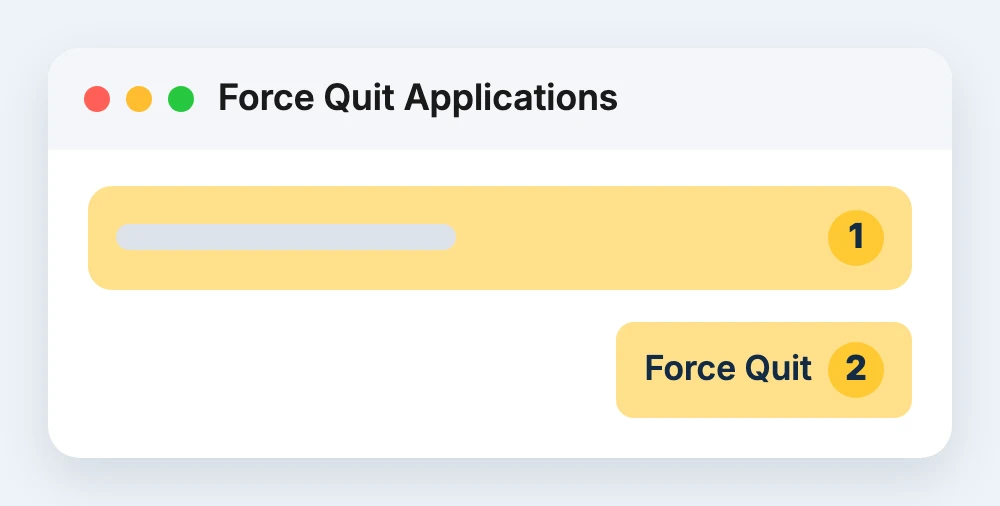
On a Mac, press Option + Command + Esc. Select the app that isn't responding, then click Force Quit. If Finder is stuck, the button is Relaunch instead.
Intel Macs use this Force Quit shortcut too; the chip makes no difference here.
Apple says to quit an app normally first, giving it a chance to save changes. Unsaved changes can disappear when you force quit, so close only the frozen program this way.
If neither Task Manager nor Force Quit opens, the whole computer may be unresponsive. Leave the emergency power-off step until you've checked whether the screen is displaying an update.
3. Let an update finish, then restart Windows
A message about installing updates is different from an app refusing to close. Connect the charger if a laptop is still installing updates. A changing percentage or an automatic restart means the installation is still progressing.
Don't interrupt a BIOS update or other firmware installation. If that screen appears stuck, use the manufacturer's recovery advice for your exact model before trying a forced shutdown.
Once Windows is usable, open Settings > Windows Update on Windows 11. On Windows 10, open Settings > Update & Security > Windows Update. Finish any pending restart, then try a normal shutdown with your apps closed.
I'd try Restart before changing power settings. It gives Windows a fresh session instead of using Fast Startup's shortcut.
The restart versus shutdown explanation covers why those actions can behave differently.
If restarting works but shutting down repeatedly hangs or returns to the sign-in screen, continue to the Fast Startup check. If both freeze, tell the manufacturer the last message and what hardware you recently connected.
4. Test Fast Startup when Windows won't stay off
Fast Startup saves part of the Windows session to speed up the next start.
The shutdown repair steps include disabling it when the computer restarts instead of remaining off. This is a Windows check, not a macOS setting.
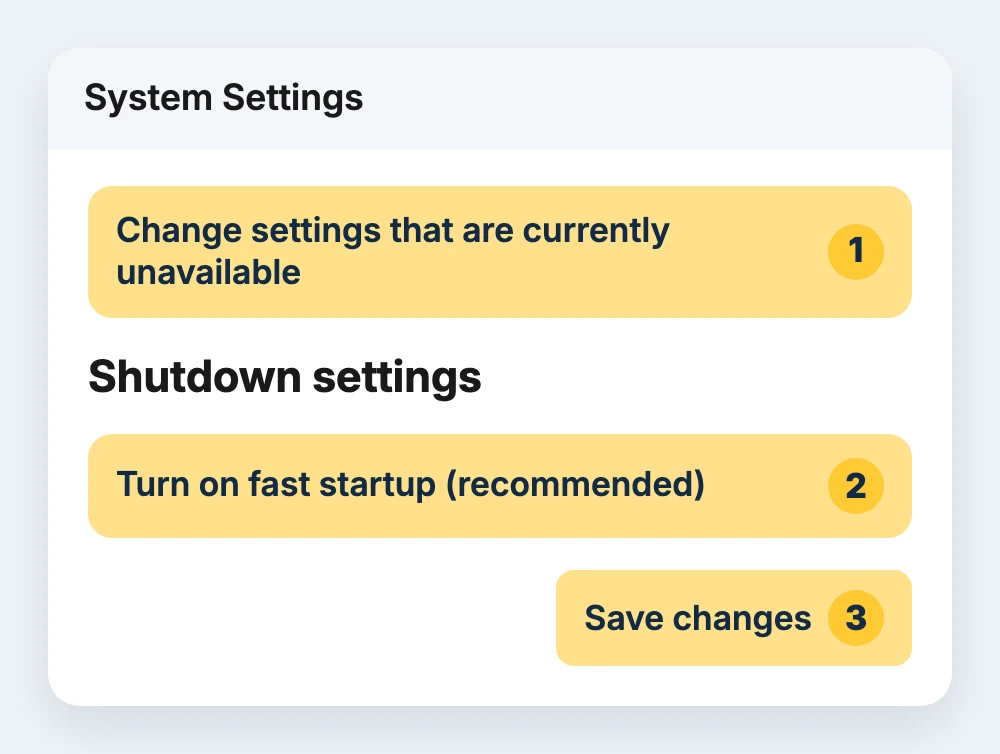
Search for Control Panel, open Hardware and Sound > Power Options, then select Choose what the power buttons do.
Click Change settings that are currently unavailable to unlock the shutdown choices.
Clear Turn on fast startup (recommended) and click Save changes. Shut down through Start again. If the setting isn't listed, skip this test rather than changing the registry to create it.
If your computer stays off this time, leave Fast Startup disabled and check the manufacturer's current chipset and power-management drivers for your model. A slightly slower start is preferable to an unreliable shutdown.
If it powers off and then starts again, disconnect nonessential USB accessories and the dock before another test.
The Dell shutdown guide covers that brand's wake-device checks in more detail.
5. Switch a frozen computer off with its button
For a Mac that ignores Force Quit and Restart, hold its power button. Allow up to 10 seconds for it to switch off. The Touch ID key serves as power on MacBooks that have it. Release it when the Mac switches off.
For a Windows PC, follow your model's manual for forcing it off. Keep that button held down until the PC turns off. A quick press may only start sleep mode. This can lose unsaved work.
Disconnect unnecessary external devices while it is off, then turn it on and try one ordinary shutdown with no documents open. If it still won't shut down with those devices disconnected, forcing it off again won't fix the cause.
Get model-specific shutdown diagnostics
Contact the computer maker with the model, operating system, last screen message, and whether it hangs, restarts, or keeps its fans running. Ask for shutdown diagnostics and current power-management drivers.
For a Mac, request a startup and shutdown assessment from Apple Support.
The Short Version
Close the app holding shutdown first. Finish pending updates and restart Windows before testing Fast Startup. Use forced power-off for a frozen computer, then get model-specific help if a normal shutdown still fails.
Checked November 27, 2026.
 If you have any business, I can build it online