A Samsung fingerprint sensor can fail because of dirt, moisture or a changed screen protector. Unlock with your PIN, clean the sensor and your finger, then try again off the wireless charger.
A request for the PIN immediately after a restart is normal. A sensor that won't register any finger, or a message saying the sensor isn't responding, calls for more than retrying an occasional failed unlock.
In this guide
1. Check the PIN request and the sensor position
Enter your usual PIN, password, or pattern when prompted after the phone starts up. Fingerprint unlock isn't offered for every security check. Test it again after the phone has accepted that first manual unlock.
If the PIN fails too, this isn't just a fingerprint problem. Use the Android screen-lock guidance for the account and lock issue before changing your saved fingerprints.
Find the sensor your model actually uses. Many Galaxy phones read through the display, others read from a button on the side. Some older Galaxy models have the reader on the back or in the Home button.
For an in-display reader, place your fingertip over the on-screen fingerprint symbol. For a side reader, cover the sensor with the pad of your finger. Pressing the middle of the screen won't help a model whose reader is in its button.
Try the registered finger, not just whichever finger is easiest to reach. If another saved finger works, the phone can still read fingerprints; try improving or replacing the scan that fails.
2. Clean the contact area and check the protector
Wipe away dirt and moisture from your finger and the sensor area with a soft, dry cloth. Cover the whole reader and leave your finger there until the scan finishes.
Very dry skin can also read poorly. Samsung recommends a little hand lotion when excessive dryness prevents recognition. Let it absorb before trying again rather than leaving the display wet or greasy.
Take the phone off its wireless charger and repeat the unlock. Wireless charging can reduce recognition performance on affected devices. If recognition returns, use the sensor while the phone is off that charger.
For a reader inside the display, inspect the screen protector over its position. A thick, textured, scratched, or incompatible protector can interfere with the scan, especially if the problem began when you fitted it.
Replace an unsuitable protector with one compatible with your phone's fingerprint reader, then register the finger again. Don't stack a second protector over a factory-fitted film.
A side or rear sensor doesn't read through the screen protector. For those models, check whether the case prevents your finger from resting flat over the sensor instead of buying a different display film.
3. Add a fresh fingerprint using your phone's menu
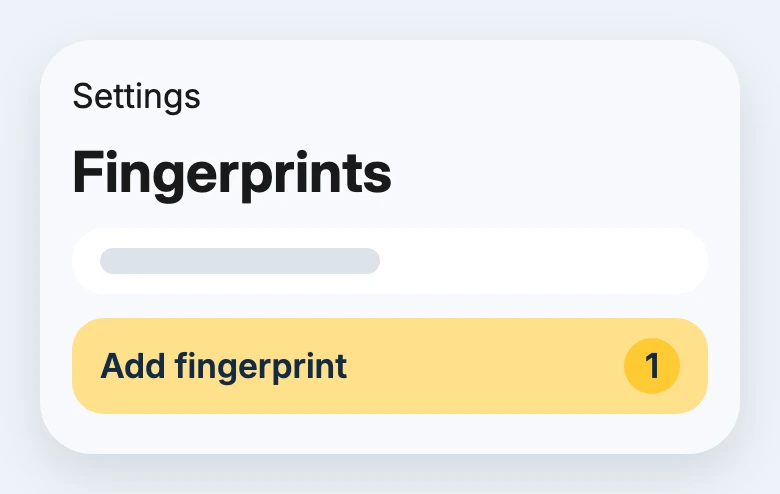
Open Settings and search for Fingerprints. The route changes with the One UI version, so use the result that opens the phone's fingerprint settings, then enter your PIN, password, or pattern.
Some versions use Security and privacy > Lock screen > Fingerprints. Others show Screen lock and biometrics, reached through Security and privacy or Lock screen and AOD.
Choose Add fingerprint, then Register if shown. Follow the on-screen movement instructions until registration finishes, and tap Done. Newer software may ask you to swipe your finger instead of touching the sensor repeatedly.
Hold the phone normally when registering your finger. A thumb scanned while the phone lies flat may meet the sensor at a different angle when you pick it up. Include the parts of your fingertip that touch during ordinary unlocking.
Keep at least one working unlock method throughout this process. If the fingerprint list is full, remove a scan you don't need before adding its replacement, rather than deleting every working fingerprint at once.
Try several unlocks with the newly registered finger. If registration finishes and the finger unlocks the phone reliably, you're done. If registration won't advance at all, move to the restart and diagnostic checks.
4. Improve a saved scan or check the display options
If your fingerprint's settings include Improve accuracy, select the saved finger and follow the scan prompts. You'll be asked to scan that same finger 10 times. Use the finger originally registered for that entry.
That option isn't on every model or software version. When it isn't offered, use the fresh registration procedure instead. There isn't a separate download that adds the setting to every Galaxy.
For trouble after fitting a protector, check Settings > Display > Touch sensitivity if your model offers it. Turn it on and test recognition. It can help in the protector case, but a physically damaged reader still needs repair.
If the fingerprint target is misplaced while using One-handed mode, turn that mode off through Settings > Advanced features > One-handed mode and test on the normal full screen.
If Smart View is active, stop casting from its Quick settings control, choosing Disconnect if needed. Once the regular screen layout returns, try unlocking again.
These checks matter when the fingerprint target or screen layout looks wrong. If the target is correctly placed and every scan fails, repeating display changes won't tell you more. Restart the phone next.
5. Restart and install the offered software update
Hold the side key and Volume Down until the power menu appears, then tap Restart. If that menu won't appear, keep holding both buttons for over seven seconds, until the automatic restart begins.
After entering your PIN once, test the fingerprint again. A successful unlock now points to a temporary software problem rather than a need to replace your saved fingerprints repeatedly.
Open Settings > Software update. Choose the offered update control: some models label it Download and install, others Check for updates. Install the available release.
After the update, enter your PIN for the first unlock and test fingerprint recognition.
If an older Galaxy J8 also freezes or has other faults, the Galaxy J8 troubleshooting steps cover the broader phone problem. Keep checking the sensor if only fingerprints fail.
6. Run the fingerprint diagnostic before arranging repair
Open Samsung Members > Diagnostics > Phone diagnostics and choose Fingerprint recognition. Some app layouts put diagnostics under Support. Follow the prompts and check whether the test reports a sensor problem.
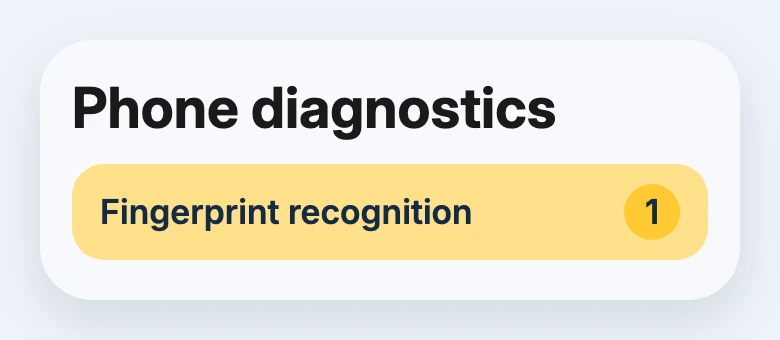
If Members requires a full diagnostic before the individual test, start it, stop it, and choose the fingerprint item. Note whether it reports a sensor problem or completes successfully.
If the test fails, the sensor is missing, or the problem began after a drop or liquid exposure, ask Samsung service to check the fingerprint reader. Bring the model name, software version and diagnostic result.
I'd use the PIN while arranging that assessment rather than factory-resetting an otherwise working phone.
If your cellular connection has also stopped, use the separate Samsung data connection checks before blaming one fault for both.
The Short Version
Enter the PIN when required, clean the reader, check the protector, and register a fresh scan. If no finger can register after a restart and update, run Samsung Members diagnostics and take the result to Samsung service.
Checked November 27, 2026.
 If you have any business, I can build it online