Yes, Google Maps works offline on iPhone for driving within a downloaded map. Download the whole route while connected and check it in Offline maps before leaving. Walking, cycling and transit directions still need internet.
Opening a place or saving its pin isn't the same as downloading its map. The download is what keeps the area available when the phone loses its connection. Live traffic and alternative driving routes aren't available offline either.
In this guide
Download the area your trip actually needs
Open the Google Maps app on your iPhone while internet access is available. Stay out of Incognito mode for the download. Use Google's app for these steps, rather than Apple Maps or the Google Maps website in Safari.
From your profile image or initial, open Offline maps > Select your own map. Cover your start, destination and the roads between them. Tap Download and wait until it finishes while the phone is connected.

Google says the entire route must fit inside the saved area in its iPhone download instructions. A map covering the destination alone won't cover the drive there.
Think about the journey, including an airport, rural hotel or different approach road outside the city. Those can fall outside a tight selection. I'd give the route some room instead of trimming along the planned road.
Return to Offline maps and check that the area is listed. A download still in progress isn't ready to rely on. If it doesn't finish, keep the app connected and address the failed download before testing navigation without internet.
Use a place card for a smaller local area
You can also download a map while you're looking at a place. Search for its name or address, then tap the name or address at the bottom. Open More, choose Download offline map, and tap Download.
Use this for a local area you can check easily, such as the neighborhood around a hotel. Review the selected area before accepting it. Downloading from a place card still saves an area; it doesn't save every possible journey to that place.
For a longer trip, use Offline maps to frame the whole journey more clearly. These are two ways into the same feature, so choose whichever suits the area instead of downloading it twice.
Check driving directions before departure
After downloading, get driving directions for your trip. Both ends and the roads between must fit inside the saved area. Use your actual destination, since a nearby point inside the map won't test the rest of the drive.
For a practical check, temporarily turn off Wi-Fi and cellular data, then request that route again. Restore your connections afterward. This checks the saved area on your own phone before you're relying on it in a place without reception.
An offline map can guide you when the connection is slow or unavailable, provided the route is covered. No separate offline-navigation switch is needed. Check the saved area against the journey you intend to make.
If the directions fail only when disconnected, check map coverage and expiration next. Don't immediately reinstall the app: removing it would also remove the local map you were trying to use.
Know which features disappear without a connection
Offline Google Maps is a driving tool. It doesn't provide offline walking, cycling or public-transit directions on iPhone. A fully downloaded city won't make those travel modes work without internet.
Driving without internet also loses traffic information and alternate routes. Seeing a route on the map doesn't tell you whether the road is clear. Check current conditions while service is available, especially before a longer rural drive.
A saved location is useful for remembering an address, but its pin won't download the surrounding roads. Keep the destination's address somewhere accessible too, so a missing map doesn't leave the place name as your only travel detail.
Apple Maps has its own offline downloads and different features. For that app, follow the Apple Maps offline checks instead. A download in one app doesn't appear in the other.
Refresh an expiring map while Wi-Fi is available
Open Google Maps > profile image or initial > Offline maps. Select an expired or expiring area and tap Update. Leave the phone connected while it refreshes, then check the map's entry again before departure.
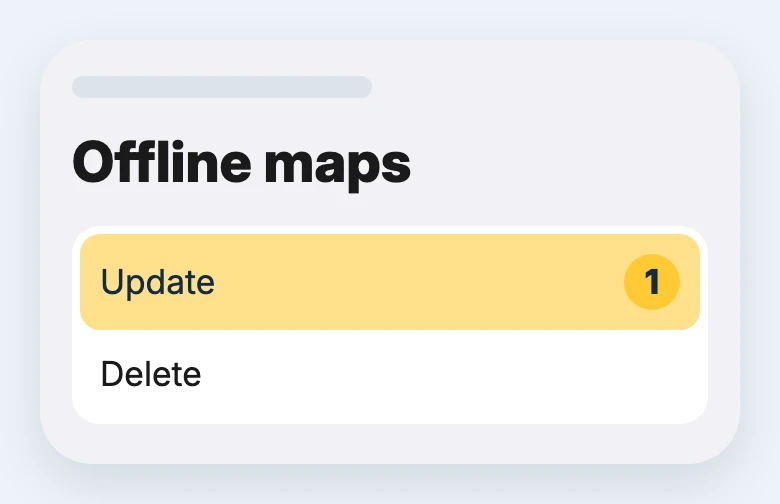
Downloaded maps must be refreshed before they expire. Maps attempts an automatic refresh over Wi-Fi when an area has 15 days or fewer left before expiration. The refresh might not finish, so check the result before a trip.
To enable automatic updates, return to Offline maps, open Settings at the top right, and turn on Auto-update offline maps. Manual refresh is still useful when a trip is coming and the entry says it needs attention.
The map doesn't need a brand-new download every time you drive. Check that the saved area is current and still covers the journey. Repeatedly deleting it wastes the connection time you could use to refresh it.
Rename or delete saved areas without mixing up the apps
For a clearer name, select the saved map in Offline maps. Use the top-right Edit control to rename it, then tap Save. Give the trip a distinct name rather than confusing it with a nearby city download.
To remove an old area, open its entry and tap Delete. Do that after the trip or when you know the map isn't needed. Deleting an area removes that offline coverage; it doesn't fix a route that extends outside another map.
If Apple's map downloads are taking up iPhone storage, the Maps storage steps cover that separate app. Check which app owns the files before removing travel downloads.
If Download is missing or an area won't work
Some countries and regions restrict offline map downloads because of licensing, language support or address formats. Changing location precision or the iPhone's region setting won't remove the download restriction.
Check that the app is online, leave Incognito mode and follow the iPhone download steps. If downloads keep failing in a supported area, use Help & feedback > Send product feedback in the profile menu to report the location and result.
Say whether the area never downloads, expires without updating, or downloads but fails for a route. Those are different failures. If downloads aren't available there, plan how you'll stay connected for navigation before you leave.
The Short Version
Download the whole driving area, check it in Offline maps and refresh it before expiration. Offline use excludes walking, cycling, transit, traffic and alternate routes. Test the trip before leaving reliable internet.
Checked November 27, 2026.
 If you have any business, I can build it online