A cursor that disappears only in Chrome can be a graphics fault, especially over text fields. Turn off graphics acceleration and relaunch Chrome. A pointer missing across the desktop needs a mouse or system check instead.
Check what's missing: the moving pointer or the blinking text caret, which marks where typing appears. The graphics workaround can help disappearing text-field pointers. A disconnected mouse or an unselected field needs a different check.
In this guide
1. Turn off graphics acceleration and relaunch
Press Ctrl-L on Windows or Command-L on Mac, type chrome://settings/system, and press Enter. This opens Chrome's System settings even when the invisible pointer makes the menu difficult to use.
Find the switch labeled Use graphics acceleration when available. Set it to off, then select Relaunch if shown. Older releases call the same feature Use hardware acceleration when available. Save unfinished entries before the restart.
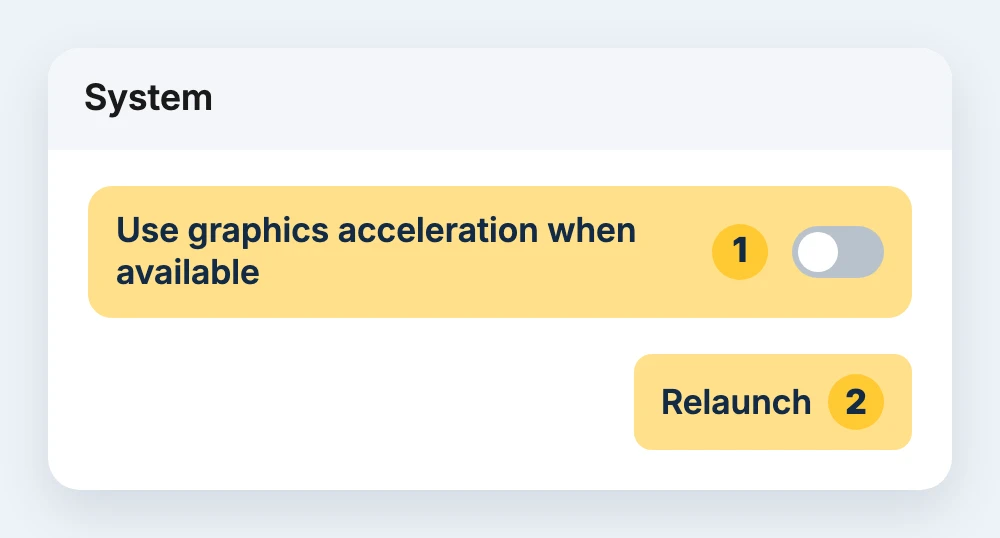
Press Tab to move between controls and Shift-Tab to move back. Use Space for the selected switch and Enter for a focused button. Follow the visible focus highlight rather than counting Tab presses.
Move the pointer over the troublesome field again. If it stays visible, the change has helped Chrome draw it correctly. Graphics acceleration hands drawing work to the graphics processor; turning it off changes how Chrome draws the page.
Google recommends disabling acceleration in its Chrome graphics troubleshooting for hardware-related problems. If nothing changes, return the switch to its original setting and continue.
2. Check whether the pointer disappears outside Chrome
Move the pointer to the desktop or another app. Use Alt-Tab on Windows or Command-Tab on Mac if clicking is awkward. If it is visible there, stay with the browser checks rather than changing the mouse setup.
If the pointer is missing elsewhere, check a wireless mouse's power and receiver or connect a working mouse. On a laptop, try the touchpad too. If only one works, the fault points to the mouse or touchpad rather than Chrome.
A Chromebook switching between tablet and laptop use needs its own checks. The Chromebook missing-cursor steps cover that behavior, including the hardware reset that differs from a Chrome browser restart.
On a Windows laptop, check the laptop's touchpad control if the pad is disabled. For a Dell, the Dell cursor recovery steps help check the pad before assuming Chrome is responsible.
3. Tell a text pointer from a missing typing position
The pointer changes shape over editable text. The blinking vertical mark inside a selected text field is a separate caret. Click a harmless search box and type a few letters to see whether input is reaching the place you selected.
If letters appear but the blinking mark is hard to see, try another text field and another page. A site's colors, focus behavior or editor can affect one field without hiding the mouse pointer throughout Chrome.
If typing doesn't enter the field, click it or use Tab to focus it. A loading page or dialog covering the editor can block input. Don't type passwords into another field just to test where keystrokes go.
A pointer that briefly disappears while typing and returns when the mouse moves is a different pattern from one that stays invisible while moving. Tell support which pattern you see if the remaining checks don't fix it.
4. Install Chrome's available update
Open More > Help > About Google Chrome, or type chrome://settings/help in the address bar. Wait for the version check to finish. Choose Relaunch when it's offered, then compare the same page after the browser reopens.
The Chrome update process applies a downloaded update when the browser restarts. Closing one tab doesn't apply an update that's waiting for the whole browser to relaunch.
Check the pointer in a normal page and the field that triggered the fault. That helps you check whether restarting fixed the problem or only cleared it for a moment. If the problem returns at the same field, note it for the next check.
Turning acceleration off can affect video or games. After browser or supported graphics-driver updates, try enabling it again and check the original field. Leave it off if the cursor fault returns.
5. Compare a clean window and check extensions
Open an Incognito window with Ctrl-Shift-N on Windows or Command-Shift-N on Mac. Try the same public page there. Extensions normally don't run in that window unless you've allowed them to.
If the cursor works there, open chrome://extensions in the normal window. Turn off extensions that change page appearance or input, then reload the affected page. Re-enable extensions individually, checking the field after each one.
Incognito also changes your browsing session, so a working cursor there doesn't tell you whether an extension is responsible. If one extension repeatedly makes the cursor disappear when enabled, you know which one to disable or report.
If a public page also fails in a second browser, report the field and trigger to the site's support team. If unrelated pages fail only in Chrome, continue with a browser report rather than resetting each website separately.
6. Report a repeatable graphics fault
Use More > Help > Report an issue if updated Chrome still loses the cursor. Include the version, operating system, affected page and the result of switching acceleration off. Say whether the mouse pointer or text caret disappears.
For a Windows computer, check graphics-driver updates through Windows Update or the PC or graphics maker's support app. On a Mac, graphics updates come through macOS updates. Avoid a third-party driver updater as a shortcut.
If support requests graphics details, open chrome://gpu. Read the report before sharing details about your computer. The browser team can use it alongside repeatable steps to check why the cursor isn't being drawn.
If policy locks the graphics setting, ask workplace IT to check it. A browser reset can't override a managed setting. Share the page and your acceleration on and off results with IT. They can check Chrome and the graphics settings together.
The Short Version
For a cursor missing only in Chrome, disable graphics acceleration and relaunch, then test the original text field. Update Chrome and check extensions if needed. A pointer missing in other apps needs mouse or touchpad troubleshooting first.
Checked November 27, 2026.
 If you have any business, I can build it online