Windows 11 Volume mixer doesn't list every installed app. Start audio in the missing app, leave it playing, and reopen Settings > System > Sound > Volume mixer; an app that hasn't started playing sound may have no entry to show.
An empty list during playback needs more checking. The app could use another output, have a stuck connection, or use a separate audio system. Follow one playing app through the checks before resetting sound settings.
In this guide
1. Play audio before looking for the app
Open the missing app and play something with sound. A paused video, a silent page, or a calling app without an active call isn't a useful playback test. Check the app's own mute button and volume control too.
While playback continues, open Start > Settings > System > Sound > Volume mixer. Under Apps, look for the program. Close and reopen the mixer page once if it was already open before you started the audio.
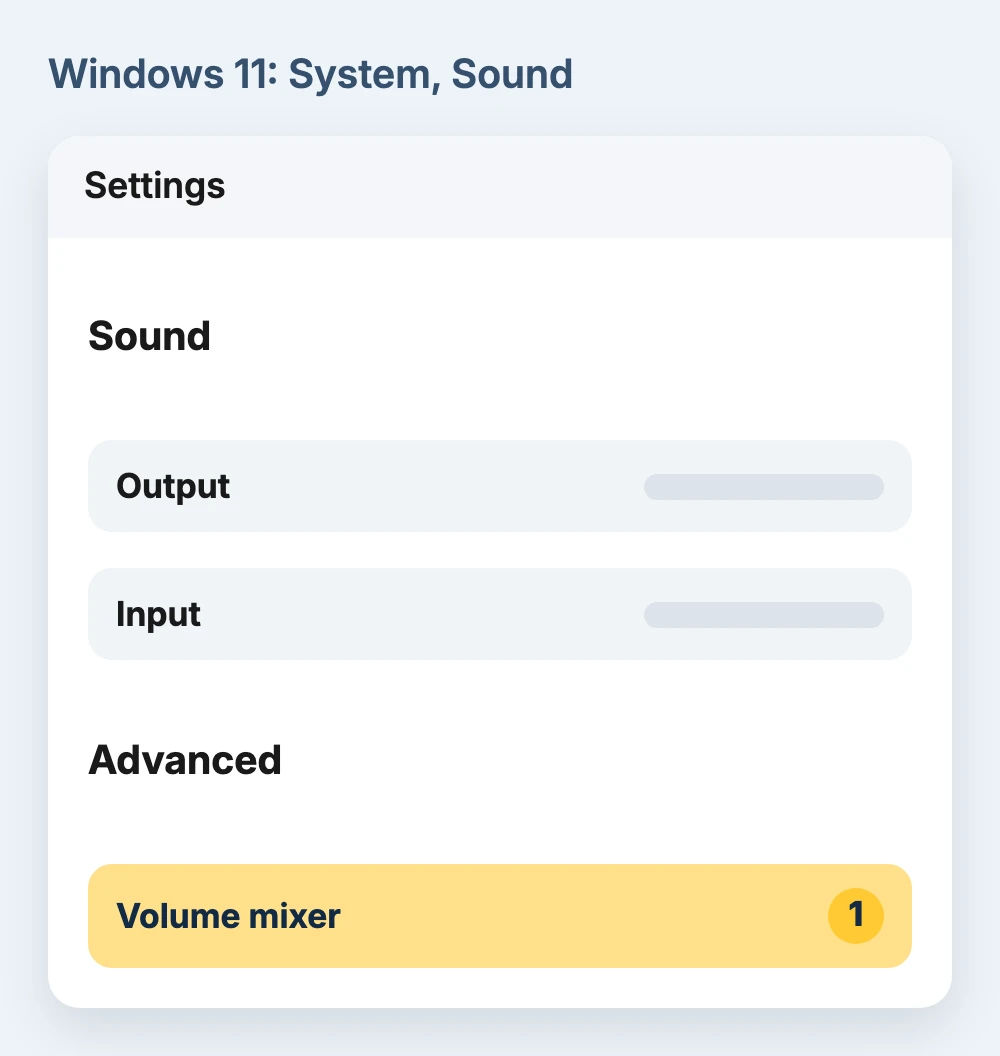
The mixer controls audio sessions, the connections apps use for playback. It isn't a list of all your installed apps. Microsoft explains that the classic mixer lists active or recently active sessions and removes expired ones.
That distinction explains why a program can disappear after it stops playing. It also means a missing entry alone doesn't mean the program was uninstalled or Windows lost its audio driver.
When the app appears, move its slider a little and listen for the change. If it remains absent even during playback, keep the same sound running for the output-device check instead of switching to a different app immediately.
2. Use the full mixer instead of the taskbar panel
Windows 11 has a compact taskbar sound panel as well as the full mixer in Settings. Open the Settings route directly when you need app output controls. This avoids mistaking a closed or limited taskbar panel for missing app audio.
The taskbar mixer guide covers the shortcut panel and version differences. Here, the important test is whether the app appears in the full Settings mixer while it plays.
For comparison, press Windows+R, enter sndvol, and press Enter. This opens the classic Volume Mixer. Keep audio playing while checking its Applications area, and note which playback device its window is controlling.
The two windows don't need to look identical. The classic mixer is useful as another view of playback sessions, while Settings gives Windows 11's per-app output choices. Record whether the app is missing in one view or both.
On Windows 10, open the volume icon's right-click menu and select Open Volume mixer for the classic view. The Settings path and appearance in this article are for Windows 11, so don't expect Windows 10 to show the same page layout.
3. Check the output used by that app
In Settings > System > Sound, check the selected output device. An HDMI or DisplayPort screen, USB headset, and built-in speakers each provide separate outputs on one computer.
Expand a listed app under Volume mixer > Apps and inspect Output device. Select the speakers or headset you want that app to use. A saved app output can differ from the system choice, leaving the app silent despite working system sounds.
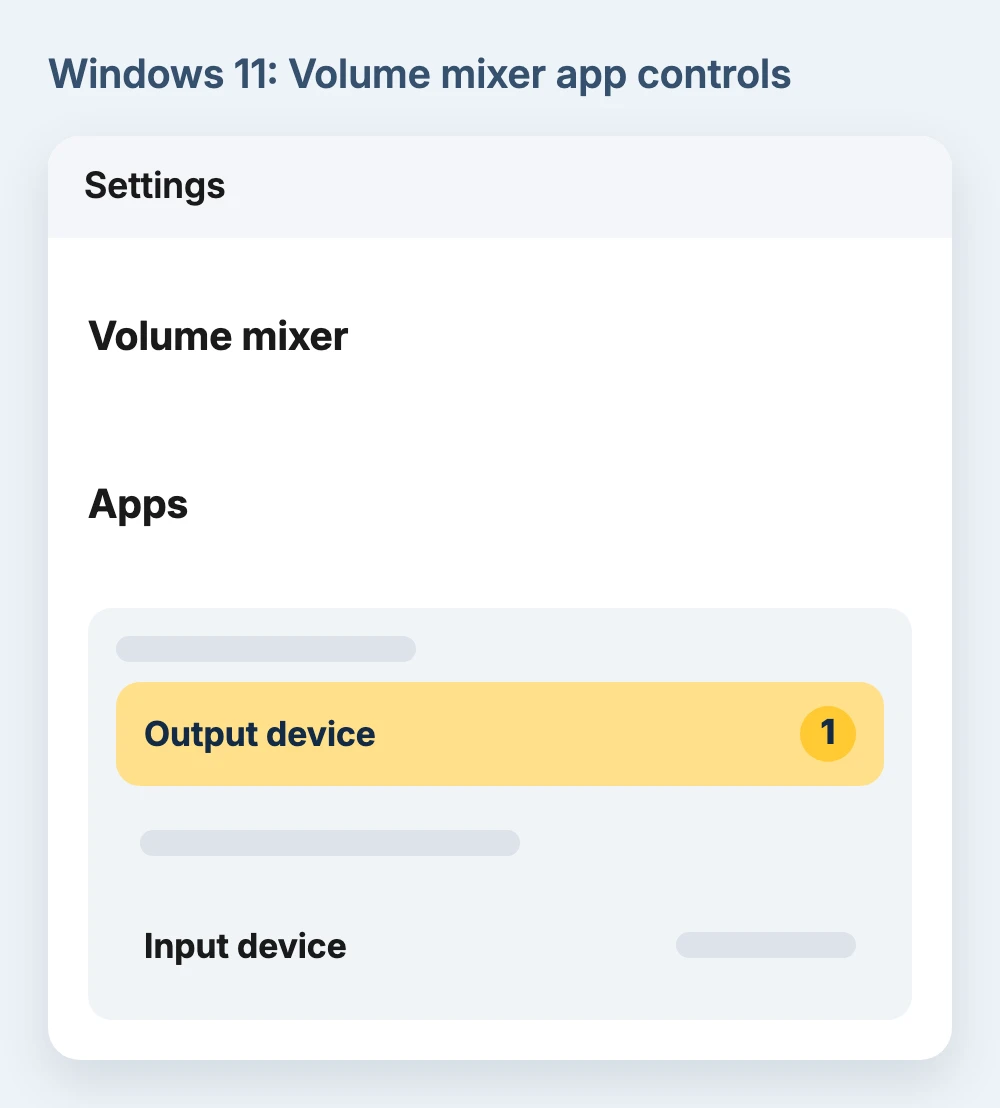
If the app isn't listed, inspect the app's own speaker or playback-device setting. Choose the output you want, quit the app, and relaunch it. Start another sound before checking the mixer again.
I'd check this before changing drivers. A program sending audio to a disconnected headset needs its output corrected, while reinstalling the speaker driver leaves that choice untouched.
For a DisplayPort monitor that's selected but silent, the DisplayPort audio guide follows that connection specifically. Selecting the right device is only the first step; check that it actually plays sound too.
4. Restart the app, then compare another source
Close the affected app completely and reopen it. Save work before closing a game, editing program, or call. Start a fresh sound in that app, then check whether its entry appears in the mixer.
Play another app through that output. If the other app sounds normal and appears in the mixer, the speakers work. Check updates and audio-device controls in the failing app before changing Windows-wide settings.
A browser may present a browser entry rather than one slider for each tab. Check whether the browser's overall entry responds while audio plays, instead of looking for the website's name as a separate installed program.
Music and recording programs can offer their own audio-driver modes, which control how sound reaches your hardware. If sound bypasses Windows controls, check the app's instructions; its audio path may not respond to the standard app slider.
If multiple ordinary playback apps fail to appear or play sound, move to the Windows audio services. When several apps fail, the fault is more likely in Windows audio than in an individual app's settings.
5. Restart audio services and check the driver if needed
Open Start, type services.msc, and press Enter. Find Windows Audio, right-click it, and choose Restart. Then restart Windows Audio Endpoint Builder as directed in the app-audio troubleshooting steps.
Restarting these services interrupts active audio, so finish calls and pause recordings first. Afterward, reopen the affected app and start playback. Check the mixer with the same output selected to see whether the restart helped.
The app-audio troubleshooting steps also cover driver updates. Open Device Manager > Sound, video and game controllers, right-click your audio device, and select Update driver.
After updating, restart Windows and test playback again. If Windows has no suitable driver, use your PC or audio-device maker's package for that model. Similar names don't make drivers interchangeable.
Report a single failing app to its support team with its version, output device, and what you saw in both mixers. For failure across apps, run the audio troubleshooter in Get Help and send the results to the PC maker.
The Short Version
Play sound, open Settings' mixer, and check the output. Compare sndvol and another app before restarting services or changing drivers. An idle app can disappear normally; a playing app absent from both views needs checking.
Checked November 27, 2026.
 If you have any business, I can build it online