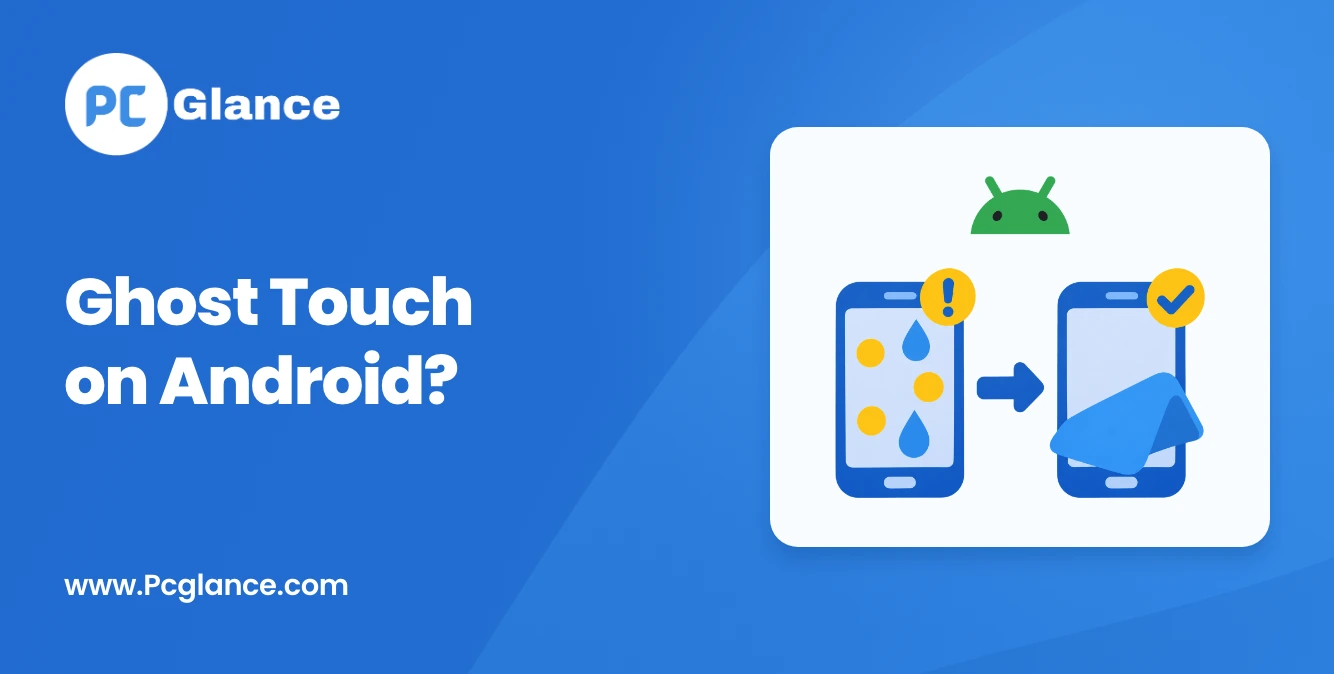
An Android touch screen can stop working because it's frozen or a protector, moisture or an accessory interferes with touch. Clean and dry the screen, disconnect the charger, then force-restart the phone using its maker's button method.
If the display ignores every tap, start with those physical checks. A screen that still responds in places can also be checked for an app problem, an accessibility setting or a damaged area without immediately erasing the phone.
In this guide
1. Remove the things that can interfere with touch
Take off gloves and remove the case and screen protector for a test. Peel off any stickers covering the screen or sensors. Wipe the screen with a soft cloth and let wet hands and glass dry before trying again.
Unplug the charger and test touch on battery power. A damaged or unsuitable charger can affect touch behavior. If the problem stops unplugged, use an undamaged compatible charger rather than replacing the display first.
Look for cracks, chips and signs of physical damage. Google's Android screen checks start with the screen and its accessories because a software reset won't mend damaged glass or touch hardware.
If the phone was wet or damaged, arrange an inspection rather than charging it to continue testing. Tell the repair service what happened and whether the display still shows an image.
If a tap selects an item and the phone reads it aloud, but it won't open with a single tap, check the TalkBack section later. TalkBack changes how taps work, so the touch hardware might still be working.
2. Restart with buttons when taps won't work
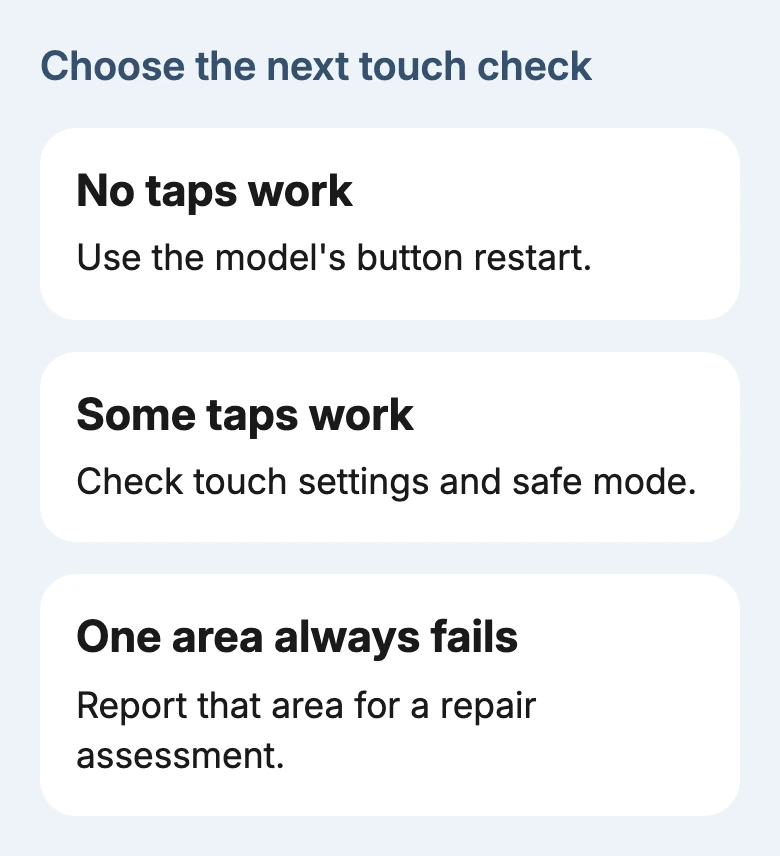
On a Samsung Galaxy, press Volume Down and Side (or Power). Hold both keys for more than 7 seconds, until the phone restarts automatically. Keep holding instead of making a quick press, which captures the screen when the phone is working.
For a Google Pixel, the current force-restart instructions say to hold Power for up to 60 seconds. Release it when the phone reboots and the G logo appears.
An ordinary Pixel restart uses different controls: on Pixel 5a and earlier, hold Power; on Pixel 6 and later, hold Volume Up with Power, then tap Restart in the menu. You'll need working touch to select that on-screen option.
For another Android brand, use the restart instructions for its exact model. There isn't one two-button combination for every Android phone. Check whether the screen responds at the lock screen after the restart finishes.
If the phone doesn't show an image at all, use the Android no-power checks. A Samsung that stays dark but rings also needs the Galaxy black-screen checks.
3. Check sensitivity and TalkBack when Settings is usable
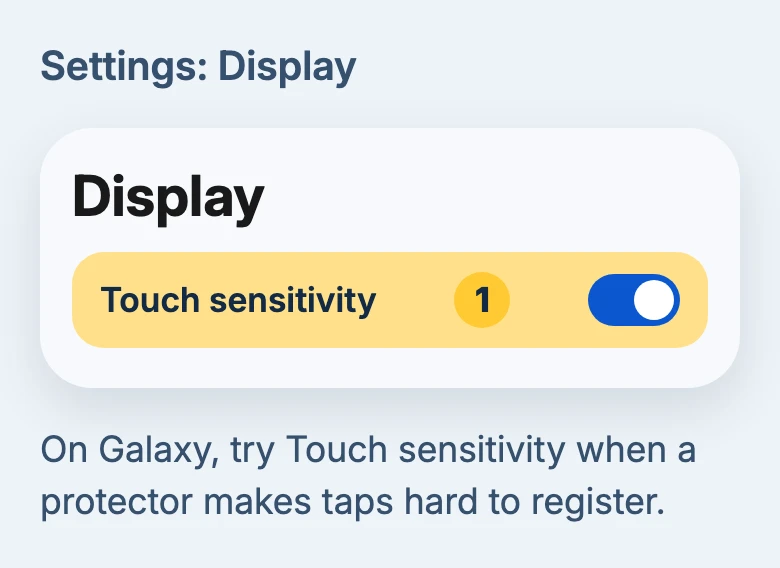
On a Galaxy, open Settings > Display and try Touch sensitivity if a screen protector makes taps hard to register. Test the result rather than assuming more sensitivity is always better. Removing a troublesome protector is still useful.
On Pixel 9, Pixel 9 Pro and Pixel 9 Pro XL, open Settings > Display & touch > Touch diagnostics. Follow the test. Under Display & touch > Touch sensitivity, try Adaptive touch on or off and compare the response.
On Pixel 8a and earlier, including Fold, check Settings > Display & touch > Touch sensitivity > Screen protector mode. Those controls differ from the ones on the Pixel 9 models listed here.
If TalkBack is active on a Galaxy, tap once to select and double-tap to open. Scroll with two fingers. Use those gestures to reach Settings > Accessibility > TalkBack and turn TalkBack off when you don't need that mode.
The voice and selection box should stop once TalkBack is off, and ordinary single taps should open items again. If the same screen area still doesn't respond, continue with the area test.
4. Check whether the same physical area fails
Touch the top-left corner and slowly drag toward the bottom-right without lifting your finger. Take about the time needed to count to ten. Watch whether the notification shade keeps following the gesture or releases partway through.
Repeat the drag if it releases. If it keeps stopping at the same physical spot, note that and tell the manufacturer, especially if the glass is chipped or the fault started after a fall.
If you can drag across the whole screen, the problem isn't limited to that tested strip. It can still happen intermittently or inside one app. Continue with safe mode rather than treating one successful swipe as the end of the checks.
If only a single app fails while Settings and other apps respond, update that app and contact its developer if the issue continues. Tell the developer which screen and action fail before you decide to reset the whole phone over one app.
5. See whether touch returns in safe mode
Downloaded apps are disabled in safe mode. If touch returns, restart normally and uninstall the latest app you added or updated. Test again before removing another app, keeping track of which removal restores touch.
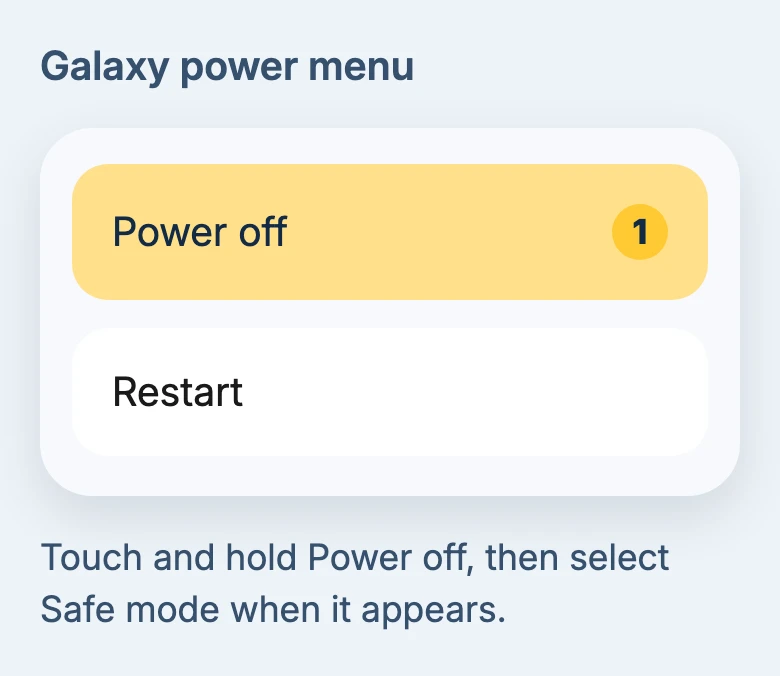
On a responsive Galaxy, open the power menu, touch and hold Power off, then tap Safe mode. Restart normally to leave it. This route needs some working touch, so don't keep trying it when the screen ignores everything.
Pixel safe mode can remove Home screen widgets. Record their arrangement first if the screen allows it.
On a Pixel that's off, press Power to start it. When the startup animation begins, hold Volume Down until startup finishes. Safe mode should appear at the bottom. Restart normally when the check is finished.
If touch still doesn't work in safe mode, move on to the system checks or arrange service. Random app removals won't clarify why touch still fails.
For a Pixel whose swipes changed after Android 17, the version-specific touchscreen checks cover that narrower pattern. Use them when the timing and symptoms match your phone.
6. Update, back up and decide whether a reset makes sense
If touch is usable, install offered system updates. On Galaxy, look under Settings > Software update; on Pixel, use Settings > System > Software updates. Test the screen again after the update finishes.
Google's screen help also suggests turning off Settings > System > Developer options if that menu was enabled. It won't appear on every phone, and Samsung puts Developer options in a different place. Skip a menu you never enabled.
A factory reset is the last software step and erases local data. Back up first, and check that you know the Google account credentials needed for setup afterward. Follow the model-specific reset steps from its manufacturer.
Request a touchscreen check from the manufacturer if it won't respond, one area keeps failing, or a reset would lose files you haven't backed up. Give your restart and safe-mode results, then ask whether repair can preserve your data.
The Short Version
Check the screen and charger, then use the correct restart buttons. With some touch available, try sensitivity settings, TalkBack and safe mode. Ask about repair if the screen or the same area keeps failing, before risking files in a reset.
Checked November 27, 2026.
 If you have any business, I can build it online