Static in one AirPod can come from a weak wireless connection or from the earbud's noise-control microphones. Start with downloaded audio and your phone nearby; if the crackle happens with nothing playing, compare listening modes instead.
A sharp whistle is a different symptom from rough, broken-up music. Use these comparisons to tell connection trouble from noise-control trouble before resetting the earbuds or paying for a replacement.
In this guide
1. Play downloaded audio with the phone beside you
Choose a song that's already downloaded, lower the volume, and keep your phone within a few feet. Play it somewhere away from a busy wireless network. Try another downloaded track if only one recording crackles.
Apple says to compare locally stored audio because streaming adds another connection to the problem. A track that breaks up while downloading isn't the same as an earbud that crackles in silence.
If downloaded music sounds clean nearby but becomes distorted farther away, keep the phone closer and remove obstacles between it and your AirPods. Move away from crowded wireless areas, microwave ovens, or wireless speakers for this check.
If possible, pair the earbuds with a second device and try audio stored on it. If it sounds clean on that device, check the original phone or app. If the same ear crackles on both devices, try the next check.
I'd leave the reset until after this comparison. It takes little time, keeps your pairing intact, and can spare you a reset that won't change a noisy wireless environment.
2. Compare noise cancellation with other listening modes
For AirPods with listening modes, connect them and open Settings > your AirPods on the iPhone or iPad. Compare Noise Cancellation with Transparency, staying in the same quiet room at the same volume.
Then try Off if your model offers it. On AirPods Pro generations 2 and 3, enable Off Listening Mode first if necessary. That switch may be inside Audio & Routing on current software.
Turning listening modes off also turns off Hearing Protection on compatible AirPods Pro. Make this a brief comparison in a quiet place, rather than using it to block sound in a loud environment.
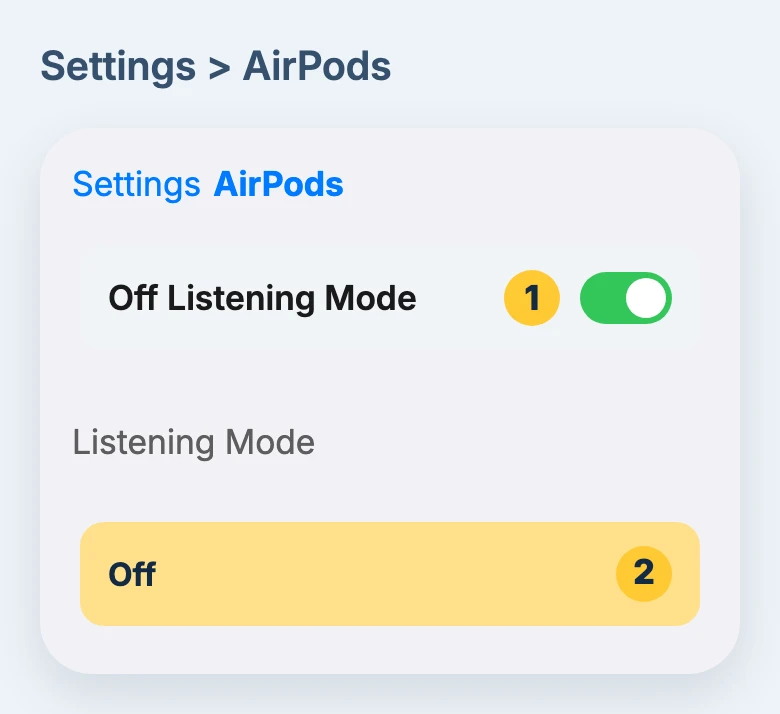
If the static disappears only with listening modes off, mention that when you arrange service. It points toward the noise-control side of the problem, but doesn't tell you which internal part needs replacing.
Ordinary AirPods without noise cancellation don't have the same set of controls. Skip those modes and continue with the cleaning and software checks. Don't hunt for an ANC setting your model never included.
A loud squeal when touching or covering the earbud needs a different explanation. The one-ear AirPods squealing checks cover that sharper feedback sound and the ear-tip comparisons that go with it.
3. Check the ear tip and clean the correct areas
Remove the silicone tip on AirPods Pro and inspect its attachment, the tip itself, and the visible mesh. Reattach it firmly. Fix a loose or damaged tip before you compare noise cancellation again.
Use the model-specific cleaning directions for AirPods Pro. The mesh areas and cleaning method differ by generation. Don't push a pin through the mesh or assume another model's cleaning method is suitable.
Rinse removable tips in plain water, without soap or household cleaner, and dry them fully before reattaching. That applies to the removable tip only; rinsing a tip doesn't mean rinsing the AirPod.
After cleaning, repeat the listening-mode comparison once everything is dry. If the rough sound changes, debris or fit was affecting what you heard. If the same ear still crackles, continue without repeatedly scrubbing it.
4. Update the connected device and AirPods firmware
To update an iPhone or iPad, use Settings > General > Software Update and install an available release. On a Mac, use System Settings > General > Software Update. Then reconnect and try the same recording.
For an AirPods firmware update, connect the iPhone, iPad, or Mac to Wi-Fi and keep Bluetooth on. Return the earbuds to their slots, plug in the case, and shut its lid. Keep it near the connected device for 30 minutes or longer.
Open the lid afterward and reconnect. The AirPods information page shows their firmware version. There isn't a firmware installation button to press repeatedly, and a reset doesn't replace this charging-and-waiting process.
If updates don't change the noise, move to one full reset. Note whether the noise happens with a particular device, earbud, or listening mode. That will help you explain the problem if you need service.
5. Reset using your case's own controls
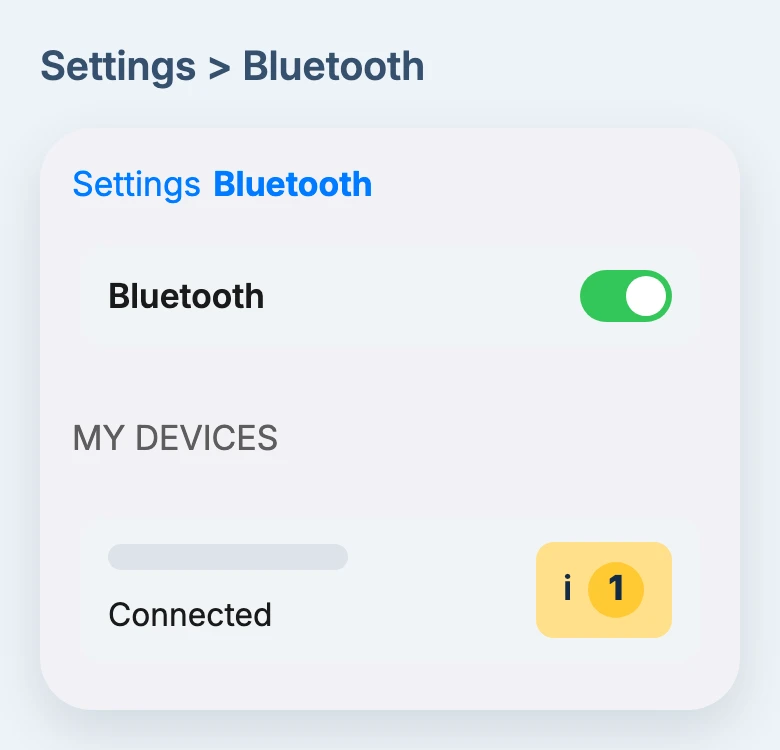
Close the case with both earbuds inside and wait 30 seconds. Open Settings > Bluetooth on the paired device. Use the AirPods information button, select Forget This Device, and confirm the removal.
Cases with rear setup controls
Open the lid. For AirPods 1, 2, and 3, or AirPods Pro 1 and 2, hold the rear button for about 15 seconds. Amber flashing followed by white means you can follow the onscreen prompt to reconnect.
Cases controlled by front taps
With the light showing, double-tap the case front on AirPods generations 4 and 5, plus Pro 3. Double-tap again as white flashing starts, then once more as it speeds up. White flashing after amber means it's ready to reconnect.
The reset instructions show both case designs. If you reconnect successfully but the same ear still crackles with audio stored on another device, another reset is unlikely to help.
6. Arrange service when the same ear keeps crackling
Book a service appointment with an authorized provider or directly through Apple Support. Report the model, the noisy side, whether another device reproduces it, and which listening modes change the sound.
The sound-issues program applies to original AirPods Pro manufactured earlier than October 2020. Its three-year period starts with the first retail purchase; it isn't permanent free-replacement coverage for every crackling AirPod.
The AirPods Pro service-program guide explains those limits. Ask for the current repair price and warranty decision for your own unit before approving a replacement.
The Short Version
Try downloaded audio nearby, compare listening modes, and check the tip and mesh. Update, then reset once with the correct case controls. Persistent static in the same ear across devices needs an earbud service assessment.
Checked November 27, 2026.
 If you have any business, I can build it online