Anycubic Slicer often can't find a printer because it's using the wrong LAN or cloud mode, or the network blocks the search. Open Slicer Next and check the printer's connection mode first.
These steps cover supported Kobra machines. Selecting a slicing profile, which prepares models for your printer, won't connect the printer itself.
In this guide
1. Match the slicer and the printer's connection mode
Check the model and the slicer's full name. These local-network (LAN) steps use Anycubic Slicer Next, with separate Kobra 4 and Kobra S1 Max instructions. Photon Workshop and older unsupported models need their own connection guidance.
Open Settings > Network > LAN Mode on the printer. Enabling this mode disconnects its cloud service, including mobile-app remote control. If the printer then disappears from the cloud list, that's because of the mode you chose.
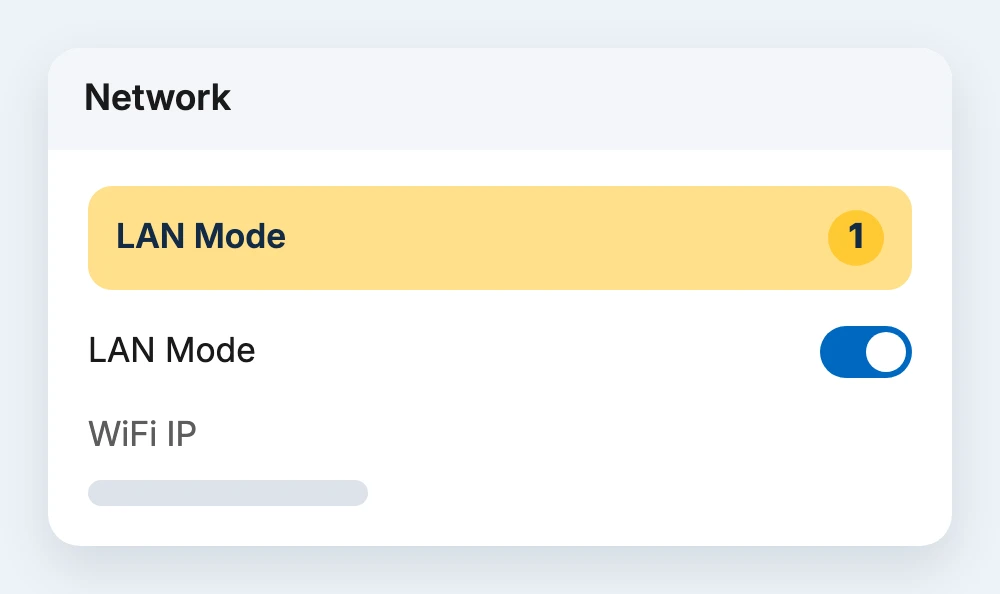
Decide which route you want: a local connection from your computer on the same network, or cloud access. For local control, leave LAN mode on and follow the steps in the next sections to add the printer over LAN.
For cloud access, use your model's cloud setup instead of the LAN list. For Kobra S1 Max, scan the printer's QR code so the app can link your account and printer, then sign into Slicer Next for remote printing.
Changing the selected printer profile changes how a model is sliced. Adding the printer or linking it to your account is a separate step. If slicing works but sending the job fails, concentrate on Workbench and the printer connection.
2. Update the supported software before searching again
Use the latest Anycubic Slicer Next available for your computer. The Kobra S1 Max LAN instructions also call for current printer firmware. On that model, check Settings > Device > Printer Information for its installed firmware.
Check for updates for your exact printer model, then follow its firmware update steps if needed. Use Slicer Next's offered update process for the desktop software. A similar-looking Kobra can need different firmware.
Reopen Slicer Next after updating and return to Workbench > Add Printer. Give its scan time to finish while the printer is powered on and connected to the network.
If the printer appears, connect it. Check its status before sending a model. If it remains missing, an update alone hasn't solved discovery; check whether your network lets the computer reach the printer next.
If you've moved from OrcaSlicer's printer connection controls, use Slicer Next's own adding process here. Its Workbench doesn't use OrcaSlicer's host-type dialog.
3. Let the slicer reach the printer locally
Join both devices to your normal home network for this check. A guest network can let each device reach the internet while preventing them from communicating with each other. Some home network settings can block this too.
Anycubic's Kobra 4 LAN instructions explain why guest networks and blocked communication affect discovery. A computer with internet access can still be blocked from contacting a nearby printer.
Check whether your computer uses a VPN or a different network. If you manage the connection, try your normal home network. For an organization-owned computer, ask IT to allow the local connection while keeping its protection on.
On Mac, open System Settings > Privacy & Security > Local Network. If Slicer Next is listed, allow its local network access. If that permission is off, it can block the connection even on the right network.
Return to Workbench > Add Printer and let discovery run again. If the printer appears after both devices join the normal network, that points to the original network keeping them apart.
If it is still missing but the printer shows an IP address in LAN Mode, try adding it manually. That address tells the slicer which device to contact on the local network without relying on the automatic scan.
4. Add a Kobra 4 by its displayed IP address
On Kobra 4, open Settings > Network > LAN Mode and enable the mode. Read the IP address shown on that screen. Use the address currently displayed, especially after changing the printer's network.
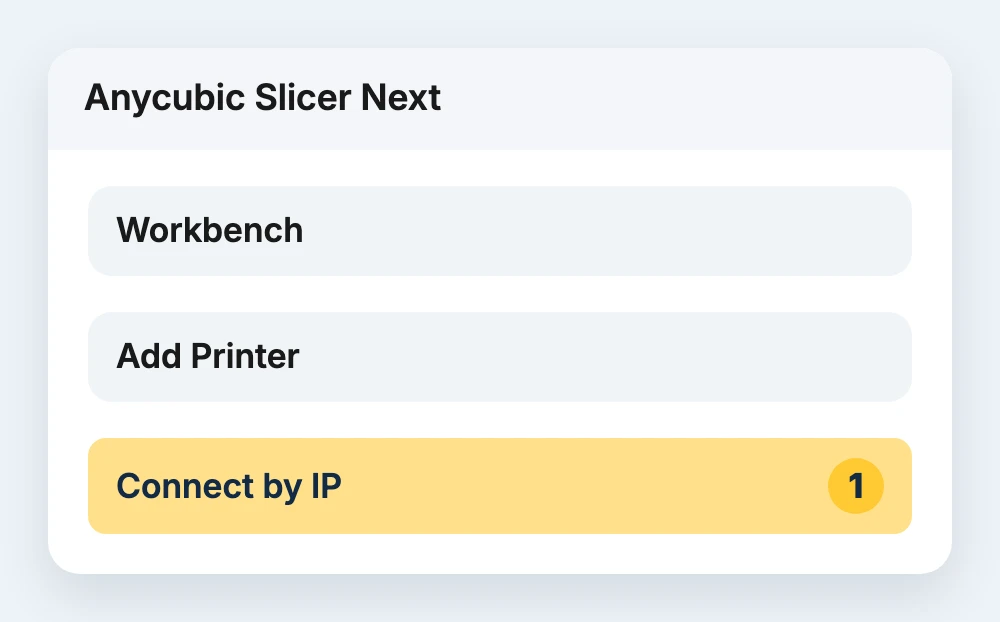
In the latest Slicer Next, sign into your account, enter the workbench, and click Add Printer. If the scan doesn't find the printer, click Connect by IP and enter the address from the printer.
Check Workbench > Printer afterward. A LAN icon on the printer panel means the local connection succeeded. Look for that icon to confirm the connection; a printer profile in the slicing workspace alone doesn't confirm it.
If adding it manually also fails, check the same-network setup again with whoever manages the router. An IP address can't get around a network rule that blocks communication between the devices.
5. Follow the S1 Max labels when its screens differ
On Kobra S1 Max, enable Settings > Network > LAN Mode. Its supported software is Slicer Next. The model's LAN guide includes adding through Workbench > Add Printer, with a way to add it locally without an account.
After discovery, choose Connect Printer for the detected machine. If it doesn't appear, read Settings > Network > LAN Mode > WiFi IP on the printer and enter that address when adding the printer manually in the slicer. Confirm with OK.
Check Workbench > LAN Printer for the LAN icon in the printer information bar. Those labels differ from the Kobra 4 guide, so don't assume a missing menu name means your firmware has no local printing support.
LAN mode also turns off remote control through the app on this model. Choose the mode that fits how you want to control your printer, then check its connection in that mode's panel.
Give support the discovery and manual-connection results
If the scan and adding by IP both fail, contact Anycubic support for your printer model. Give its firmware version, Slicer Next version, the selected mode, and whether both devices were on a normal or guest network.
Describe whether the scan found nothing, manual adding failed, or the printer appeared with a LAN icon but a job wouldn't send. Those details tell support which part of the connection needs fixing.
The distinction between local Wi-Fi and internet access matters when reporting a cloud failure. Tell support whether the computer can get online and, separately, whether it can reach the printer locally.
The Short Version
Use Slicer Next, match LAN or cloud mode, and let the computer reach the printer on your household network. If discovery fails, add the printer using its current IP address. Confirm the LAN icon in the model's printer panel.
Checked November 27, 2026.
 If you have any business, I can build it online