An iPad can hide its onscreen keyboard while a physical keyboard is connected. Choose Show Keyboard in the Shortcuts bar to bring it back, or disconnect the accessory to type on the screen again.
A tiny floating keyboard is a different case, and a keyboard missing in only one app points to that app. Check those differences before changing settings that won't help with the missing keys.
In this guide
1. Show the keyboard while an accessory is connected
Open Notes, start a new note, and tap in its text area. Look for the Shortcuts bar along the screen's bottom edge. Tap its keyboard control, then Show Keyboard.
With additional language keyboards installed, a language button beside the predictive text suggestions can open the same choice. It sits at the opposite end from Dictation. Choose Show Keyboard to open the touch keys.
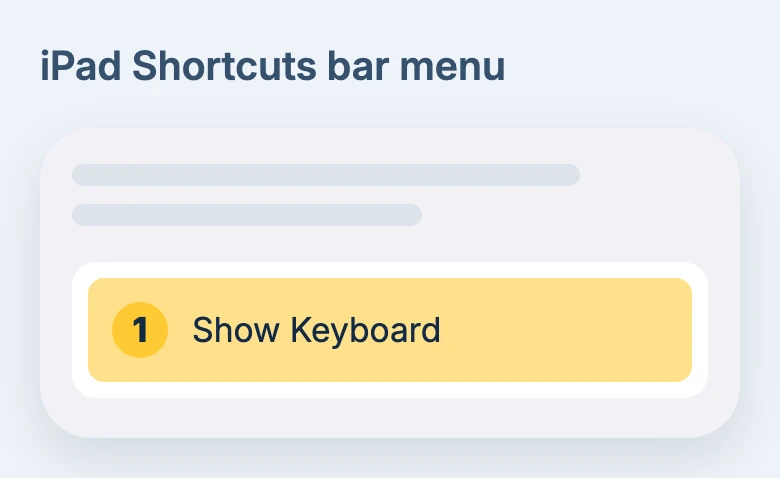
Apple says the external keyboard controls include this route for bringing up touch keys without removing the physical keyboard. Both input methods can remain available during the same session.
When the full keyboard appears, enter a few characters into the new note. That confirms the text field can accept touch input. It also separates a hidden keyboard from an unresponsive area of the touchscreen.
The globe key isn't a universal Show Keyboard shortcut. Depending on the hardware setting, it can switch languages or show emoji instead. Use the Shortcuts bar's named command when you specifically want the typing keyboard.
If that visible bar ignores your taps, try the same action in another text field. If the touch keyboard works there, move to the app check rather than treating the entire iPad as unable to type.
2. Disconnect the keyboard the iPad still sees
For a Bluetooth keyboard, turn the keyboard off with its own power switch. Return to Notes and tap the typing area again. A keyboard stored in a bag or left on a desk can still be connected when you're trying to type on the screen.
Open Settings > Bluetooth to inspect the connection list if you're unsure. Look for Connected beside the keyboard's name. Names vary, so check the accessory you actually own rather than choosing a device at random.
If that accessory should no longer pair with the iPad, open its information button and choose Forget This Device, then confirm. Using it afterward requires a fresh pairing.
A compatible Magic Keyboard or Smart Keyboard case sends typing through the Smart Connector contacts instead of Bluetooth. Detach the iPad and test Notes again. Bluetooth settings don't control those contacts.
Forgetting an accessory isn't needed just to type once on the screen. Start with Show Keyboard or the accessory's power switch. Forget the keyboard only when you want to stop using that connection.
For the opposite problem, where the accessory should work but doesn't, check how the iPad keyboard connects. A Bluetooth model and a connector model need different setup steps.
3. Expand a small keyboard instead of searching for it
Look around the whole screen for a small movable keyboard. The floating layout can sit away from the bottom edge, making the usual typing area look empty even though the keys are still available.
Place two fingers on the small keyboard and spread them apart. Release them when it expands to full width. This reverses the pinch gesture that makes the floating keyboard smaller.
A split keyboard has two groups of keys with a gap between them. On models supporting that layout, touch and hold the keyboard button, slide to Dock and Merge, then release. The keys return together at the bottom.
The split option isn't available on every iPad. The visible layout tells you which action applies; you won't see that switch on a model that doesn't support a split keyboard.
If the keys appear but cover the text you're editing, use the iPad keyboard position fixes to adjust their layout. If the keys are missing entirely, continue with these checks.
I'd restore the full-size layout before changing typing preferences. It gives you a clear view of whether the keyboard itself works, without altering autocorrection or the languages you've added.
4. Restart the app when only one app loses the keys
Try a fresh note in Notes and a text field in the affected app. If the keyboard opens normally in Notes, work on the app where it won't appear. A page's text field can fail without the iPad's keyboard system failing everywhere.
Close the affected app, then reopen it. Without a Home button: slide a finger upward, beginning right at the bottom edge. Pause before lifting it to reveal the app switcher.
With a Home button, double-click Home for the app switcher. Swipe the affected app's preview up and open the app again.
Return to the actual text field and tap it. Selecting an object, a page background, or a read-only document won't necessarily give you somewhere to type. Look for a blinking insertion point to confirm that field is ready for typing.
Open the App Store, tap your account picture, select App Updates, and look for the affected app's pending update. Install an available update, then test the same field again.
Don't delete the app as the first repair. Locally stored documents or unsynced work can be lost when an app is removed. Contact its developer first if its data isn't safely stored elsewhere.
5. Restart the iPad if typing fails across apps
Without a Home button: press the top and either volume button together. Keep holding until the power-off slider appears, then drag it. Wait 30 seconds before starting the iPad again.
With a Home button: hold the top button, then release it when the slider appears. After dragging the slider, wait 30 seconds for shutdown.
To restart either model, hold its top button and wait for the startup Apple logo before releasing it.
Unlock the iPad and test Notes before reconnecting a keyboard. If the keys return now but disappear immediately when the accessory connects, use the earlier Show Keyboard control for that connection.
Check Settings > General > Software Update for an available iPadOS update. Make an iPad backup before installing that update. Afterward, test both a built-in app and the app where the failure first appeared.
If typing still fails everywhere without an accessory, ask about missing touch keys in the Apple Support app. Include your model and iPadOS version, and say whether taps work in the same screen area when the keyboard isn't there.
For a continuing failure limited to one app, send its developer the installed app version, along with the text field where the keys fail to appear. Those details help them repeat the problem without asking you to erase the whole iPad.
The Short Version
Use Show Keyboard in the Shortcuts bar, or disconnect the physical keyboard. Expand a floating layout with two fingers. Test Notes to separate one app from the whole iPad, then restart the affected app or the iPad as needed.
Checked November 29, 2026.
 If you have any business, I can build it online