A ScanJet Pro 2000 s2 missing from Windows 11 needs its USB connection and scanning software checked first. Bypass the hub, restart the scanner and try HP Scan. If it stopped working after a Windows upgrade, write down the version too.
First, check whether the scanner has no power or is switched on but reports Scanner not found. A working scan in HP Scan with an unresponsive front button is a third case. Check its button settings first.
In this guide
1. Check power and restart the scanner
Press power on the scanner and check whether its power indicator lights. Check the power supply, its connection to the scanner and the wall outlet. USB carries the computer connection; it doesn't replace the scanner's power supply.
If the power light stays off, test another outlet and confirm the power strip is switched on. If the scanner still has no power, have its power supply checked before changing drivers.
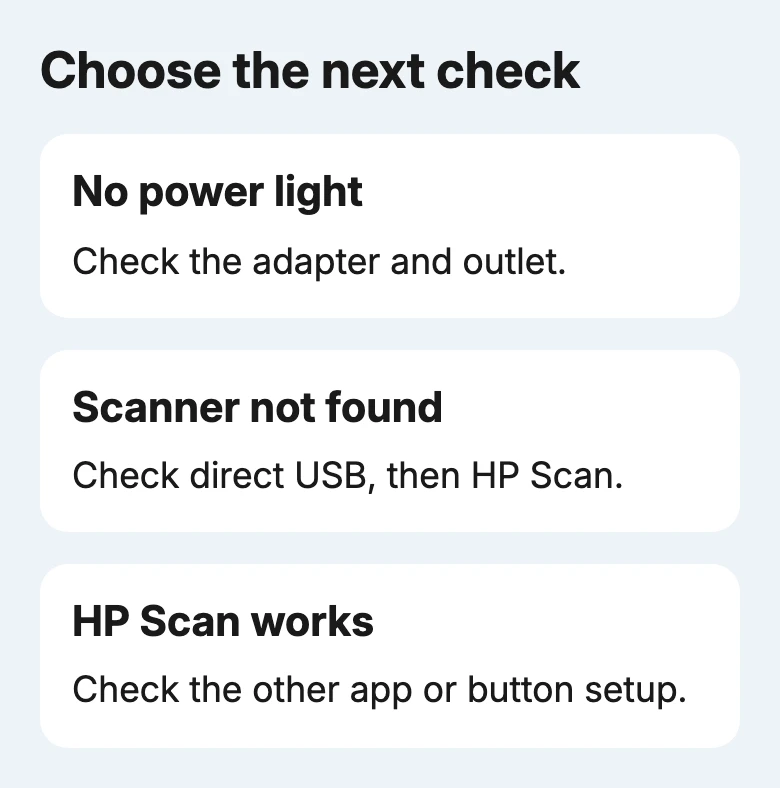
For a powered scanner with a detection error, turn it off, wait 30 seconds, then turn it on again. Close and reopen HP Scan and try a single ordinary sheet. Keep the feeder hatch closed.
HP recommends this restart for a Scanner not found message in the 2000 s2 user guide. If the scanner reappears, try another scan before reinstalling anything.
If the rollers move but the page jams, that's a paper-feed problem rather than a missing device. Note whether the connection or paper feed is failing so the next check tackles the right problem.
2. Bypass the dock and use a direct USB connection
Connect the scanner's USB cable directly to the computer. Remove a hub, monitor USB port or laptop dock from the route. On a desktop, try a rear USB port rather than a front case port.
Prefer the scanner's supplied cable when you have it. Seat both ends fully. If the original cable is damaged, get a compatible replacement rather than forcing a connector that doesn't fit.
Restart the computer after making the direct connection, then try HP Scan again. If it scans with the hub removed, the connection through the hub needs checking. Leave the scanner connected directly during checks of the hub or dock.
If the device remains missing, try another direct USB port. Temporarily disconnect other optional USB accessories, leaving the keyboard and mouse attached. This gives the scanner a simpler connection without changing Windows settings.
If detection returns, restore each accessory separately, checking another scan every time. If detection stops after an accessory returns, change that connection before reinstalling drivers.
For a broader port failure, the Windows USB-device checks cover devices that Windows itself rejects. A ScanJet missing only from one scanning app needs the software comparison next.
3. Try HP Scan before changing another application's settings
Open HP Scan from Start and try a scan there. Choose a plain page with obvious text for this comparison. Check that a completed image is visible, rather than judging success only from the scanner's motor noise.
If HP Scan works but your document-management app can't find the scanner, check that application's scanner selection. It may be pointing to another device or an old scanning connection.
Give the application administrator the scanner's exact model and the result from HP Scan. Ask which scanning driver the application requires. Windows recognizing a device and a particular app accepting its driver are different checks.
If scanning from the computer works but the front-panel button doesn't, check that the button is enabled in the HP scanning software. If scans reach the PC, the scanner is connected even though its button isn't working.
If HP Scan also reports that the scanner is missing, continue with Windows-version and installation checks. Changing another app's preferences won't help much while HP Scan can't connect either.
4. Record the Windows build before reinstalling
Press Windows + R, enter winver, and press Enter. Record the Windows version and OS build displayed. Keep the numbers exactly as shown rather than describing the PC only as Windows 11.
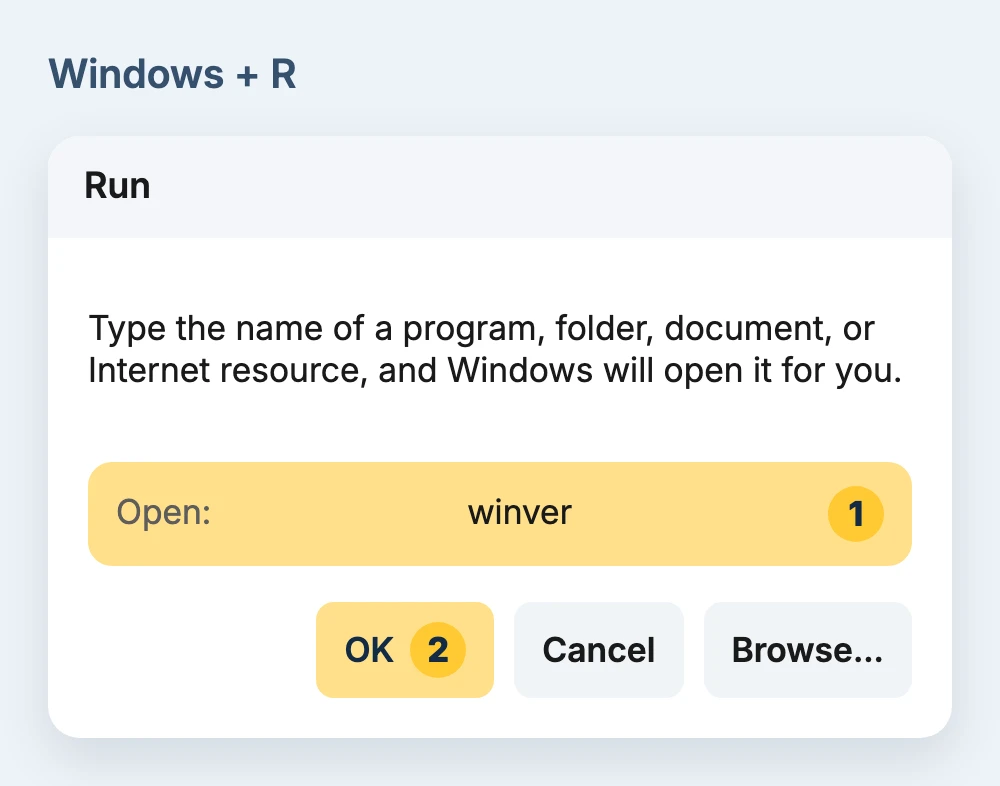
If detection stopped straight after a Windows upgrade, tell HP when the failures began. Ask HP whether your exact Windows build needs a different driver or a model-specific detection repair.
Open Settings > Windows Update and check for current updates. Restart when required, then repeat the same scan in HP Scan. For a managed PC, ask IT to handle Windows updates and install the scanner software.
Use instructions matching the 2000 s2 and your Windows build. A driver repair written for another ScanJet can target components your installation doesn't have, even if its error message looks similar.
I'd keep the Windows build and driver package name together in the support request. That helps support distinguish an upgrade-related detection fault from a cable problem that happened at roughly the same time.
5. Reinstall the ScanJet components after checking the cable
Get the current drivers and tools for HP ScanJet Pro 2000 s2 through its product support page. Select the matching Windows version. Check the final s2 carefully; the older s1 uses a different product listing.
Before uninstalling, save any scan profiles or settings you need to recreate. Turn off the scanner and disconnect its USB and power cables. Open Control Panel > Programs > Programs and Features.
The model's manual lists HP ScanJet Basic Device Software, HP ScanJet ISIS Driver, HP Scan and HP ScanJet Plugin for removal during a clean reinstall. Remove matching components, leaving unrelated equipment's software alone.
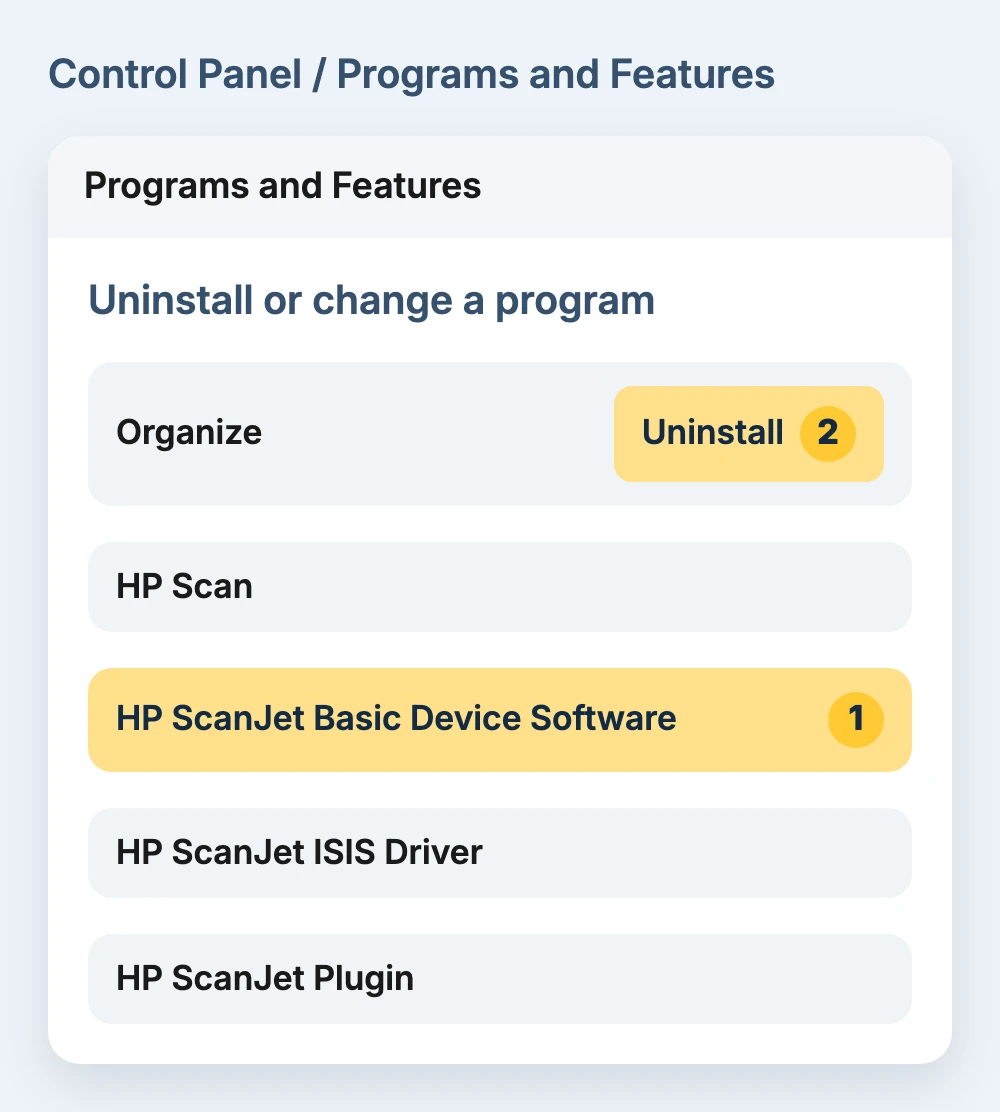
Restart the computer. Install the current ScanJet drivers and tools, following the package's connection prompts. Reconnect power and USB when instructed, turn it on and try HP Scan before another app.
Keep the installer's message and package name if detection still fails. A program that won't open needs the Windows scanner checks for app selection and the scanning service.
6. Ask for a USB and driver assessment with clear results
Give HP Support the model, serial number, Windows build, installed package and error. Include the power-light state, result with direct rear USB and whether HP Scan completes a page.
If a second computer detects it with the right software, report that result so support can check the first PC's USB connection and drivers. Tell support if it fails on two PCs too, but that result doesn't identify a particular failed part.
Ask HP to confirm the current driver for your Windows build before agreeing to replace any hardware. If detection still fails after the supported software steps, ask for checks of its USB connection and internal electronics.
The Short Version
Check power, leave the scanner off for 30 seconds, then try HP Scan through direct USB. Record which Windows release is installed. Reinstall matching software next, and ask HP to check the package against your Windows build.
Checked November 29, 2026.
 If you have any business, I can build it online