XP-Pen pressure in Photoshop on Windows 11 can depend on two settings: Windows Ink in the tablet driver and Pen Pressure for the brush. Try the driver's pressure test first to check whether the tablet is registering pressure.
Moving the cursor isn't the same as receiving pressure. If every stroke has one thickness, check pressure settings; if the pen can't click or move at all, start with the tablet's connection and driver detection.
In this guide
1. Check pressure in the tablet driver
Open the XPPen driver application and check that it recognizes your tablet. In the current Deco 640 driver, a connected device's name appears at the upper left. If it says the device is disconnected, fix that before changing Photoshop.
Check the tablet's data connection and use the stylus supplied for that model. A pen from another drawing tablet isn't automatically compatible, even when it looks similar or moves a pointer on another device.
Open Pen Settings and draw in the driver's pressure-test area. Vary gentle pressure and watch whether the test responds. Look for a response that changes as you press, rather than just a mark wherever the pen moves.
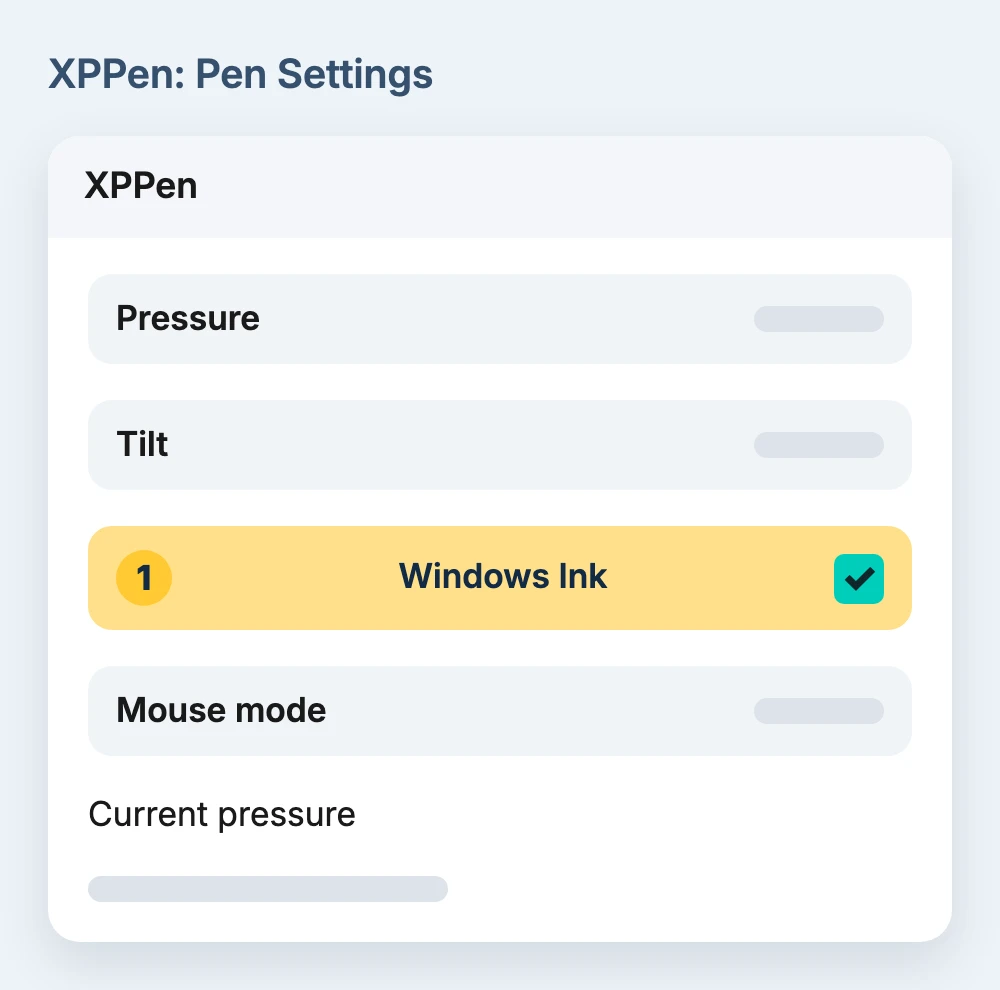
If pressure doesn't register in the driver, continue to the driver reinstall section. Photoshop can't restore information that the driver isn't receiving. Note separately whether the pen moves the pointer, clicks, and responds to pressure.
If the test responds properly, keep the hardware connected and work through the Windows Ink and brush checks. XPPen's Deco 640 troubleshooting instructions use this driver comparison before returning to drawing software.
2. Enable Windows Ink for the Photoshop configuration
In the driver's Pen Settings, enable Windows Ink. This driver setting lets supported drawing applications receive pen input through Windows. Close and reopen Photoshop, then draw another pressure-sensitive stroke.
Check which app's settings you're changing in the driver. Current XPPen drivers can keep different settings for different applications. Settings saved for another drawing app may not apply when you're using Photoshop.
If Photoshop has its own entry, select that entry before checking the pen settings. Driver layouts differ between older tablets and current models, so use that model's manual if its application list looks different.
Don't switch Windows Ink off just because an old tutorial recommends it. The driver and Photoshop need to use compatible pen-input methods.
WinTab is another way to handle pen input. A change that helps an older WinTab setup can stop pressure working with Windows Ink.
Windows also has a separate Pen & Windows Ink settings page, under Settings > Bluetooth & devices. Its general pen options don't replace the XPPen driver's Windows Ink switch.
If enabling the driver's switch restores varying strokes, keep that configuration. If pressure still works in the driver but not Photoshop, check the brush rather than repeatedly reconnecting the tablet.
3. Give the Photoshop brush a pressure-controlled size
Create a blank test document and select the Brush tool, or press B. Open Window > Brush Settings, select Shape Dynamics, and set its Control to Pen Pressure.
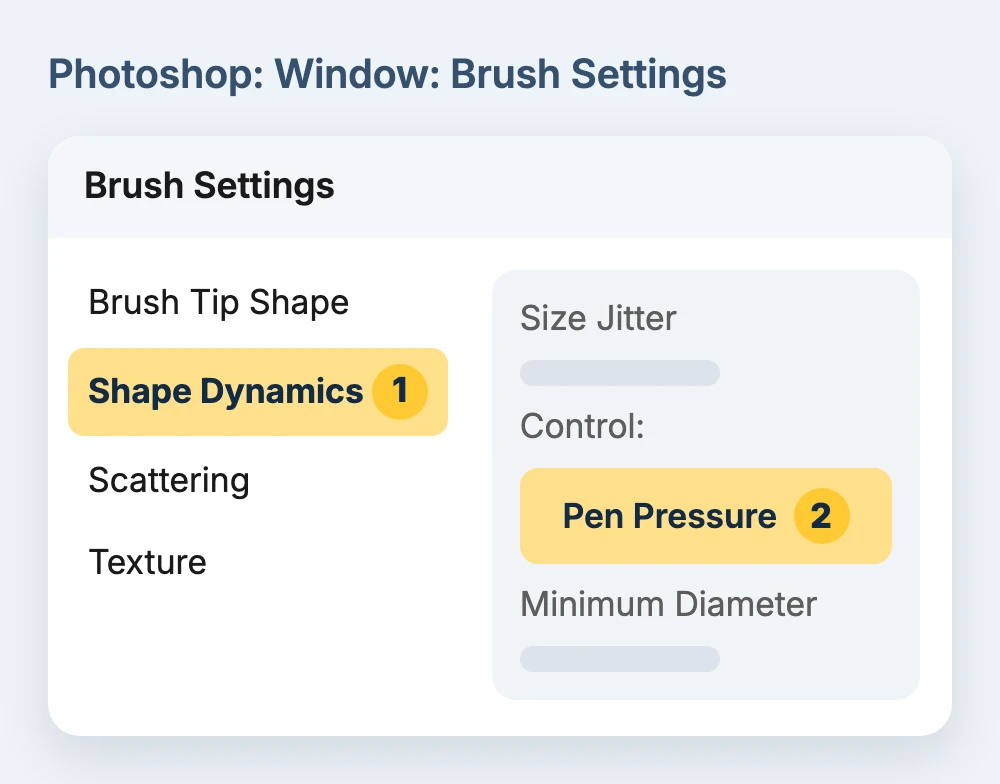
Draw with light pressure, then a little more pressure, using the same brush. A brush can receive pen movement without changing size if its size control isn't assigned to pressure. That can make working tablet input look broken.
Use a simple brush for this comparison, instead of a preset with several interacting effects. If a basic pressure-controlled brush works but your usual preset doesn't, review that preset's dynamics before reinstalling the tablet driver.
Save the working brush configuration when you've confirmed the behavior you want. Keep the test on a separate document so you can compare strokes freely without altering artwork you're trying to finish.
If the tablet fails its own pressure test, focus on its driver. The Windows driver guidance explains why that calls for its matching package rather than updates for unrelated devices.
4. Reinstall the correct tablet driver if its test fails
Choose your exact tablet on the official XPPen downloads page. Open its model page, select Windows, and get that driver. Keep the model name ready for setup and support.
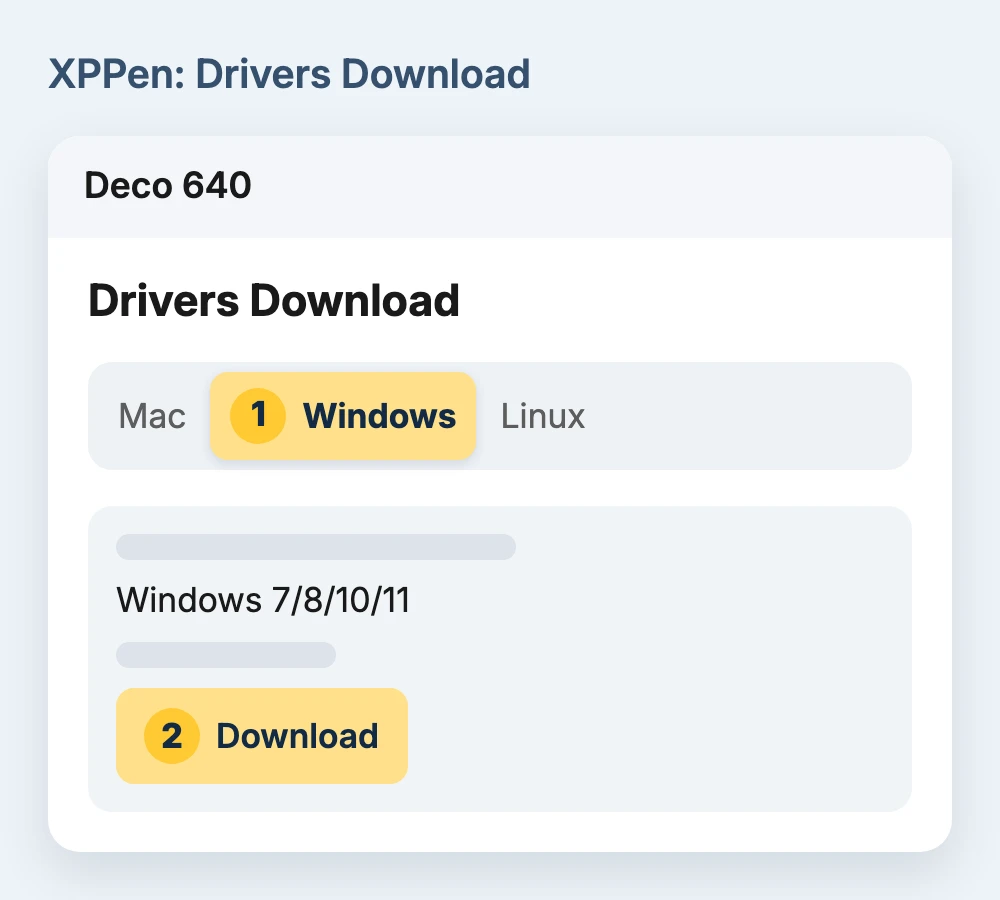
Close your drawing apps for installation. If another tablet driver is installed, use its maker's removal instructions first. Install the downloaded XPPen driver, then restart.
Open its application and check that it detects the tablet and responds to pressure again. Check the driver's result first, then return to your saved Photoshop brush test.
For an ordinary Windows removal, the installed-app removal steps explain the Windows 11 controls. Remove the named tablet software, keeping unrelated input-device drivers in place.
If the official installer won't complete on a managed computer, ask IT to approve the package. Give them the model, download source, and installation message so they can help you install it without turning off the computer's protection.
5. Check an old WinTab override, then escalate
A previous pressure workaround may have added UseSystemStylus 0 to PSUserConfig.txt. That setting forces Photoshop to use WinTab rather than Windows Ink. Changing the tablet driver can leave that old Photoshop setting behind.
Adobe describes that override for tablets using a WinTab driver without a Windows Ink option. It isn't a universal fix for an XPPen driver whose Windows Ink option is available and enabled.
If you've added it before, close Photoshop and find PSUserConfig.txt in that version's settings folder. Copy the file for backup, remove that override, then reopen Photoshop and try drawing with Windows Ink again.
Open %APPDATA%\Adobe in File Explorer and look in your Photoshop version's folder, then the folder whose name ends in Settings. Check the version before editing, especially with several Photoshop releases installed.
Keep any unrelated settings in that file. If you're unsure which Photoshop settings folder is active, ask support to check it rather than creating duplicate configuration files in several folders.
6. Send support both pressure-test results
If the reinstalled driver still ignores pressure, give XPPen support the model, driver version, and pen results. If only the brush test fails, add your Photoshop version and any previous WinTab override.
Ask which driver and input method are supported together for that model on Windows 11. I'd check the driver test before buying a replacement pen. One Photoshop brush drawing a line of even thickness isn't enough reason to replace it.
The Short Version
Check the driver's pressure test, enable Windows Ink, and assign Pen Pressure in Shape Dynamics. Repair a driver whose own test fails. Review an old WinTab override if only Photoshop ignores pressure.
Checked November 29, 2026.
 If you have any business, I can build it online