Google Calendar adds birthdays from Google Contacts or as birthday events created in its phone app. Use Contacts to keep the date with a person's details, or create a birthday event to choose reminders as you add it.
The two routes aren't quite the same. A birthday can be visible on the calendar without having the notification you expected, so check both the date and its reminders before relying on it.
In this guide
Choose a contact birthday or a birthday event
A contact birthday belongs to the person's Google Contacts record. Calendar shows that date when birthday syncing is on for your account. Use it to keep birthdays alongside names, phone numbers, and email addresses.
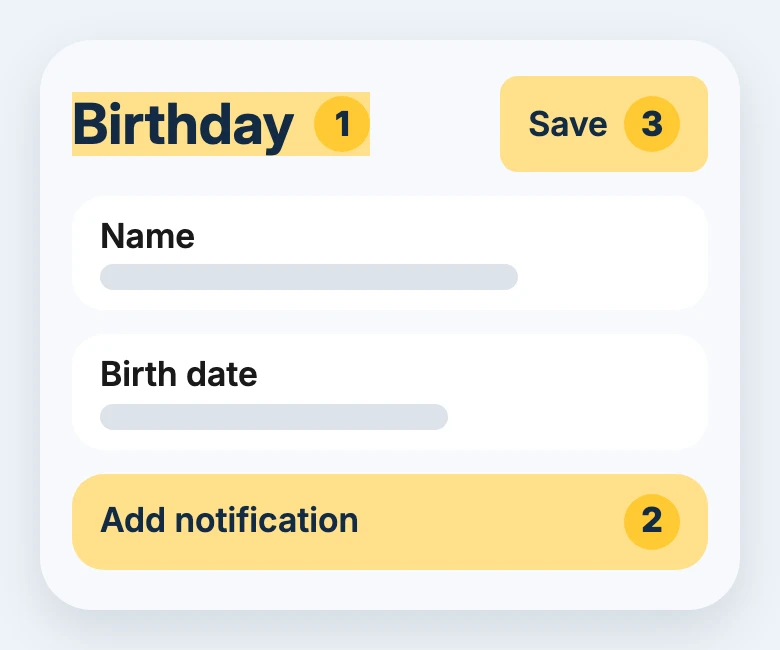
Create birthday events in the Calendar app on Android, iPhone, or iPad, with the date and reminders together. I'd choose this route when a reminder to call matters more than keeping a contact record.
Start with one person rather than entering the whole family immediately. Check that their birthday appears on the right day and under the right account. Checking the account now saves you from correcting twenty dates later.
Add a birthday through Google Contacts on a computer
Open the Google Contacts profile menu and read the selected email address. Use your usual Calendar account. A birthday saved with a contact in another account won't automatically appear in the first account's calendar.
- Open the person's contact, or create a contact if they're missing.
- Choose Edit to change an existing contact.
- Find the birthday field. Expand the additional contact fields if you don't see it at first.
- Enter the birthday, check the month and day, then choose Save.
- Open Google Calendar with that account and check the birthday's date.
Don't guess a birth year just to complete the record. Keep the information accurate, and use the available date fields for the details you actually know.
The birthday is now saved with the contact. To correct it later, edit that person's birthday instead of adding another entry and leaving both dates on your calendar.
On a computer, expand My calendars at the left of Calendar and check that Birthdays is selected. An empty checkbox hides that calendar; it doesn't mean the contact has lost its birthday.
Create a birthday with reminders on Android
Open the Google Calendar app, then tap Create > Event at the bottom right. At the top of the event editor, swipe across the event types and select Birthday.
Enter the person's name and birthday. Check the reminders before saving. The birthday-event instructions list one reminder a week before and another on the day itself.
Tap Add notification to choose another reminder. To remove one you don't want, use that notification's remove control. Choose Save at the top right when the date and reminders are correct.
Open the saved birthday from the calendar and check its details. You'll see what was actually saved, so you can catch a change you didn't finish in the editor.
If ordinary appointments are missing as well, repair Google Calendar's Android syncing first. A birthday notification can't help if the app hasn't received the event.
Add the birthday on iPhone or iPad
These steps use Google Calendar, rather than Apple's Calendar app. Open it, tap Create > Event, then select Birthday at the top.
Add the name and birth date. Check the notification entries, use Add notification for another reminder, or remove a reminder you don't need. Tap Save to finish.
Use the same Google account across the devices that should show this birthday. Adding it to a different account is a common reason it appears on a phone but seems absent on a computer.
If the date appears in Google's app but you're looking for it in Apple's app, the account connection needs a separate check. Follow the Google Calendar and iPhone sync routes for the app you're using.
Birthdays from Apple Contacts can also appear in Google's iPhone app, but those device contacts don't sync to Android or the web. In Calendar Settings, their notification controls appear under From Device.
An event reminder and the phone's permission to display notifications are separate controls. If birthdays appear normally but alerts don't, check Google Calendar's notification permission in the phone's Settings app.
Show birthdays from the right account
In the mobile Calendar app, tap Menu and check the box beside Birthdays. An empty box means those events are hidden. This affects birthdays entered manually as well as birthdays imported from Contacts.
To choose which account supplies birthdays, open Menu > Settings > Birthdays and check Sync from Contacts. Turn on the account whose contacts hold the missing birthdays.
On a computer, open Settings > Settings in Calendar. Under Settings for my calendars, choose Birthdays, then check the Google accounts under Sync from Contacts.
Turning off this syncing removes the imported events from Calendar while leaving the birthdays in Contacts. Don't use it as a harmless refresh switch: changes made to those synced events can be removed too.
Google's birthday management instructions explain the difference between hiding birthdays and removing the contact import. Use visibility to hide dates and syncing to control account imports.
Correct a date without creating a duplicate
For a birthday linked to Google Contacts, edit the person's contact. On Android, iPhone, and iPad, editing that linked birthday in Calendar also changes its birthday information in Contacts.
Deleting a birthday from Calendar doesn't delete the person's birthday information from Contacts. To correct the date saved with the contact, edit it there instead of deleting the calendar entry.
If the birthday remains missing, open the Calendar Help Community from that support page. Give your device, whether you added the date in Contacts or Calendar, and whether that account shows it on another device.
The Short Version
Save the birthday in Google Contacts for contact-based importing, or create Event > Birthday in the Calendar phone app to set reminders. Check the account, Birthdays visibility, and notification settings before depending on the alert.
Checked November 29, 2026.
 If you have any business, I can build it online