Gmail messages stuck in Outbox often need the connection restored and the app refreshed. An email that returns with an error needs a different fix: read the error for a full account, a sending limit, or a problem at the recipient's end.
Sending a brief, attachment-free message helps tell whether the trouble affects everything you send or only the original message. Look in Sent before retrying; otherwise the recipient could receive duplicate copies.
In this guide
1. Restore the connection and check where the message is
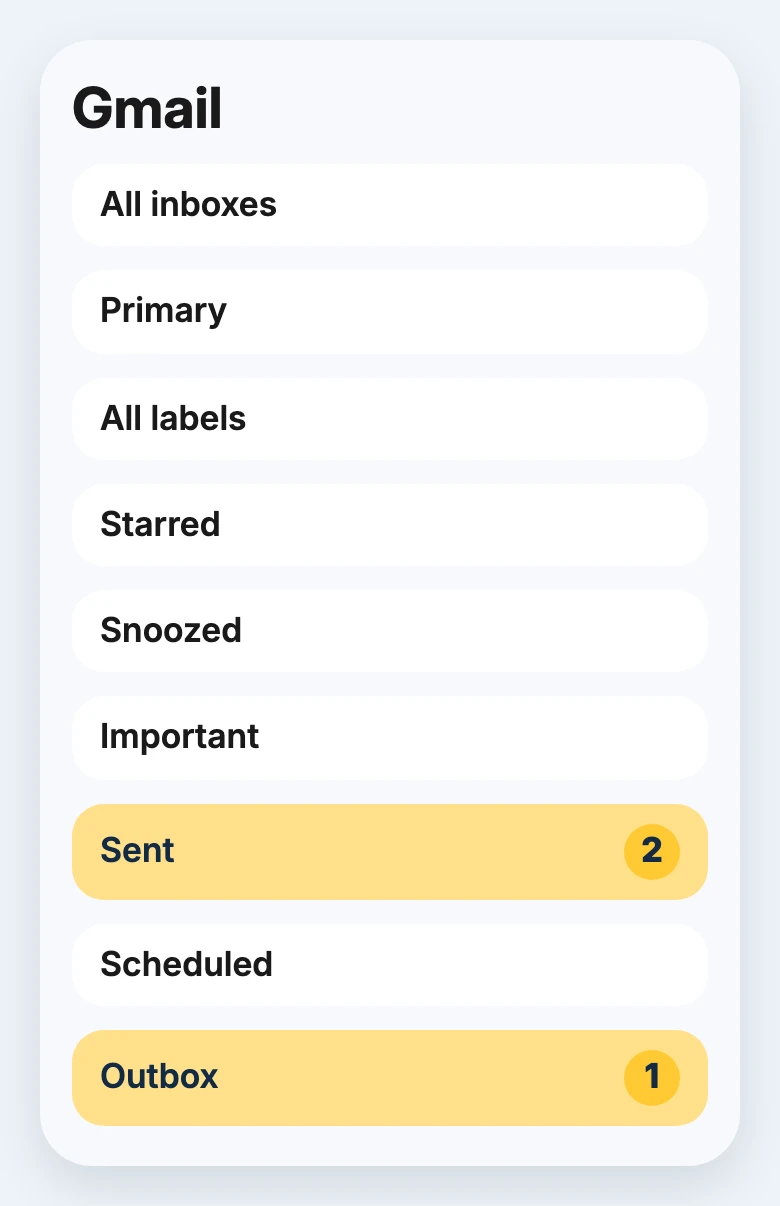
Open Gmail's menu and look in Outbox, then Sent. A message waiting in Outbox still needs attention on the sending side. If the message is in Sent but a delivery-failure email arrived afterward, read that email's error.
Load a new webpage using that phone's browser. If it won't load, reconnect Wi-Fi or try cellular data where available. Once the connection works, reopen Gmail and refresh the inbox by pulling down in the phone app.
Give syncing time to finish. The Android sync instructions allow up to 15 minutes, and longer when a device hasn't been used for some time. Don't judge a large backlog by the first few seconds after reconnecting.
Try one short email without an attachment to a known working address. If it sends, work on the original attachment or recipient. If it stays queued too, continue to the account and app checks.
2. Check account storage before changing the app
Google Account storage is shared across Gmail, Drive, and Photos. When the account reaches its storage limit, Gmail can't send or receive messages. A working internet connection won't fix that restriction.
Check the account's storage warning and make sure you're checking the account shown in the message's From field. Having spare space in another Google account won't help the full account send.
Remove unwanted large emails and files, then empty Gmail's Trash and Spam when you're ready to permanently delete those messages. Items left there still use storage.
Phone storage is separate. On Android, a device that's short of free storage can stop Gmail syncing even while the Google account has space. Remove unwanted downloads or apps through the phone's storage settings, then reopen Gmail.
If incoming mail has stopped as well, the email receiving checks explain other places messages can go. Start with this account's storage warning when both directions fail together.
3. Follow the sending-limit or delivery-failure message
An error saying you've reached a sending limit calls for waiting, rather than repeatedly pressing Send. For personal Gmail, sending to more than 500 recipients in one email or more than 500 emails in a day can trigger the limit.
Google's personal Gmail sending limits say sending should become available again within 1 to 24 hours after that error. Reduce the next batch instead of retrying the same large recipient list.
Work and school accounts have different limits. Ask your Workspace administrator to check the restriction, especially after bulk sending or a suspected account compromise. These mailboxes don't use the personal Gmail allowance.
If only one address fails, compare it carefully with a previous successful message. Correct a misspelled address and check the returned email for a full recipient mailbox, rejected content, or another stated reason.
When the error points to a problem at the recipient's end, send that exact error to them through another channel. Clearing the Gmail app won't repair their full mailbox or change their server's rejection.
4. Remove the attachment from the test message
Send the short test without its attachment. If that works, return to the draft and let the upload finish before sending. A message still uploading a file hasn't finished preparing its attachment.
For personal Gmail, attachments can total up to 25 MB. Larger totals are handled as a Google Drive link. Check that the intended recipient can access the Drive file; sending its link doesn't change the file's sharing permissions.
A blocked file type or security warning needs a different approach. Use a file type or sharing method that's allowed; don't rename a blocked executable just to force it through email.
For uploads that fail only through an organization's network, ask its administrator about blocked attachment hosting. Report whether plain messages send and tell IT which attachment won't send, so they can review that network restriction.
5. Repair a browser page that won't respond
When Gmail's Send button stalls or the page reports a browser error, copy the unsent message into a separate note before closing the tab. Open another updated browser and try that account there.
For errors such as Oops or Bad Request, try a private or Incognito window. If sending works there, review extensions that affect webpages. Disable each extension separately, checking Gmail after every change.
If disabling extensions doesn't help, clear the browser's cache and cookies, then sign in again. This can sign you out, so keep that copy of your unsent text. If both browsers fail, focus on the account's error.
6. Repair Gmail syncing on Android
Update Gmail in Google Play, restart the phone, then open Gmail. In Menu > Settings, choose the affected account. Under Data usage, check Sync Gmail.
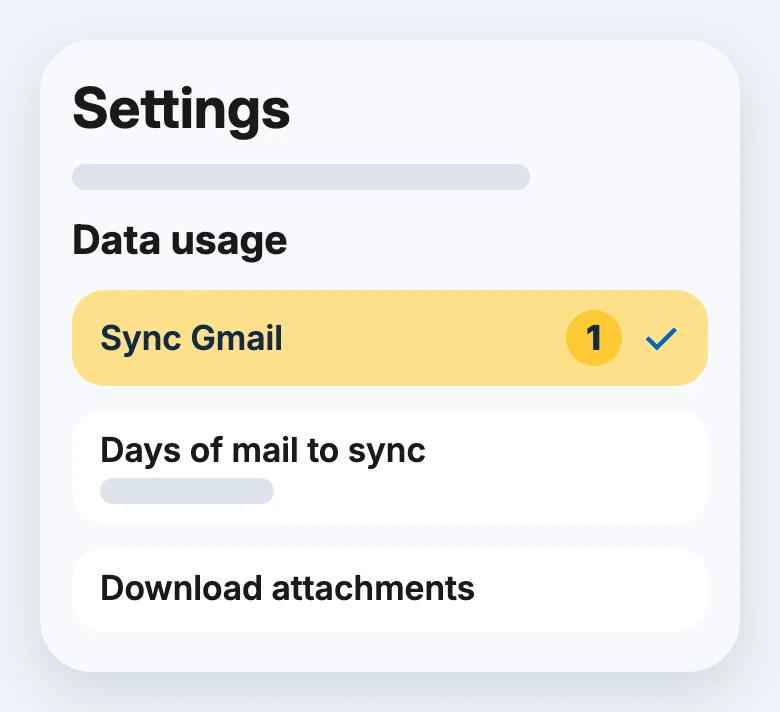
Also check Android account syncing: Settings > About phone > Google Account > Account sync, then More > Sync now. Some phones put accounts elsewhere; search Settings for Account sync if needed.
If Gmail is already open on another device, compare sending there using the same account. If it works, focus on the phone's app and connection. The same account error on both devices points back to storage or a sending restriction.
Keep Outlook separate if that's the app holding your Gmail message. Its own stuck Outbox controls differ from the Gmail app's sync settings.
7. Use the iPhone route, then protect drafts before a reset
On iPhone or iPad, update Gmail through the App Store. Open the app and pull down the inbox to refresh. If sending still fails, check your connection and available account storage.
For background downloads, open iPhone Settings > General > Background App Refresh and enable Gmail. Inside Gmail, Menu > Settings > Data usage > Sync settings controls how many days of mail are synced.
The Android Sync Gmail checkbox isn't an iPhone control. Don't keep searching iOS Settings for the Android menu. If the error is for a non-Gmail account you've added to Gmail, check that provider's sign-in or sending error instead.
On Android, clearing Gmail's stored data is a late step. First copy any unsent text somewhere safe: this can erase drafts, the signature, ringtone, and other app settings.
Then open Settings > Apps > See all apps > Gmail > Storage & cache > Clear storage, and restart. Reopen Gmail and let the account sync before judging the result.
If it still fails, use the Gmail Help Community or your Workspace administrator. Give the exact error, your device, whether mail is queued or returned, and whether the account sends from another device.
The Short Version
Refresh queued mail after reconnecting, free full account storage, and wait out a stated sending limit. Test without attachments before repairing phone sync. For returned mail, correct the problem named in its delivery error.
Checked November 29, 2026.
 If you have any business, I can build it online