

The Acer Alt + F10 shortcut works during the Acer logo, before Windows loads. If Windows starts normally, retry once at the logo, then enter recovery through Windows. A recovery error needs different steps from a missed keypress.
The shortcut opens the recovery environment; it doesn't perform a reset by itself. You can review the available repair and reset choices before agreeing to remove anything.
In this guide
1. Match what happens after the shortcut
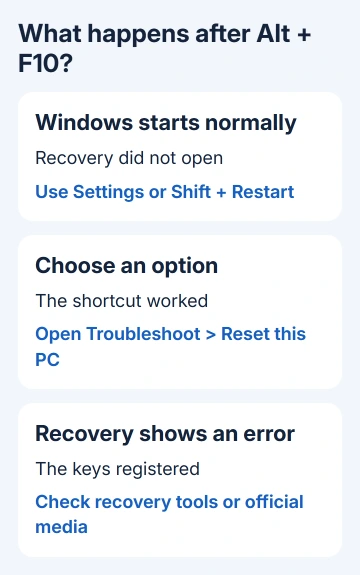
With the laptop off, plug in its power adapter. Turn it on and press Alt + F10 together when the Acer logo appears. The expected sequence is Please Wait, then a blue screen labeled Choose an option.
If Windows reaches its normal sign-in screen, the shortcut didn't open recovery. If Please Wait appears but recovery then errors, the laptop detected the shortcut. Changing when you press the keys won't repair that later failure.
Try the built-in keyboard and check neither key is stuck. Don't force a shutdown during an active reset or installation; that can interrupt recovery.
On the blue screen, choose Troubleshoot and check whether Reset this PC is present. Once that choice appears, the shortcut has done its job. You can decide how to reset the PC.
If the laptop doesn't display the Acer logo or any image at all, check the power and display fault first. Recovery keys depend on the computer starting far enough to offer them.
2. Use Settings or Shift and Restart when Windows opens
In Windows 11, open Settings > System > Recovery. For a direct reset, select Reset PC beside Reset this PC. For the recovery tools first, use Advanced startup > Restart now.
In Windows 10, open Settings > Update & Security > Recovery. Choose Get started under Reset this PC, or Restart now under Advanced startup for the recovery tools.
Another route works from the Start menu or Windows sign-in screen: hold Shift while selecting Power > Restart. Let the laptop restart and show the recovery choices instead of shutting it down afterward.
Choose Troubleshoot on the blue screen. If Reset this PC is available there, use it without returning to the Alt + F10 attempt. This avoids depending on pressing the keys during the brief logo screen.
Microsoft's Windows recovery guide explains these entry methods. If one reaches recovery but the reset control is missing, move to the installation-media route rather than keep changing keyboard timing.
For the reset screens themselves, the Acer reset guide follows the file-retention and reinstall-source choices. Use that guide once you've reached recovery and are ready to choose how to reset.
3. Check D2D Recovery where the model provides it
Some older Acer laptops have a firmware setting named D2D Recovery, meaning disk-to-disk recovery. When the setting is disabled, the model's built-in recovery shortcut can be unavailable.
Restart and press F2 during the logo to open firmware settings. Look for D2D Recovery, often on the Main tab on models that include it. If it is disabled, set it to Enabled, save with F10, and confirm the save.
Try Alt + F10 again at the next Acer logo. If the blue recovery screen appears, the setting was the missing step. If recovery still errors after Please Wait, continue with another recovery entry method.
Leave unrelated firmware settings alone. Changing storage-controller modes, Secure Boot, or the boot mode can stop the current Windows installation from starting and doesn't replace missing recovery files.
Not every Acer model has D2D Recovery. If yours doesn't have it, don't try to unlock hidden menus or install another model's firmware. Use the recovery methods available for your model and Windows installation.
An enabled D2D setting also can't recreate a deleted recovery image. If the drive was replaced or Windows was reinstalled, tell Acer that history when asking which recovery media the laptop needs.
4. Review file retention before starting a reset
Before confirming any reset, make a separate file backup. Encrypted storage also needs its BitLocker recovery key. That key is a long recovery code, separate from the PIN used to sign in.
Keep my files reinstalls Windows while keeping personal documents, with apps removed and settings reset. It isn't a backup or a promise that a failing drive can preserve everything through the process.
Remove everything removes personal files along with apps and settings. Choose this when deleting your personal files is the goal. Read the final summary instead of assuming that entering recovery has already chosen the safer option.
Cloud download gets a fresh Windows copy and needs an internet connection. Local reinstall reuses the laptop's existing installation files. The Windows source and whether to keep your files are separate choices.
I'd consider Cloud download when the local reset files are damaged and the option is available. It doesn't repair a failed storage drive, and it isn't necessarily the same as restoring Acer's original factory software image.
Once the reset starts, keep the adapter connected and allow its restarts to finish. A long black screen can occur during reset. Don't force another shutdown just because the normal Windows desktop hasn't appeared yet.
5. Use recovery media when the built-in tools are missing
When the built-in recovery routes fail, use official Windows installation media or request Acer's model-specific recovery media. If the Acer can't prepare the media, make it on a working computer.
Create Windows installation media on the working computer. Start the Acer from that USB using its documented boot method. Choose Repair my PC, then Next, to open recovery before considering a reinstall.
An installation started by booting from USB isn't the same as the in-place repair launched from a running Windows desktop. Don't assume it will keep your apps or files. Check the selected procedure and its deletion summary.
For a working desktop, the Windows repair reinstall options can be a better fit than a full factory wipe. Choose the procedure that matches whether you can still open Windows.
For repeated errors or a missing internal drive, give Acer Support the serial number or SNID, model, Windows version, and error text. Ask whether recovery media or a storage repair is needed.
The Short Version
Try Alt + F10 at the Acer logo, then use Settings or Shift and Restart if Windows opens. Check D2D only where the model provides it. Missing recovery tools need official media or Acer help, with files protected before any reset.
Checked November 15, 2026.






