

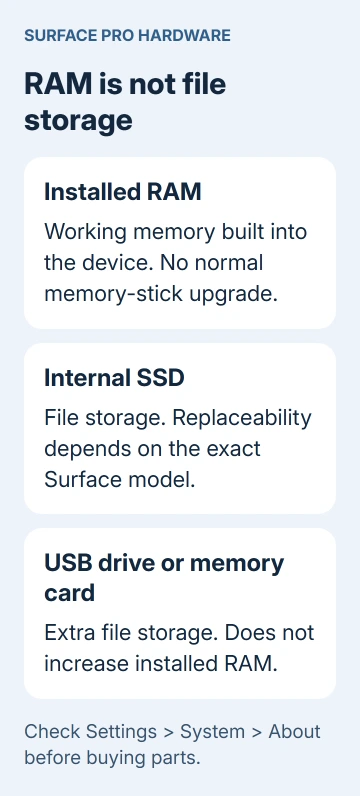
No, a Surface Pro doesn't offer a normal RAM upgrade with removable memory sticks. Its memory is built in, so a larger SSD, microSD card, or USB drive won't increase RAM. Check the installed amount before buying an upgrade kit.
If the problem is slow performance, the useful next step is to see whether your everyday apps are running short of memory. That separates a memory limit from low storage, a busy app, or another performance problem.
In this guide
Check installed RAM and the exact Surface model
Open Settings > System > About on either Windows 11 or Windows 10. Read Installed RAM under the device specifications. This tells you how much memory your Surface has, rather than how much space is available for files.
Write down the full model too. Open the Surface app and check Device information. If the name isn't clear, the Surface Pro identification guide explains the Windows and serial-number routes.
The name Surface Pro alone leaves out the generation, processor, and purchased memory configuration. Write the model and installed RAM in the same note when asking about an upgrade or comparing a replacement.
Don't interpret an SSD capacity as RAM. A device with 256 GB of storage and 8 GB of RAM still has 8 GB of working memory. The larger number describes file storage, not the space apps use while they're running.
The same distinction applies to a microSD card. Some Surface models have a card slot and others don't, but adding a card to a supported model expands file storage. It doesn't turn into additional installed RAM.
Understand what the repairable parts actually change
Some Surface Pro models have removable solid-state storage. That can allow an SSD repair or a change in storage capacity by following the service instructions. It doesn't make the RAM removable alongside it.
Microsoft's Surface self-repair information lists supported replacement components by model. Check that exact model's list rather than treating a storage access door as a general upgrade bay.
For a concrete example, the Surface Pro 11 repair information identifies its LPDDR5x memory as soldered. Soldered means the memory chips are fixed to the board, rather than fitted into removable memory sockets.
A RAM module sold for another laptop isn't compatible just because it has the capacity you want. The computer needs a supported socket and memory specification, not simply room inside the case.
Replacing a motherboard during a repair is a different job from adding RAM. It involves model compatibility and service procedures, and it isn't a supported memory-stick upgrade for an owner to perform.
I'd ask for a written explanation before paying for a claimed Surface RAM upgrade. The quote should name your exact model, which part will change, and how much installed memory Windows will show afterward.
Check memory use during the work that feels slow
Open the apps and files you normally use, then press Ctrl + Shift + Esc. In Windows 11 Task Manager, select Performance > Memory. In Windows 10, choose More details if needed, then Performance > Memory.
Look at the installed total and the available memory while the slowdown is happening. Check during your usual browser, call, and workbook session. An empty desktop just after startup won't show how much memory your usual work needs.
Next, open Processes and sort the list using its Memory column. Find the apps using the largest amounts. Save their work, close one you don't currently need, and compare the same task again.
If the Surface responds faster and available memory rises, running fewer apps can help it handle your current task. It doesn't increase physical RAM, but it leaves more of the existing memory for the app you need.
Don't use a single memory percentage as a universal pass-or-fail threshold. Compare the reading with the slowdown and with the result of closing an app. Judge whether this Surface can handle the work you actually need.
Task Manager may show memory details supplied by the hardware. Check the Surface service information to see what can be replaced. A slot count in Task Manager doesn't mean your Surface has a RAM socket you can reach.
Reduce avoidable load without buying a memory booster
Keep only the tabs and apps you currently need open, and check which apps start when you sign in. Choose Startup apps in the Windows 11 Task Manager navigation. In Windows 10, use its Startup tab.
Disable only startup entries you recognize and don't need at sign-in. This changes when those apps start; it doesn't uninstall them. Leave security and hardware utilities alone if you don't know what they do.
Save your work, restart, then try your normal workload again. If one app uses more and more memory during a long session, check for an update or troubleshoot that app before buying a replacement based only on your Surface's total RAM.
Check available storage too. Open Settings > System > Storage in either Windows version. If the internal drive is crowded, the Windows space-cleanup guide helps you choose what to remove.
Storage cleanup can help a separate low-space problem. It doesn't convert free SSD space into installed RAM. Likewise, an external drive can hold files without changing the memory shown in About.
For a Surface that stays slow with light work, use the Surface performance checks. Available updates and the behavior of the troublesome app matter alongside memory capacity.
Decide between keeping, repairing, and replacing it
Keep the device if closing unused apps makes the work comfortable again. Note which apps cause trouble so you can adjust what you keep open instead of repeatedly using a utility to clear memory.
Seek repair advice if performance has suddenly worsened, the system crashes, or the installed memory differs from the configuration you bought. Give support the full Surface model, the reported RAM, and the task that triggers the problem.
If your normal work keeps needing more memory than this Surface has, compare replacements with more built-in RAM. Choose the capacity before buying, and check that product's service information instead of assuming you can add RAM later.
The Short Version
RAM sticks aren't a supported Surface Pro upgrade. Check installed memory, compare the real workload in Task Manager, and distinguish SSD or card storage from RAM before paying for parts.
Checked November 16, 2026.






