An AirPods case with no light may need charging, though its indicator normally switches off a few seconds into wireless charging. Charge by cable for at least 15 minutes, then open the case beside your paired iPhone to check its battery.
A case with a rising battery reading and a dark light needs attention to its indicator. An empty case needs charging checks first. Check which behavior you have before clearing its pairing or ordering a replacement.
In this guide
1. Look for the light your charging case actually has
Open the lid and look for the light. For first- and second-generation AirPods with the original Lightning Charging Case, the light sits between the two earbud spaces inside. Its front has no light.
For those same earbuds, the Wireless Charging Case moves the indicator to the outside. The light is also on the front of AirPods 3, 4, and 5 cases and AirPods Pro cases. Take off any cover hiding it.
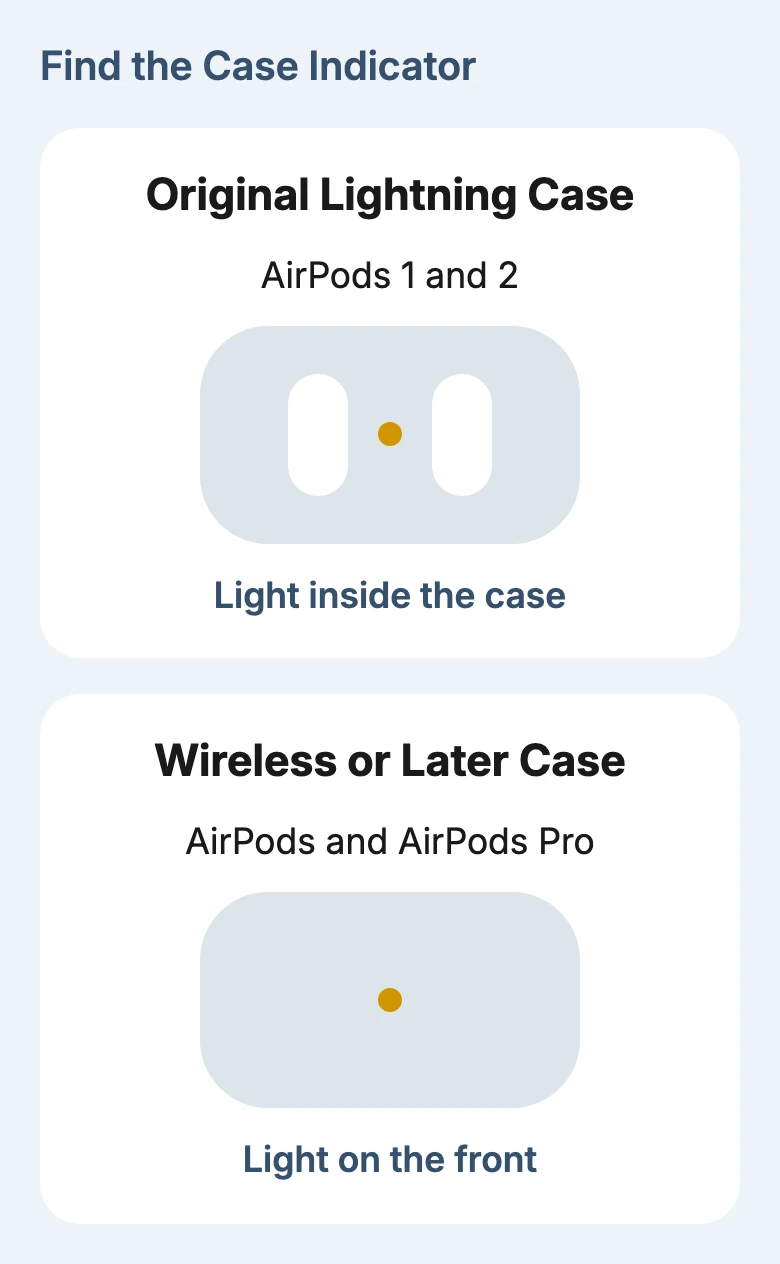
The light shows the earbuds' charge while they're inside. Take them out and it shows the case's charge instead. Green indicates full charge; amber indicates there is less than a complete charge available.
A compatible case on a Qi charger lights briefly, then goes dark while charging continues. The indicator doesn't stay lit for the whole session. If that's what you're seeing, check its battery level to confirm charging continues.
AirPods Max have their light on the headphones themselves, rather than on an earbud case. This guide covers AirPods and AirPods Pro cases. For Max, use the reset and amber-light checks.
2. Give an unresponsive case a proper cable charge
Place both earbuds inside, shut the case, and connect its Lightning or USB-C charging cable. Plug it into a working USB adapter or computer port. Leave the case and earbuds charging for at least 15 minutes.
Apple recommends charging for at least 15 minutes before moving to its other checks. A brief plug-in and immediate button press can leave an empty case without enough power to respond.
Make sure both cable connections are secure and the power adapter is plugged into a working outlet. If you're unsure whether the computer's USB port works, try a wall adapter you know works instead.
I'd rule out the cable with a borrowed compatible one before paying for a case. A cable can fit properly and still fail to deliver power.
No response with the first cable? Keep the charger connected and swap the cable. If nothing changes, compare a second power source. Swap each part separately so you'll know what brought the light back.
For AirPods 4 connected to an older USB-A charger, the case end must still be USB-C. That model doesn't take the Lightning plug used by some earlier cases.
3. Read the battery instead of waiting for a constant light
After charging, hold your paired iPhone or iPad near the case. Leave the earbuds inside and open the lid. Read the case battery and each earbud battery on the card that appears.
A rising case level means power reaches its battery even with a dark indicator. That changes the service request: report a dark status light on a case that charges, rather than a case that cannot charge.
If the battery card doesn't appear, that doesn't tell you which part or battery has failed. Keep using the cable and power-source checks, especially if the AirPods were already disconnected from the phone.
If the case is charging but one earbud stays empty, take that earbud out, put it back, and check its reading again. Swapping cables repeatedly won't fix a problem that affects only one bud.
Avoid forgetting the AirPods from Bluetooth just to make the battery card reappear. A fully dark case might not enter pairing mode afterward, leaving you without the connection you still have.
4. Check the charging port and wireless position
Look for dirt around the charging connector. Gently brush away loose debris with a clean, dry brush that has soft bristles. Keep liquid and metal tools out of the openings so you don't damage the contacts.
For wireless charging, check the case supports it. A Lightning Charging Case without wireless support won't charge on a Qi pad. Standard AirPods 4 also need a cable; the ANC model supports wireless charging.
On a compatible Qi charger, position the shut case with its indicator upward. Try a different position if no light appears. An outer cover that keeps the case from resting properly can interfere with charging too.
When cable charging works but the wireless attempt doesn't, the case isn't completely without power. Continue with the wireless charger, positioning, and compatibility checks rather than treating the dark light as a dead battery.
5. Reset only after the case can respond
If connection or charging trouble continues after charging, try a reset. It can't charge an empty battery. Watch the light change to check whether the reset finishes.
For AirPods 1, 2, 3, Pro 1, or Pro 2, place both earbuds inside, then shut the case for 30 seconds. On the paired iPhone, select Settings > Bluetooth, the information button, and Forget This Device. Confirm, then lift the lid.
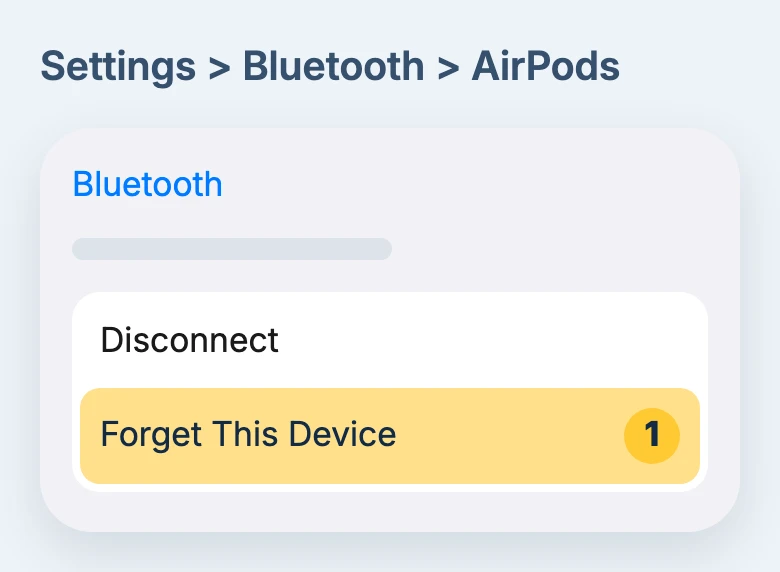
Press the case's setup button at the back, keeping it down for about 15 seconds. Expect amber flashes followed by white ones; reconnect when your phone prompts you. If Bluetooth didn't list AirPods, skip removal and use the case controls.
For AirPods 4, 5, and Pro 3, use the same closed-lid wait and Bluetooth removal. Open the case, then double-tap its front as the indicator lights up. At white flashes, double-tap again. When the flashing speeds up, double-tap a third time.
The reset is complete when amber changes to white. With a fully dark indicator, you can't time the taps or tell whether the reset finished. Stop there and request a charging-case check from Apple Support.
Give support the model, the result with another cable and charger, and whether the case's battery level rises. Ask whether the case needs service or replacement. Keep both earbuds with it so the charging behavior can be checked together.
The Short Version
Check the inside or front indicator, then charge by cable for at least 15 minutes. A wireless charging light can switch off normally. Compare battery readings before resetting. Request case service if power or the light never returns.
Checked November 29, 2026.
 If you have any business, I can build it online