An asupLo.sys error after a Windows upgrade can mean Windows blocked an old driver. For a driver-can't-load warning, look for a compatible update first. Check its filename and publisher before removing ASUS software.
An ASUS-related filename doesn't identify the program that installed it. The similar-looking letters in asupLo.sys and AsUpIO.sys make that check especially useful.
In this guide
1. Read the full warning before changing anything
Take a picture of the warning or write down its full text, driver name, and company name. A popup saying a driver can't load needs different treatment from a blue screen that stops Windows starting.
Microsoft says the driver can't load warning can appear when Memory integrity blocks a driver. It keeps incompatible driver code out of protected parts of Windows.
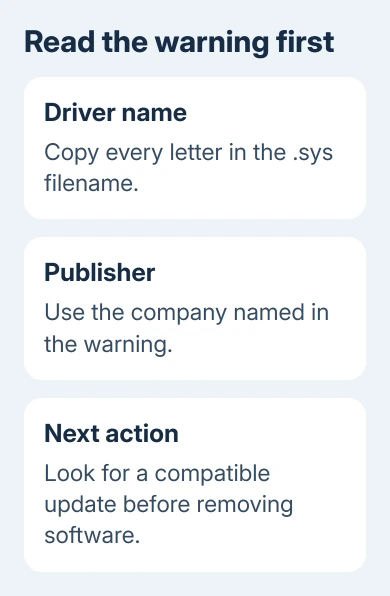
Open Start > Windows Security > Device security > Core isolation details. Check whether Memory integrity is on. Keep the warning's driver details for the update and support request.
Don't switch that protection off just to dismiss a startup message. Try updating the driver, or uninstalling its associated program. Hiding the warning by disabling security doesn't make the old driver compatible.
If the message has a stop code, or Windows can't start, record that code too. The following checks assume you can reach the desktop. A startup failure needs recovery advice for that specific stop code.
2. Look for an offered driver update
Save your work, then open Settings > Windows Update on Windows 11. Click Check for updates, install available updates, and restart when asked. Test another startup before changing anything else.
For optional driver packages, open Advanced options > Optional updates > Driver updates. Review the publisher and device name. Install a package only when it matches the hardware or software involved in the warning.
On Windows 10, the starting path is Settings > Update & Security > Windows Update. Optional packages appear under View optional updates when Windows has any to offer. If there are none, don't download individual .sys files online.
If the popup stops appearing after an update, reopen the utility that previously triggered it. Check that its controls still work. If the same driver is blocked again, continue with the program that installed it.
An empty update list means Windows Update hasn't offered you a replacement. It doesn't mean the publisher has none. The next place to check is your particular computer or motherboard's support page.
3. Update the utility that installed the driver
Press Windows + R, enter msinfo32, and press Enter. Note System Manufacturer and System Model. On a custom desktop, also note BaseBoard Manufacturer and BaseBoard Product to identify the board inside it.
Open the manufacturer's support site and search that exact model. Check its Windows version before choosing a driver or utility package. A driver for a different ASUS product isn't a substitute just because its filename looks similar.
Review the installed ASUS utilities in Settings > Apps > Installed apps on Windows 11. Windows 10 calls this list Apps & features. Compare those names with the utilities offered for your model.
If you still need the utility, use its supported updater or the current package for your model. Restart, then confirm the utility works without the warning. A newer version number isn't enough to call the update a success.
I'd try that before deleting a .sys file. Deleting it yourself can leave the program trying to load a missing driver. It can also make a later uninstall harder to sort out.
For another example of a named driver blocking Windows protection, the lvrs64.sys compatibility checks explain how to connect an old driver with its installed software.
4. Remove an unwanted utility through its uninstaller
If you no longer use the identified program, uninstall that program rather than removing every ASUS entry. On a laptop, some manufacturer software controls device features you may still want.
Open the app list, select the matching utility, and choose Uninstall. Follow its prompts and restart. Then check whether the popup returns before installing anything else. You'll know whether removing that program stopped the warning.
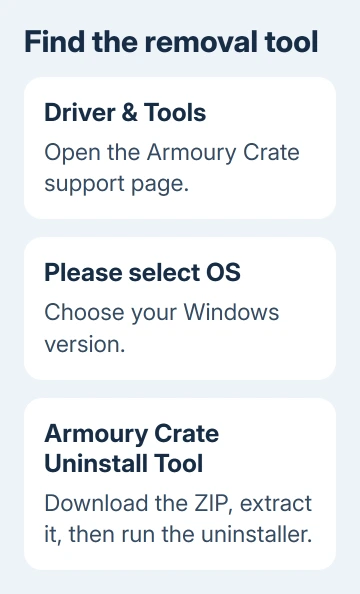
Armoury Crate has a dedicated removal process. If that's the program you intend to remove, follow its official uninstall instructions and use its removal tool. That tool is for Armoury Crate, not a general cleaner for every ASUS driver.
Open the Armoury Crate support page, select Driver & Tools, and choose the Windows version. Find Armoury Crate Uninstall Tool, download its ZIP, and extract it. Run the included uninstaller, then restart.
The January 2025 asupLo.sys discussion includes an owner who removed the ASUS software they could find, but the error remained. They also reported no warning symbols in Device Manager.
In a later reply, the owner confirmed a fresh Windows installation cleared the warnings. Both Core isolation settings were on and everything worked. Their earlier file and service removals had failed.
5. Keep a clean installation as the last resort
Ask ASUS about a compatible package or supported driver removal before replacing Windows. Send the full warning, filename, utility version, and model. Reinstalling Windows is a lot of work for a problem with one utility.
If no suitable replacement exists and you choose a fresh start, use the official clean-install procedure. This removes installed apps, files, and settings; it isn't the repair option that keeps them.
Back up your files, check the backup opens, and confirm your Windows license and recovery keys before starting. Have the exact model's network driver and app installers ready so the PC can reconnect afterward.
Follow the linked media and boot instructions. Current Windows 11 Setup uses Install Windows 11, then an agreement to delete files, apps, and settings. Ask for installation help if the target disk is unclear.
After setup, install the matching model drivers and check Windows Security before restoring optional ASUS utilities. Test the next startup. If the warning returns after you install a utility, tell ASUS which package brought it back.
If Memory integrity itself won't turn on, the Memory integrity compatibility guide covers that separate symptom. For help preparing the reinstall safely, open Get Help and ask for Windows installation support.
The Short Version
An asupLo.sys warning needs a publisher check, then an update or utility removal. The owner needed a fresh Windows installation. Leave that destructive step until last, with a verified backup and the correct procedure.
Checked November 17, 2026.