lvrs64.sys is an older Logitech webcam driver that can block Memory integrity even after the webcam is unplugged. Update its software if you still use the camera. If you don't, remove the matching driver package with Windows' driver tools.
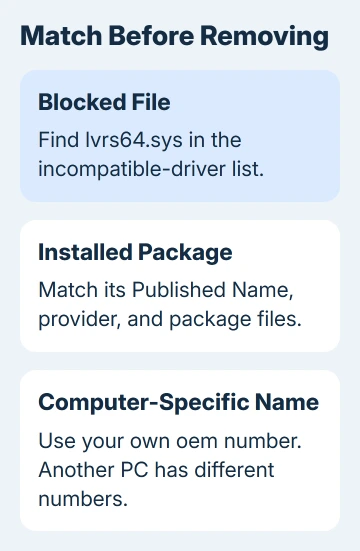
Deleting the loose .sys file doesn't remove the installed package. The important name is its Published Name, an oem<number>.inf entry that differs between PCs. Don't copy another person's OEM number into a removal command.
In this guide
1. Record the exact driver blocking protection
Open Windows Security > Device security > Core isolation details. Under Memory integrity, select Review incompatible drivers if it's available. Expand the lvrs64.sys entry and record its provider and published name if shown.
Also note any other listed driver, such as lvuvc64.sys. Removing one entry won't make a separate incompatible package disappear. Check each driver separately, rather than treating the list as one general Logitech warning.
Microsoft's driver compatibility explanation recommends checking for an updated compatible driver. Memory integrity protects Windows against unsafe code running in sensitive parts of the system.
These steps deal with lvrs64.sys left on the PC. If the page is missing, the switch is managed by an administrator, or no driver is listed, use the broader Memory integrity checks instead.
If this is a work PC, give IT the filename and published name before removing anything. A driver package can serve more than one device, so its name needs to be matched before any change.
2. Update a needed webcam or uninstall obsolete software
If you still use the Logitech camera, check Settings > Windows Update > Advanced options > Optional updates > Driver updates. Look for a matching update rather than installing every optional driver as an experiment.
Also check which software the maker supports for your exact camera model. A current application for a different Logitech product isn't automatically a replacement for an old webcam driver.
After a compatible update, restart and inspect the incompatible-driver list again. If lvrs64.sys is gone, try enabling Memory integrity. Finish the requested restart before checking whether protection remains on.
For a camera you no longer use, unplug it. Open Settings > Apps > Installed apps, locate its old webcam application, and uninstall that software. Older Windows 11 builds can label this list Apps & features.
Restart and inspect the list. If the driver remains, the application uninstaller left an installed driver package behind. You'll need to identify that package next; unplugging the camera again won't remove it.
The Logitech webcam driver guide explains the difference between Windows' camera driver and optional camera software. Keep a working driver for a camera you still need.
3. Match the filename to its OEM INF package
Right-click Start > Terminal (Admin) and approve the prompt. On Windows 11 version 22H2 or later, run the following listing command. It lists installed third-party driver packages and the files they contain:
pnputil /enum-drivers /filesLook for lvrs64.sys in the output. For the package that contains that file, read its Published Name, Original Name, provider, and version. The published name is the OEM INF name needed by the removal command.
Don't choose a neighboring package simply because it also says Logitech. A mouse, keyboard, camera, and older utility can install different packages. Match the file inside the package to the filename Windows Security actually lists.
Microsoft's PnPUtil command reference dates the /files option to Windows 11 22H2. On original 21H2, use pnputil /enum-drivers without it.
That older listing doesn't show package files. Use the published name already shown by Windows Security to match it. If you can't tell which package contains the driver, ask support to identify it before removing anything.
A warning naming an ASUS file needs the asupLo.sys identity and utility checks; a Logitech OEM package is unrelated to that driver.
An alternative view is Device Manager > View > Devices by driver. It groups devices under their driver packages. Compare the OEM INF entry with your notes instead of removing all hidden devices at once.
4. Uninstall that package through PnPUtil
Keep the obsolete camera unplugged. In the administrator terminal, run the command using the exact published name from your own PC. Replace oemNN.inf in this example before pressing Enter:
pnputil /delete-driver oemNN.inf /uninstallThe /uninstall option removes the package from devices using it, while /delete-driver removes it from the driver store. Removing the package can stop the associated old camera from working until a suitable driver is installed.
Read the terminal result. If Windows reports successful removal or asks for a restart, save open documents, then restart Windows. Then check Windows Security; successful removal doesn't turn protection on for you.
One owner confirmed they needed /force, which removes even an in-use package. The accepted example used oem67.inf; that number isn't universal. Match your own package and try normal removal first.
If Windows reports that the package is in use, close its software and restart before another attempt. If it still refuses, stop and give the package details to support. Don't escalate to deleting protected DriverStore folders.
5. Confirm protection and check any remaining driver
Reopen Windows Security > Device security > Core isolation details. Review the list again. If lvrs64.sys is gone but another incompatible driver remains, identify that separate package before making another change.
When the list no longer blocks the setting, turn Memory integrity on and restart if prompted. Return to the same page after sign-in. Verify that protection remains enabled. Check any camera you still use as well.
If lvrs64.sys returns after reconnecting the old webcam or reinstalling its software, check what package that installation restored. Ask the device maker for a Memory integrity-compatible driver for the precise camera model.
I'd keep the terminal's result and the driver version with that request. It helps support tell whether removal failed or an installation put the package back. Turning protection off leaves the compatibility problem unresolved.
For a driver that won't uninstall, open Get Help from Start and request help removing the identified OEM INF package. Include its provider, published name, filename, Windows build, and the exact error message.
The Short Version
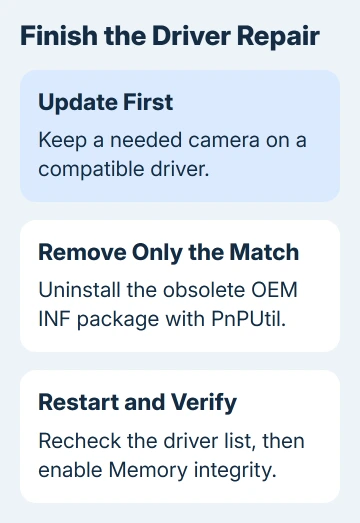
Update a needed webcam first. For an obsolete one, match lvrs64.sys to its own Published Name, remove that package with PnPUtil, and restart. Check the remaining driver list, then enable Memory integrity and confirm it stays on.
Checked November 16, 2026.