

A Logitech webcam driver that won't install often needs Windows' built-in USB Video Device driver instead. For a UVC-compatible model, select it in Device Manager, then open Windows Camera to check its preview.
UVC means USB Video Class, a shared standard for webcams. An installer refusing to run, a camera missing from Windows, and video that works only in certain apps need separate checks. Start with whether Windows can see the device.
In this guide
1. Connect the webcam directly and let Windows detect it
Plug the webcam into the computer directly, bypassing hubs, docks, and monitor USB sockets. Try another port if Windows doesn't react. For a model with a detachable cable, choose a USB data cable, rather than a cable that only charges.
Give Windows time to finish setting up the newly connected device. The light can indicate power without confirming driver setup. Open Start > Camera and check for a live preview before retrying an older installer.
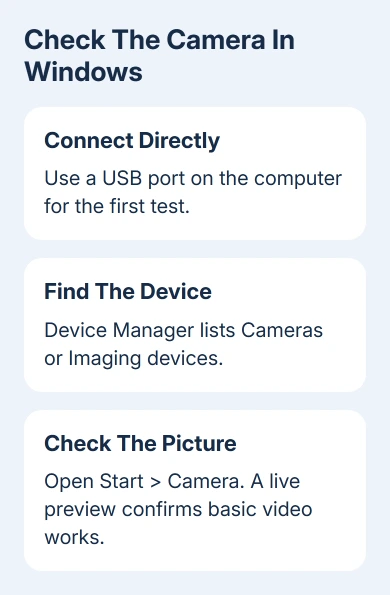
If the preview works, the basic camera driver is already installed. A failed download for effects, recording, or camera controls is then a software problem, rather than a missing webcam driver.
I'd try the built-in preview before installing another utility. A working picture answers the immediate question about the driver, and it leaves fewer changes to undo if a meeting app still can't use the camera.
Right-click Start > Device Manager. Look under Cameras, Imaging devices, and Sound, video and game controllers. The name and category you see depend on your model and its current driver.
If nothing appears, choose Action > Scan for hardware changes. If the webcam still isn't listed, test it on another computer. Software installation can't repair a USB connection that neither computer detects.
2. Choose USB Video Device for a compatible webcam
With administrator access, right-click the Logitech entry in Device Manager. Choose Update driver > Browse my computer for drivers, then Let me pick to choose from available drivers on this computer.
Keep Show compatible hardware selected. Choose USB Video Device, select Next, and follow the remaining prompts. This installs Windows' standard driver, without a separate installer download.
Logitech's native UVC driver instructions describe this choice. Their older wording says Update Driver Software; current Windows versions usually shorten that to Update driver.
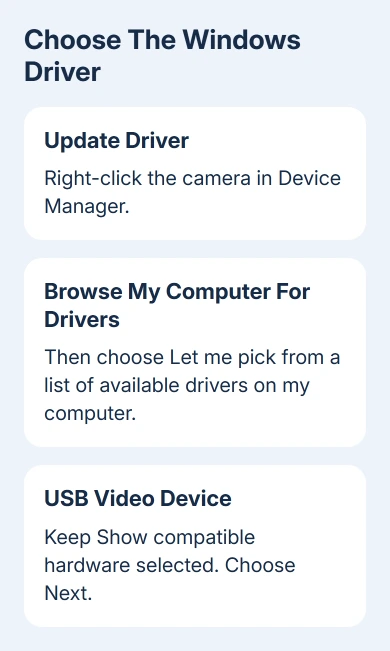
Open Camera again when installation finishes. A live picture means Windows can receive video through the replacement driver. Next, reopen your calling app. In its video settings, choose the Logitech camera by name.
The standard driver may omit model-specific features. Windows Hello face recognition, for example, may depend on a manufacturer's custom driver. Check both the picture and any feature you rely on before deciding the driver change worked.
If USB Video Device isn't offered with compatible hardware selected, don't force an unrelated device entry. Get the exact model from the camera label and check its supported operating systems and downloads with Logitech.
3. Check Windows updates when setup is incomplete
On Windows 11, open Settings > Windows Update > Check for updates. Then look in Advanced options > Optional updates > Driver updates for a matching camera driver. An empty list means Windows isn't offering an optional one there.
For Windows 10, look under Settings > Update & Security > Windows Update. Open View optional updates if that link appears, then review Driver updates. Available updates depend on the device and Windows support arrangement.
Install the matching update if offered, restart when requested, and try Camera again. Don't choose a driver just because its name includes USB or imaging. The device it supports must match the webcam.
If Windows lists an error beside the device, open Properties > General and read Device status. The separate Device Manager error-code guide explains what those numbers mean.
4. Fix app access when the driver already works
If Camera shows a picture but your call doesn't, check permissions and the calling app's camera choice.
On Windows 11, open Settings > Privacy & security > Camera. Turn on Camera access, then the switch labeled Let apps access your camera where available.
For traditional desktop calling programs, also check the desktop-app camera access switch. Those programs don't all appear as individual switches in the Store app list. Close other camera-using programs before reopening the one you want.
On Windows 10, use Settings > Privacy > Camera. Check device, app, and desktop app access there. If an organization controls these settings, ask IT to review permission before reinstalling the driver.
The Windows camera troubleshooting steps cover these access and driver checks. A browser call also needs the website's camera permission and the correct input selected in its call controls.
If the problem is the meeting itself, compare with the Teams camera troubleshooting steps. The Windows preview helps you tell whether the webcam itself is failing or just the calling app.
5. Roll back a bad update or ask for model-specific help
If the webcam failed just after its driver changed, open Device Manager > camera Properties > Driver > Roll Back Driver. Use it when available, follow the prompts, restart, and check Camera again.
If the rollback button is unavailable, note the device name, Device status message, and current driver details. Contact Logitech support with those details, the exact model, Windows version, and whether the webcam works on another computer.
For an old model with no supported Windows driver, ask whether it supports standard UVC operation. If it doesn't, a newer control app won't add that hardware capability. A replacement may be needed for the current system.
If an obsolete webcam leaves protection blocked, the lvrs64.sys removal procedure identifies the installed package without deleting protected driver files.
The Short Version
Check the Camera preview, then choose USB Video Device for a compatible UVC webcam. Check permissions and the calling app's camera choice if the preview works. Send Logitech the model and device error if detection fails.
Checked November 12, 2026.






