

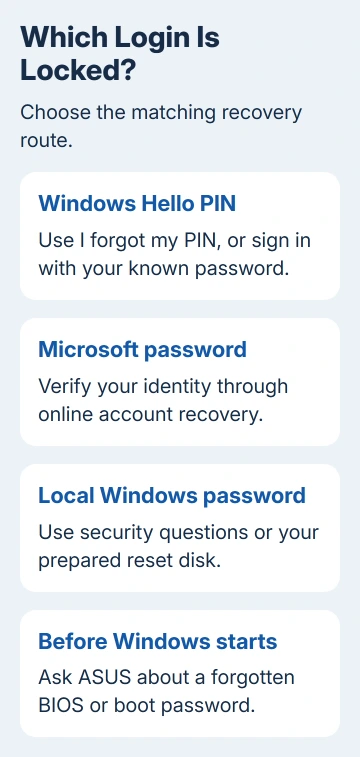
A forgotten ASUS laptop password usually belongs to Windows. Open Sign-in options and try a remembered PIN first. Microsoft account passwords, local passwords, and prompts before Windows starts each have their own recovery route.
Don't reset the laptop just because one sign-in method fails. Check what the screen asks for, then recover that password or PIN. An ASUS startup or BIOS password isn't changed by resetting a Microsoft account online.
In this guide
1. Check whether Windows wants a PIN or password
Select your user account at sign-in (Windows 10 or 11), then open Sign-in options. Choose the password method if you've been entering a PIN, or try your known PIN if the account password is forgotten.
A Windows PIN is specific to the device; the Microsoft account password also opens its online services. Changing one doesn't replace the other. Even a correct account password fails when typed into the PIN field.
Check the selected language and Caps Lock at sign-in if your password contains letters or symbols. Use the password-reveal control briefly if needed to check what was typed, with the screen out of other people's view.
If another sign-in method opens the desktop, use it. You can recover the forgotten password or PIN from the signed-in account without starting Windows recovery. Keep any files you need accessible while you sort out the login.
2. Recover the password for a personal Microsoft account
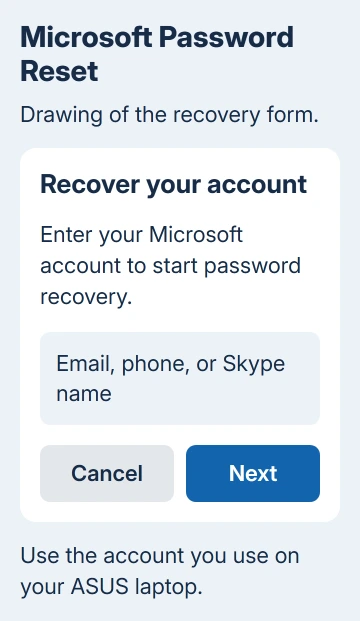
For a personal Microsoft account, use I forgot my password when Windows offers it, or open the Microsoft password reset form using another computer or your phone. Enter the Microsoft account address used to sign in on the ASUS laptop.
Choose one of the ways to verify your identity, enter the code you receive, and create your new password. The official password recovery steps explain the available checks and what happens when a verification choice is missing.
Reconnect the laptop through its sign-in screen's network control. Select password sign-in and enter the new account password. If the original PIN still works, it remains another way to sign in.
If the reset page belongs to a different account, stop and check the address. Recovering an old Outlook address won't unlock a laptop signed into another Microsoft account. The recovery needs to match the Windows user you're trying to open.
When the offered recovery phone or email is unavailable, use the Microsoft account recovery choices. An organization's work or school account needs its own administrator or approved password-reset service instead.
3. Recover a forgotten Windows Hello PIN
Select I forgot my PIN on the Windows sign-in screen if that link appears. Sign in and complete the identity verification it requests, then set a new PIN. This recovery link is for Microsoft accounts. Local accounts use a different route.
If the link doesn't appear, open Sign-in options and choose the password method. A known password lets you sign in first. For a local account, recover the local password if needed before trying to replace its PIN.
Once signed in on Windows 11, open Settings > Accounts > Sign-in options > PIN (Windows Hello). Use I forgot my PIN and follow the prompts. Windows 10 keeps the same account and sign-in settings area for Windows Hello PIN options.
ASUS explains these verification screens in its Windows login recovery instructions. Have the recovery email or phone available so the reset doesn't stop at a code you can't receive.
Once your new PIN opens the desktop, you're done. The online account password can stay as it is unless that password is also forgotten or the recovery process requires it.
4. Use the recovery choices for a local account
A local account is stored on the laptop rather than using a Microsoft account password. On its password sign-in screen, try signing in, select OK after the incorrect-password message, and choose Reset password if offered.
Complete that user's security questions, then create the replacement password. If you previously made a password reset disk, select Use a password reset disk and follow the wizard instead. It has to be a disk prepared for this account.
A Windows installation USB isn't a prepared password reset disk. New installation media won't supply missing security answers. If both recovery choices are unavailable, check for an authorized administrator who can already sign in.
An administrator who can already sign in can help check the remaining ways to reset the local password. I'd use the user's own security questions or prepared disk first, especially when those files matter.
If no recovery method remains, read the ASUS Windows reset choices before agreeing to a reset. Check which files a reset keeps, which apps it removes, and how encryption affects recovery. ASUS Cloud Recovery can erase data.
5. Send a pre-Windows password prompt to ASUS support
A password box that appears before the Windows user screen can be a BIOS or boot password. It protects startup or firmware settings. A Windows PIN reset and Microsoft's online password form don't change it.
Contact ASUS Product Support or an authorized ASUS repair center for a forgotten BIOS password. Provide the laptop model, serial number, purchase details, and the wording of the prompt. Service charges can apply under the repair terms.
Don't copy a reset-key sequence meant for another model. Tell support whether the prompt shows a Windows account name and Sign-in options. That separates a Windows login from startup protection.
The Short Version
Try another known Windows sign-in method first. Recover a Microsoft password online, reset a PIN through its own link, or use local security questions or a prepared reset disk. A forgotten pre-Windows password needs ASUS support.
Checked November 16, 2026.






