

Bambu Studio's failed-to-connect message means it isn't receiving printer status. Check that the A1 is online and bound to Studio's account first. A missing printer, a cloud failure, and a LAN-only connection need different fixes.
Start with the A1's screen and Bambu Handy. Those show whether the problem reaches the printer and phone too, or affects only the computer.
In this guide
1. Check the A1 and Handy before changing Studio
Look at the A1's network connection and any error on its home screen. Record the wording, especially an MQTT error. MQTT is the messaging system involved in reporting printer status; the error isn't about your sliced model.
Open Bambu Handy on your phone and check whether the A1 appears and is online. Check in Handy that your account still has the printer linked. A network connection alone doesn't mean the printer remains attached to the account.
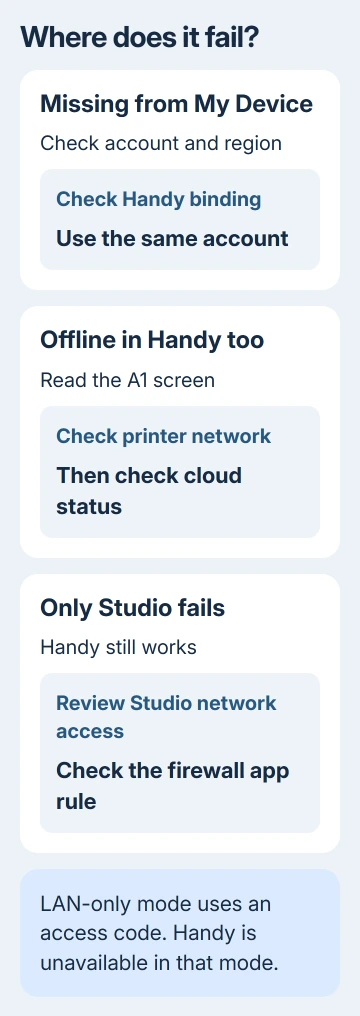
Bambu's connection troubleshooting explains that the failed-to-connect message appears when Studio stops receiving status messages, with a 30-second timeout.
If Handy also shows the A1 offline, work on the printer's connection or binding first. If Handy can control it but Studio can't, move to the Studio account, region, and computer network checks.
On the computer, confirm that Studio opens properly. A program that never reaches its Device page needs the Bambu Studio opening checks rather than printer network repairs.
2. Match the account and region for a missing printer
Sign in to Bambu Studio, then check the region in its Preferences. It must be the correct region for your account. Check the account name on the printer and in Handy as well.
The printer, Handy, and Studio need the same account to connect through the cloud. A printer belonging to another household member's account won't become yours just because both computers use the same Wi-Fi.
If the printer isn't signed in, scan its sign-in QR code with Handy. Confirm the intended account before completing the binding, then return to Studio's Device page and open the printer list.
My Device lists your account's printers. Other Device is for printers on the same local network that aren't logged in. A bound printer missing from Other Device isn't automatically a discovery failure.
When the account matches and binding succeeds, the A1 should appear under My Device. If it remains absent, check Handy's binding again before assuming Studio's printer profile is damaged.
For the desktop/mobile distinction, Bambu Handy and Studio use different roles. Use Handy for the phone workflow and Studio on your computer, rather than looking for a Windows version of Handy.
3. Check the computer's network permission
If Studio can't connect to the server, check whether the computer can reach the internet. If only Studio is affected, review the firewall permission for the installed Bambu Studio application.
On Windows, search Start for Allow an app through Windows Firewall. Open it, choose Change settings, and check the Bambu Studio entry. Allow the appropriate trusted network type for the network you're actually using.
Microsoft says allowing a known application is safer than opening a permanent port. Keep the firewall enabled.
For local discovery, put the printer and computer on one network. Guest Wi-Fi can give them internet access while blocking communication between them. On shared networks, ask whether client or device isolation blocks that communication.
Your computer and printer can use different connection methods, as long as the network lets them communicate. A managed network can block communication even between devices on the same Wi-Fi.
If another computer on that network reaches the A1, report that result along with your firewall settings. It helps decide whether the remaining problem belongs to this computer or the common printer connection.
4. Check cloud status when every account device fails
Open status.bambulab.com and check the services relevant to printer connections. If a disruption is listed, follow its updates before redoing binding or resetting the A1.
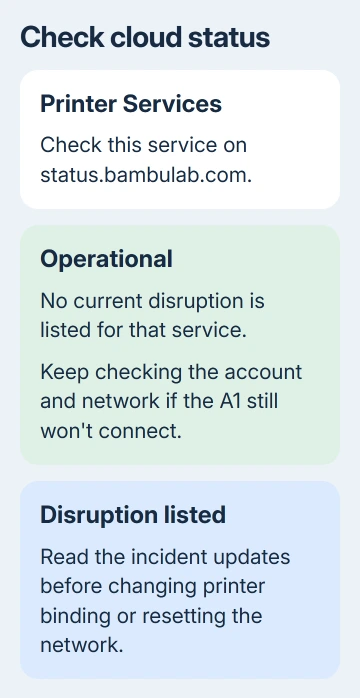
An outage can affect Studio and Handy together. A green status page won't explain every local connection problem, but a reported incident gives you a concrete reason to wait rather than erase working settings.
When service is normal again, retry the same connection. If Handy returns but Studio doesn't, resume the computer-specific checks. Keep the two results separate in your support request.
I'd check the dashboard before unbinding a printer that worked yesterday. Removing the binding adds another setup task and won't restore an unavailable cloud service.
5. Use the A1's LAN-only workflow when that is intended
LAN-only mode disconnects the printer from the cloud. Bambu Handy and remote access from outside your local network aren't available in this mode, so Handy appearing unavailable is expected.
On the A1, tap Settings, scroll to page 3, and select LAN Only Mode. Turn it on; the green button indicates it's enabled. Read the printer's access code from its screen.
In Studio, open the printer list under Device and find the printer with a lock icon. It can take 20 to 60 seconds, or longer in rare cases, to appear. Scroll through the list if other printers are already present.
Select the A1, enter its access code, and choose Confirm. When the connection works, Studio shows a green Wi-Fi signal and the Live View camera. Keep the access code private.
If discovery fails, check local communication again. The LAN-mode instructions also offer Device > No Printer > Bind with Access Code for connecting with the printer's IP address and code.
Use the address displayed on the printer's LAN Only page, rather than guessing one. With the IP-and-code method, Studio requires both again after restarting; connecting with just the access code saves you from entering them again.
6. Send support the exact connection failure
Open a technical ticket through the support link at the end of the official connection page. Include the A1 model, firmware and Studio versions, full error, and whether Handy works. Attach a screenshot without exposing the access code.
State whether you're using cloud or LAN-only mode and whether the printer appears in My Device. Support can then check whether the printer isn't linked to your account, can't be found on the network, or can't reach the server.
The Short Version
Check the A1 connection, Handy binding, and Studio account and region. Review the firewall for Studio-only failures and cloud status for wider trouble. Use the printer's access code when LAN-only mode is intended.
Checked November 12, 2026.
 If you have any business, I can build it online






