

A BIOS update can report insufficient disk space even when C: has plenty of room, because the small EFI startup partition is full. Check the partition named in the warning first; cleaning C: won't resolve an EFI space error.
In this guide
1. Match the warning to the partition it names
Read the updater's full message. A warning naming EFI System Partition, ESP, or firmware staging points to the hidden startup partition. A download that fails before installation can instead mean the ordinary Windows drive is full.
The distinction matters: EFI contains files the computer uses to start Windows. It's separate from the storage number shown under This PC, and its free space doesn't increase when you empty the Recycle Bin.
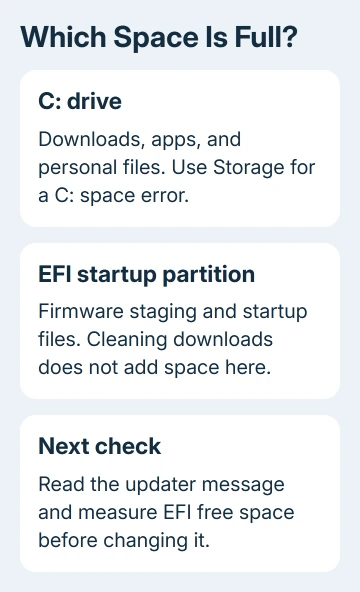
For an error that names C:, open Settings > System > Storage and review Temporary files. Read the selected categories before removing them. Our disk space cleanup guide helps when the ordinary Windows volume is full.
Retry the same updater once after that cleanup. If it still names EFI or ESP, cleaning C: isn't the next step. The next check is the startup partition itself.
2. Check the startup layout without changing it
Open Disk Management from Start's right-click menu. On the Windows disk, look for a small partition labeled EFI System Partition. Record its size and which disk contains it. Don't format it or assign space from another disk.
A partition's total size and its free space are different measurements. Disk Management shows where it sits, but its graphic can't tell you how much room is left for firmware files.
Press Windows + R, enter msinfo32, and check BIOS Mode in System Information. The EFI steps apply when BIOS Mode says UEFI. If it says Legacy, follow your PC maker's procedure instead of trying an EFI folder path.
Also record System Manufacturer, System Model, and BIOS Version/Date from that window. Support can use these details to check the right updater for your PC instead of suggesting another general storage cleanup.
If the updater doesn't name a partition and the layout is unclear, send its exact error to the PC maker now. Guessing which small partition to clean can leave the computer unable to start.
3. Confirm EFI free space from an administrator prompt
I'd check the free space before resizing any partition. Save open documents and put important files on a separate backup drive. For BitLocker, keep the recovery key handy before changing startup partitions or installing firmware.
Use these commands only on the UEFI Windows installation you're repairing, with Y: unused. Search Start for Command Prompt, select Run as administrator, and approve the prompt. Enter:
mountvol Y: /s
dir Y:\
The first command mounts the EFI system partition at Y:. The second lists its root and reports free bytes at the end. Microsoft's mountvol reference describes the /s option.
If mounting fails, Y: is already occupied, or the expected EFI folder isn't present, stop there. Don't try different letters hoping to reach a deletable folder. Send support the output and disk layout.
When you've finished inspecting it, remove the temporary drive letter:
mountvol Y: /dThis removes the drive-letter mount, not the partition. Keep the updater's stated space requirement beside the free-byte result; each BIOS package has its own space requirement.
4. Use the confirmed font cleanup only for its exact case
On Microsoft's forum, a BIOS updater completed after an owner deleted the EFI boot fonts. Another reply said earlier advice hadn't worked. Fonts aren't necessarily the reason your EFI partition is full.
The reported location was EFI\Microsoft\Boot\Fonts, not the Windows Fonts folder. The cleanup applies only to those startup font files. Leave the Boot folder and the manufacturer's firmware files in place.
Have the PC maker confirm that this cleanup suits your model. If they approve it, mount Y: as in step 3, then inspect the exact folder before making a change:
dir Y:\EFI\Microsoft\Boot\Fonts\*.ttfBack up those files to an external drive using its actual letter. For example, with a backup drive at E:, create a backup folder and copy the matching fonts:
mkdir E:\EFI-font-backup
copy Y:\EFI\Microsoft\Boot\Fonts\*.ttf E:\EFI-font-backup\
Check that the copy succeeded. Then remove only the matching fonts from that verified directory:
del Y:\EFI\Microsoft\Boot\Fonts\*.ttf
dir Y:\
mountvol Y: /d
The free-byte count should increase. Retry the manufacturer's BIOS package with AC power connected and follow its BitLocker instructions. If the same space warning remains, the cleanup wasn't enough; don't widen the deletion command.
5. Ask for an EFI repair plan if space is still short
Resizing EFI can require moving neighboring partitions, which isn't the same as shrinking C: in Disk Management. Unallocated space somewhere on the disk doesn't automatically become usable by the startup partition.
Ask the manufacturer about alternative installation methods for this model and its preferred EFI repair: cleanup or enlargement. Supply the model, BIOS version, exact error, disk layout, and measured free space.
For an out-of-warranty PC, a repair shop can back up the disk and assess the partition layout before resizing it. Ask specifically for an EFI system partition space repair while preserving Windows, its recovery partition, and your files.
Our guide to deciding whether a BIOS update is needed helps distinguish a security or hardware fix from an update you can postpone while the storage problem is repaired.
The Short Version
An EFI space error needs space in the startup partition, even with room on C:. Measure it first, use only the cleanup your PC maker approves for that layout, and ask the PC maker about resizing if the package still won't fit.
Checked November 17, 2026.
 If you have any business, I can build it online






