Brother's Cannot Detect ink message can follow a cartridge being inserted too quickly or left loose. Reinstall the indicated cartridge slowly until it clicks, close the ink cover, and check the display.
The cartridge must also match the printer model. An ink warning on the printer itself needs attention at the cartridge bay before changing Windows drivers or the wireless connection.
In this guide
1. Read the whole message and check the printer model
Write down the full warning, including the color it names. Cannot Detect, No Cartridge, and Cannot Print call for different responses, even when they appear after the same cartridge change.
On cartridge-based models such as the MFC-490CW, Cannot Detect can mean an installation problem; Cannot Print can mean empty ink. A low-ink warning is different again. Replace only the color that needs attention.
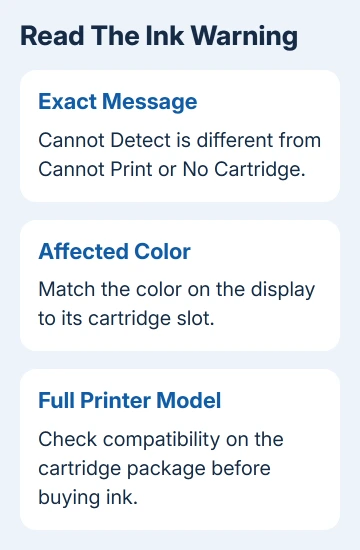
Find the printer's complete model number on its label, then compare it with the compatible models listed on the ink package. Similar-looking cartridges and a matching color don't tell you whether the cartridge fits your printer model.
These handling steps follow the MFC-490CW's cartridge layout. Check your model's manual if the cover or retaining mechanism differs. A printer filled from bottles needs its own instructions.
A laser printer with a toner warning also needs different steps. The page on changing Brother toner covers that assembly; liquid-ink cartridge instructions don't apply to it.
2. Release the affected cartridge and insert it slowly
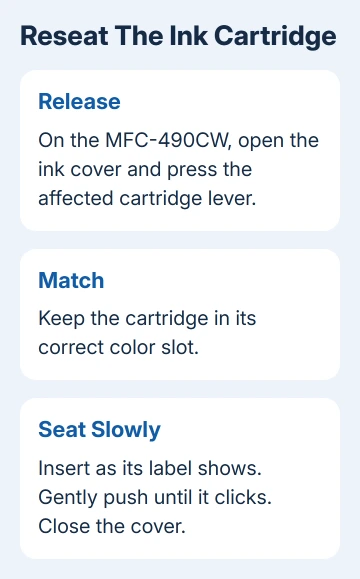
Open the ink cartridge cover. On the MFC-490CW, press the lock-release lever for the cartridge identified on the LCD, then remove that cartridge. Keep track of its color and its matching slot.
Brother's MFC-490CW manual says to reinstall the cartridge slowly until it clicks when quick or incorrect insertion causes Cannot Detect.
Insert the cartridge in the direction marked on its label. Gently push until it clicks into position, then close the ink cartridge cover. Wait for the display to finish responding before sending another document.
Check whether Cannot Detect disappears. If it changes to a different message, write down the new wording instead of repeating the same repair as though nothing changed.
Don't touch inside the cartridge slots or take the cartridge apart to check its fit.
I'd try this before buying another set of ink. A loose cartridge can trigger the message. Refitting it properly may be all that's needed, even if swapping it for another one would also get it seated correctly.
If the same color remains on the display after careful insertion, check the cartridge preparation and compatibility next. Removing unrelated colors doesn't tell you why that one is still being rejected.
3. Check a new cartridge's protective parts
A brand-new cartridge may need a shipping cap or seal removed before installation. Follow the instructions supplied with that cartridge, because preparation isn't identical across every Brother ink family.
For the MFC-490CW cartridge described in its manual, turn the green knob on the yellow protective cap clockwise until it clicks. That releases the vacuum seal. Remove the cap, then install the cartridge in the correct color position.
That cap-preparation click and the later seating click are separate parts of the procedure. The first prepares a new cartridge; the second confirms it has reached its installed position in the printer.
Don't pull apart an unfamiliar cartridge because it lacks that green knob. Check the manual for its exact model instead. The shape described here belongs to the cited older cartridge design.
Once the required protective parts are removed, check the label again and fit the cartridge slowly. If the warning clears, the problem was resolved at installation; leave your computer's software as it is.
4. Answer the replacement prompt accurately
The printer may ask whether a cartridge was changed. On the MFC-490CW, a prompt such as Did You Change Black can appear after replacement so the printer can update its ink counter.
For a new cartridge, press 1 (Yes) for that color. If you removed and reinserted the existing cartridge, press 2 (No). Follow the matching choices on your model since other printers can use different buttons.
An ink counter tracks the printer's estimate of use. Answering Yes doesn't put ink into an old cartridge, and it isn't a repair for a cartridge the machine still can't detect.
Read the display after answering. If it still says No Cartridge or Cannot Detect, check that the cartridge is installed correctly. If it reports an empty cartridge instead, follow the replacement instructions for that message.
For a new supply, follow the Brother ink-change procedure, including the black-cartridge preparation on the MFC-J4335DW family.
5. Try the correct replacement, then ask for service
If a third-party cartridge still isn't detected, the manual recommends the correct original replacement. It says the printer may fail to detect alternatives; it doesn't say every alternative always fails.
Check the exact part number before spending money. A shop should confirm compatibility with your full printer model, not just identify the ink as black, cyan, magenta, or yellow.
If the specified replacement still produces Cannot Detect, contact Brother support or a Brother dealer. Give them the printer model, cartridge part number, affected color, and the result of slow reinstallation.
Ask whether the cartridge or the printer's detection mechanism needs checking. Keep the package and purchase receipt available, especially if the error started immediately after fitting a new cartridge.
Once the printer accepts the ink, a computer that still can't reach it is a separate problem. Use the Brother computer-connection steps or Windows' printer connection checks for that stage.
The Short Version
Cartridge compatibility comes first. Reseat the indicated color slowly until it clicks, follow its packing instructions, and answer replacement prompts accurately. Request service if the correct cartridge is still rejected.
Checked November 12, 2026.