

A Brother printer stuck on Receiving Data can be held up by a queued job, generic Windows driver, network port, or power supply. Cancel the job first, then follow your model's checks.
A working menu and a frozen display call for different checks. Don't keep sending the document while you decide which route applies.
Once the printer works again, it can print every waiting copy. Leave just the document you intend to print once the queue works again.
In this guide
1. Cancel the job before restarting the printer
On Windows 11, open Settings > Bluetooth & devices > Printers & scanners. Select the Brother printer, choose Open print queue, and cancel the waiting document. On Windows 10, start at Settings > Devices > Printers & scanners instead.
Check that you're opening the queue used by the app. A second Brother entry can have a similar name, especially if you've installed the printer again. The document's name in the queue is a useful way to identify the right entry.
On a Mac, open System Settings > Printers & Scanners, choose your Brother entry, then open the queue. Cancel the document there. In older macOS versions, the same printer list is in System Preferences.
Check other computers that sent documents, too. Removing a job on your laptop doesn't remove a different computer's waiting document. The idle printer checks explain how to follow the job when the queue you're viewing is empty.
If cancellation itself stalls on Windows, use the stuck print queue procedure. It starts with cancellation, then restarting Print Spooler, the Windows component that manages queued documents.
2. Check whether the panel actually responds
Press Menu, or try opening a normal setting on a touchscreen model. A menu that opens tells you the panel isn't completely frozen. It doesn't mean the computer's document is printable, but it tells you which repair steps to follow.
Brother says generic drivers, WSD ports, and inadequate UPS power can cause this on supported inkjet models, including MFC-J1010DW and MFC-J995DW.
The buttons used in these steps aren't the same on every Brother printer. Check the model label before trying a report or reset sequence. A laser printer with physical Menu and OK buttons can need a different procedure.
I'd check the queue and model before resetting anything. A factory reset creates extra setup work and isn't the first step in the inkjet procedure.
3. Check the Windows driver and network port
For a supported inkjet, open Printing preferences before restarting it. The full Brother driver has an Advanced tab or a Support button. A preferences window without either control can be using a generic Windows driver.
A generic Windows class driver isn't the same as the model's full Brother driver. If yours is generic, use the model-specific setup route in the Brother connection guide to install the appropriate software.
In Printer properties > Ports, inspect the selected entry. A WSD entry is a type of network connection covered by the inkjet procedure. A USB printer needs its USB connection, not an IP-address procedure.
Note the selected driver and port before changing them. If the existing port already points to a different printer address, changing the document's settings won't send it to the right printer.
For a network printer using WSD, get its address from a current network report. Choose Add Port > Standard TCP/IP Port > New Port > Next, then enter that address in Printer Name or IP Address. Continue with Next > Finish > Close > Apply.
If Additional Port Information Required appears, the computer hasn't reached the printer. Check its address and network connection rather than guessing a device type. If port changes are unavailable, ask the PC's administrator for help.
After the driver and port checks, the supported inkjet procedure calls for turning the printer off for about 15 seconds, then turning it on again. Send one small document. If it prints and the display returns to normal, stop there.
4. Use the separate DCP-L2540DW check when it is frozen
For the DCP-L2540DW, the model's frozen-display procedure starts by pressing Menu. Use this route when that doesn't change the display.
Turn the machine off. Disconnect any USB or Ethernet cable from its rear, then power it on again. If the message stays frozen without those cables, the procedure directs you to service rather than more computer-driver changes.
If the message clears, print its internal report: Menu > Machine Info. > User Settings, confirming the menu choices with OK. Press Start, then OK, as that model's instructions specify.
If the report prints, the machine can print its own report without receiving a job from a computer. Reconnect its cable and send one document. If Receiving Data returns with that job, check the driver and connection.
If even the internal report freezes the machine, ask a service center to check the printer. Tell service that it freezes on a report created by the printer itself, without a computer sending a document.
5. Test power on the inkjet models that call for it
If the supported inkjet still freezes after its driver and port checks, cancel the new job. Disconnect its power for 10 seconds. Test it on wall power using an outlet you know works, instead of a UPS or power strip.
Send one document again. If it prints normally from the wall outlet, the UPS or power strip you were using needs attention. Keep that result in your notes when choosing replacement power protection that suits your printer.
A UPS (uninterruptible power supply) supplies power briefly during an outage. A computer-compatible UPS doesn't suit every printer. Compare the printer and UPS specifications before choosing a replacement.
If the same freeze returns on the wall outlet, the next step in the supported procedure is service. This is the point to stop repeating power cycles.
Ask for service with the results ready
Use the warranty and service links on your model's frozen-display support page. Report the model, connection type, driver name, selected port, how the panel responds, plus the internal-report result when that check applies.
For an in-warranty machine, ask Brother for warranty support. For an out-of-warranty machine, ask an authorized service center for an assessment and repair cost before replacing it. Include the wall-outlet result if you performed that test.
The Short Version
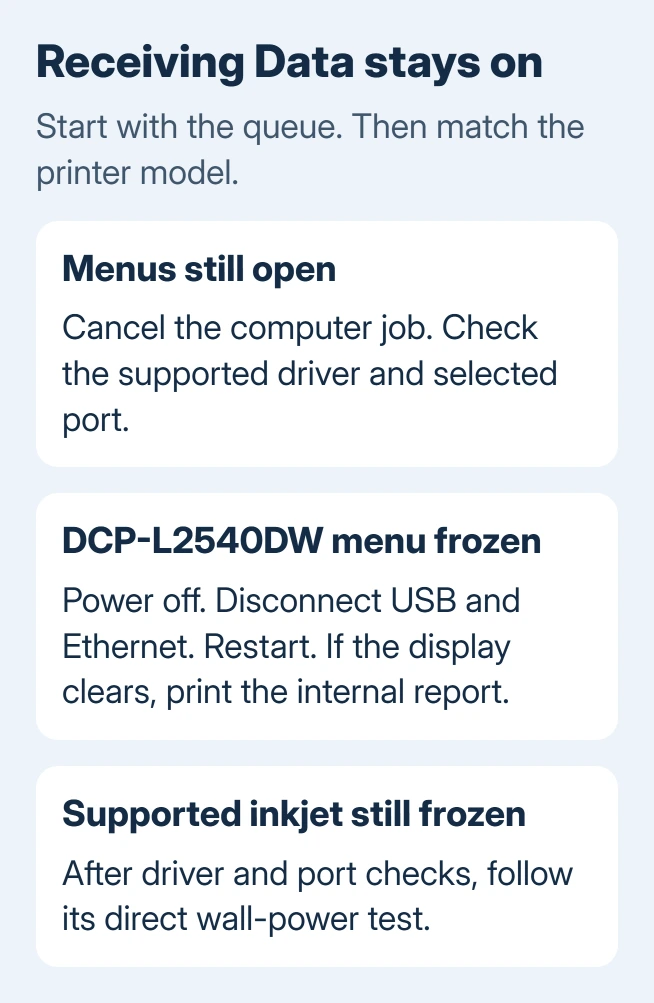
Cancel waiting jobs and check the panel. Follow the model's driver, port, or internal-report route, then its wall-power test when applicable. If the machine is still frozen at the service step, have it checked.
Checked November 15, 2026.
 If you have any business, I can build it online






