

Automatic sign-in can take your own Windows 11 PC straight to the desktop at startup, using sign-in details you've already supplied. Microsoft's Autologon utility sets that up; a password prompt after sleep uses a separate setting.
Neither option recovers a forgotten password or skips account setup on a new PC. Keep those situations separate so you don't change the wrong setting while trying to reach the desktop.
In this guide
Choose startup sign-in or the prompt after sleep
Restart the PC and note when the prompt appears. A request before the desktop loads is startup sign-in. A request after reopening the lid or waking an already running computer is the wake-up requirement.
If you can already enter Windows and want fewer prompts after a break, use the sleep setting in the next section. You don't need to configure automatic startup sign-in for that.
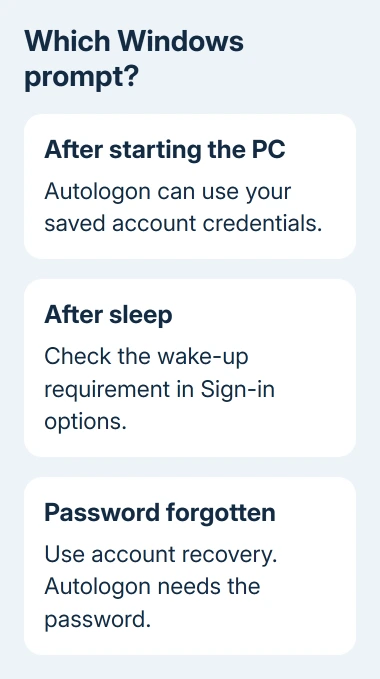
For a PC that should open one account automatically after a restart, use Autologon. This stores the sign-in details so Windows can use them for you. It doesn't remove the password from the account.
Only make that change on a computer where anyone with physical access is allowed to enter that account. The desktop may include signed-in email, cloud files and other personal information.
I'd keep Windows Hello enabled for a laptop I carry outside. A fingerprint or face scan is usually a better trade than opening your whole account to whoever turns the computer on.
Stop the extra prompt after waking the PC
Open Settings > Accounts > Sign-in options. Under Additional settings, find the menu starting If you've been away. This controls when Windows requests sign-in again. Select Never, if offered.
Put the PC to sleep through Start > Power > Sleep, then wake it. The result should match the choice you just made. Windows can still ask for your password or PIN after a restart.
If the menu is unavailable, check whether this is a work or school computer. A security policy can disable that control. Ask IT about the permitted wake-up setting rather than trying to force it through the registry.
Windows+L locks the account when you press it. The sleep setting won't unlock a PC you've locked yourself. Sign in normally after using that shortcut.
Face recognition, fingerprint and PIN controls are on the same page, but changing one of those isn't the same as changing when sign-in is required. Leave them in place if the only problem is a prompt after sleep.
Download the official Autologon utility
Open the Sysinternals Autologon page. Choose Download Autologon and save the ZIP archive. Extract it to a folder before running the utility.

Run the Autologon program appropriate for your Windows system and approve the administrator prompt. Read and accept its license agreement if shown. The dialog asks for the account details it will use at startup.
Use the graphical dialog for those details. Pasting a password into a command line can leave it in command history or in a copied troubleshooting transcript, so use the dialog instead.
Autologon stores the password as a protected Windows secret, but an administrator can retrieve it. Treat the account as accessible from the keyboard once automatic sign-in is enabled.
On a shared computer, consider a separate account instead. The Windows user-account guide explains that route when the aim is to give someone their own desktop and files.
Enter the account password and enable automatic sign-in
Check Username and Domain in the dialog, then enter the account's actual Password. A Windows Hello PIN is tied to sign-in on the device and isn't a replacement for that password.
For a local account, the domain normally identifies the computer. With a company or school account, ask IT how to enter the account name. Don't replace an automatically filled value just because it differs from the name on your Start menu.
Select Enable. Autologon doesn't check whether the entered password is correct or whether that account is permitted to sign in. You'll need to restart to check that it works.
Save your open work, restart, and watch whether Windows reaches the intended desktop without asking you to sign in. Check the account name from Start as well, especially on a computer with several user accounts.
If the password is rejected, sign in normally and reopen Autologon to correct the details. When the account password changes later, the stored automatic-sign-in password may also need updating.
A number-pad problem can make a correct credential look wrong. If digits behave differently on that screen, check the Num Lock startup fix before changing the account password.
Turn it off or pause it for one startup
Open Autologon again and choose Disable to remove its automatic-sign-in configuration. Restart and confirm that the normal sign-in screen returns before giving the PC to someone else.
To skip automatic sign-in for one startup, hold Shift before Windows performs the automatic sign-in. The account remains configured for later starts; holding Shift pauses it once, while Disable turns it off.
That distinction helps when you need another account for maintenance. Use Disable for a lasting change, especially before a computer moves from a private room to a shared space.
Some managed PCs block automatic sign-in through password policy. Microsoft's own instructions note that Exchange ActiveSync password restrictions can prevent it. Repeated settings changes won't remove that policy.
Give IT the Windows edition, account type and result of a manual sign-in. Ask whether automatic sign-in at the PC is allowed. If a policy blocks it, an administrator needs to decide whether to change it.
When the screen is asking for something else
A BitLocker recovery prompt appears before ordinary Windows sign-in and needs its recovery key. Autologon doesn't replace that key. Check the heading on the screen before assuming that every startup prompt is an account password.
A forgotten Windows password needs the I forgot my password or I forgot my PIN recovery path offered for that account. Use Microsoft account recovery or your organization's help desk when normal sign-in isn't possible.
The account page during initial Windows setup is another separate situation. Set up automatic sign-in while you're signed in to Windows. It won't skip ownership checks or let you set up an account you can't access.
If Autologon setup succeeds but the prompt remains, tell Microsoft Support when the prompt appears and exactly what it says. Include the wake-up test result and any recent account-password change.
The Short Version
Use the Sign-in options sleep menu for wake-up prompts. Use official Autologon with your real account password for startup sign-in. Test a restart, keep physical access in mind and choose Disable when automatic access is no longer suitable.
Checked November 12, 2026.
 If you have any business, I can build it online






