A missing or corrupt c_437.nls stops Windows XP loading. Boot from a genuine XP installation CD and check the Windows drive in Recovery Console. If the disk is readable and only this file is missing, a matching local backup may fix it.
In this guide
Which startup screen needs attention?
A CD that never starts and an XP setup screen that can't see the hard drive need different attention. Deal with the screen you see first. In either case, you haven't reached the file-copy step yet.
1. Get the XP repair CD to start
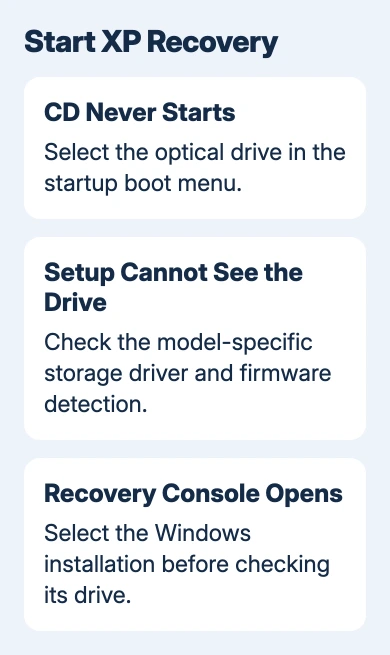
Insert the XP installation CD and restart. Use your computer's startup boot menu to select the optical drive. The key differs by manufacturer, so follow the startup screen or your model's own startup instructions.
Press a key when Press any key to boot from CD appears. At the first Windows Setup screen, press R for Recovery Console. This opens the repair command prompt, rather than starting a fresh installation.
A manufacturer's factory recovery disc can offer a different process that erases the disk. Without a file backup, stop at a factory-reset screen. Ask the manufacturer for recovery that preserves the existing files.
An XP computer can also have Microsoft Windows Recovery Console in its startup menu. Select that entry if it's already installed. Recovery Console doesn't appear on every XP installation, so its absence isn't another fault.
Without suitable media, ask a repair shop for file recovery and matching installation media. I'd choose that over a repair ISO from a file-sharing link. Whatever software you boot from will have access to your files.
If the optical drive is selected but never reads a known working disc, have the drive checked. Repeating the normal boot just returns to the same missing-file screen because Windows still can't read what it needs.
2. Deal with a hard drive that setup can't see
Setup did not find any hard disk drives installed in your computer can mean the XP disc lacks the driver for the storage controller. The controller is the hardware that connects Windows to the drive.
First check whether the computer itself can see the drive in its firmware setup. Ask the manufacturer how to check this on your model. The hardware screen normally lists a device rather than a Windows drive letter such as C:.
When firmware detects storage that XP setup cannot see, ask for the model's XP storage driver and repair-media instructions. Original XP setup has an F6 prompt for extra storage drivers; the media it accepts depends on that disc.
Some older computers offer AHCI, IDE, ATA or Compatibility storage modes. Changing this can let old XP media see a drive, but the original setting may be needed for the installed Windows system to start.
Record the original value and have the manufacturer or technician guide any change, rather than trying each storage mode until something loads. A new boot error after changing the controller setting can come from the setting itself.
The storage setup for your model has to work before a file-repair command can reach the disk. Firmware detecting the drive and XP setup recognizing its controller are separate checks.
3. Check the Windows drive from Recovery Console
Select the Windows installation listed by Recovery Console, usually 1: C:\WINDOWS. Enter the Administrator password when asked. This is the password for the Windows Administrator account, which might differ from your usual sign-in password.
Confirm the drive letter shown for that installation. The commands here use C: only when Windows is on C:. If the console lists another drive, use that letter instead.
Arrange to copy any unbacked-up files or have them professionally recovered before a repair writes to the disk. Clicking, disappearing storage or repeated unreadable-data errors need hardware attention before another repair attempt.
At the console prompt, enter:
chkdsk C: /rThe /r switch searches for unreadable disk areas and attempts to recover what remains readable. Microsoft's Recovery Console command reference explains this older command's behavior.
Let the check finish and keep the charger connected. Record the final result, especially a report of unrecoverable problems. Read the final report, rather than judging the repair by its progress counter.
Then remove the CD, type exit and press Enter to restart. If XP reaches its sign-in screen, copy your files before doing further maintenance. If c_437.nls still blocks startup, check for the local backup next.
SFC /scannow isn't an XP Recovery Console command. A command-not-recognized response means SFC never ran there.
4. Restore the local copy only when it exists
Return to Recovery Console and select the same Windows installation. Check whether XP's protected-file backup contains the file:
dir C:\Windows\System32\dllcache\c_437.nlsIf the file is listed, copy it to System32:
copy C:\Windows\System32\dllcache\c_437.nls C:\Windows\System32\c_437.nlsApprove replacing the destination file if prompted. Remove the CD, then use exit to restart. Check whether XP reaches its normal sign-in screen. A completed copy tells you the file was copied, but you still need to try starting Windows.
One owner reproduced this error on their XP system and fixed it with the dllcache copy. Another owner lacked that backup and reported unrecoverable disk problems. A copy command can help only when the source file exists.
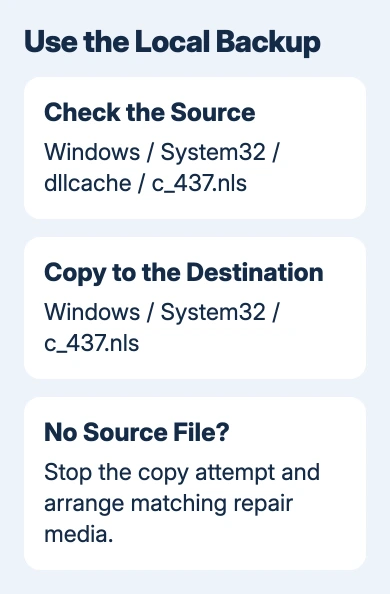
If File not found appears, don't substitute an unrelated NLS file. If Access is denied appears, keep that message for the technician. Changing ownership of the whole Windows folder won't supply the missing NLS file.
5. Recover the files when repairs don't hold
An interrupted factory recovery can leave several files missing. If restoring c_437.nls reveals another missing-file error, have a technician assess the interrupted installation. Replacing files one by one may miss the larger damage.
Ask a repair shop for data recovery before reinstalling XP, with the computer model, full startup message and disk-check report. Tell them whether the fault followed a power loss, antivirus action or interrupted recovery.
For a separate registry-file warning naming Config\System, use the registry startup failure guide. That file contains different information and shouldn't be replaced with this NLS procedure.
Once your files are safe, plan a move from XP to a supported computer. The Windows backup guide explains the separate file copy to keep after the move. A repaired startup isn't a substitute for it.
The Short Version
Start XP recovery media, check drive access and run the disk check. Use the dllcache copy only if it exists. Missing media, absent source files or recurring disk errors need file recovery and help for your computer model.
Checked November 26, 2026.
 If you have any business, I can build it online