

A desktop.ini in an old Windows backup can resist deletion because of permissions or an app holding it open. Close anything using the backup, then check the file's Security settings. Owners confirmed the permission change worked.
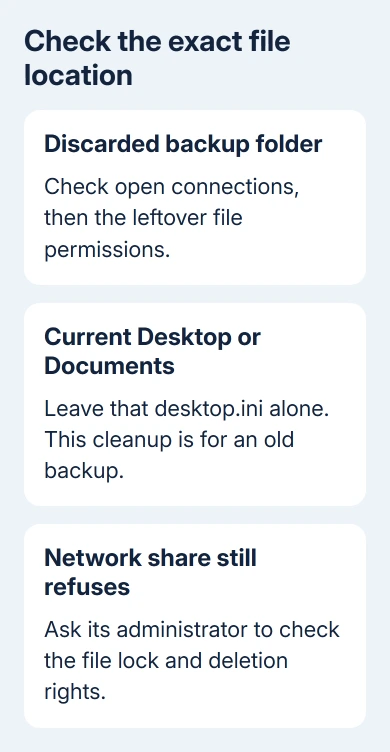
Keep this fix limited to a backup you're intentionally discarding. A desktop.ini in your current Desktop, Documents, or Windows folders isn't the same target.
In this guide
1. Confirm which backup contains the leftover file
Open the old backup's location and read the full folder path. For a network drive, note the server or NAS name, share, and computer-named backup folder. A mapped drive letter alone doesn't identify whose backup you're removing.
Check that the backup belongs to the retired computer and that any files you still need have another usable copy. Network deletion can be permanent; don't rely on the local Recycle Bin to recover an accidentally removed backup.
The Windows backup guide distinguishes backup types and what they contain. An old computer-image folder on a network drive differs from the current Windows Backup app's account sync.
The original owner had removed most of the backup and switched off the computer that made it. The old computer's desktop wasn't still running and holding this file open.
Try ordinary Delete on the leftover item and read the message. File in use, Access denied, and an administrator-permission prompt need different checks. Keep the exact wording.
2. Release a real open-file connection
Close any backup program, image-mounting tool, preview window, or other app currently browsing that backup. Close Explorer windows displaying its contents, then return to the parent folder and try removing the leftover item again.
If the message names a program, save any open work there, then close the app normally. That gives it a chance to release the file. A file being small or unfamiliar doesn't mean a program can't have it open.
For a network share, another computer can hold the connection. Ask the server or NAS administrator to check open files for the exact backup path. Closing Explorer on your laptop won't close a file still open on someone else's computer.
Restart your own PC if you're the only user and can't identify the program. Reconnect to the backup before opening your usual applications and try again. If the file deletes now, leave its permissions unchanged.
If deletion still fails after the old computer is off and you've reconnected, check your account's permissions next. That's the route the successful reports in this particular discussion took.
3. Check permission on desktop.ini itself
Right-click the leftover desktop.ini, choose Properties, and open Security if that tab is available. Read the groups and users listed there. Check the account used to connect to the share, which may differ from your laptop sign-in account.
Choose Advanced to inspect the owner and permissions. An old backup can refer to accounts your current PC doesn't use. Your current administrator account doesn't automatically inherit those accounts' rights.
One owner fixed this by granting all users Full control of that file. A later owner confirmed the same change worked. That worked for them, but giving all users access goes further than your own backup cleanup needs.
I'd have the storage owner grant access to the intended cleanup account for this file. On a Windows-hosted share, they can check share access and file permissions without opening up the whole drive.
If you administer the storage, choose Edit > Add in the file's Security settings. Enter the intended account and use Check Names. Select Allow for Full control on this file, apply it, then retry Delete.
For the advanced dialog, use Advanced > Add > Select a principal. Confirm the intended account and apply the entry. Check that the selected object is still the leftover file, not the shared drive's root.
If your NAS doesn't show Windows Security controls, ask its administrator to use the NAS share-permission tools. Windows cannot make an unsupported Security tab appear by running Explorer as administrator.
4. Stop when ownership or an explicit denial blocks the change
An administrator-permission prompt isn't an instruction to take ownership of the entire drive. If the file belongs to storage you don't manage, give the owner its exact path and ask them to remove that leftover backup item.
On Windows storage, a permission entry that denies access, or comes from a parent folder, can affect what your account is allowed to do. Microsoft's icacls reference describes the permission entries and inheritance used by Windows files.
An administrator can use that reference to check which accounts have access. A laptop command can't bypass a server's rules, and a local-account grant won't necessarily change a NAS account's rights.
Have the administrator review deletion rights and look for programs still holding the file open. Both problems can affect the same file. Clearing only one can leave a second refusal that looks like the first fix failed.
For ordinary hidden personal files, the hidden-item deletion steps cover visibility and precise file selection. Showing protected files or adding a force option won't change whether your account can delete the file.
Verify that the old backup stays deleted
Refresh the backup folder after deletion. Check that the leftover item and the intended old backup folder are gone, while neighboring backup sets remain. Don't use a recursive cleanup command just to remove a single stubborn file.
Microsoft's desktop.ini documentation explains its role in a folder's appearance and behavior. Its filename alone doesn't make it malicious or something that should be removed everywhere.
If desktop.ini returns, ask the storage administrator which backup task or computer is recreating the folder. Address that task before repeating cleanup or broadening permissions.
If you still can't delete it, send the server or NAS support team the full path, exact error, connecting account, and whether a restart changed anything. Request checks of open connections and deletion rights on that exact file.
The Short Version
Confirm the backup is ready to discard, close open connections, and review desktop.ini's permissions. Ask the storage owner to remove a blocked file when needed. Keep changes limited to that old backup.
Checked November 16, 2026.
 If you have any business, I can build it online






