

Excel won't quit when a hidden dialog needs an answer, a workbook is still busy, or the app has stopped responding. Check for a save prompt first. If Excel is frozen, end just Excel, then look for recovered work when it opens again.
On a Mac, closing the last workbook isn't the same as quitting Excel. A dot under its Dock icon can simply mean the app is still open, even though no spreadsheet is visible.
In this guide
1. Look for a dialog before forcing Excel closed
Press Esc once to leave cell editing or dismiss an unfinished command. Try saving with Ctrl + S on Windows or Command + S on a Mac, then use the app's normal close command.
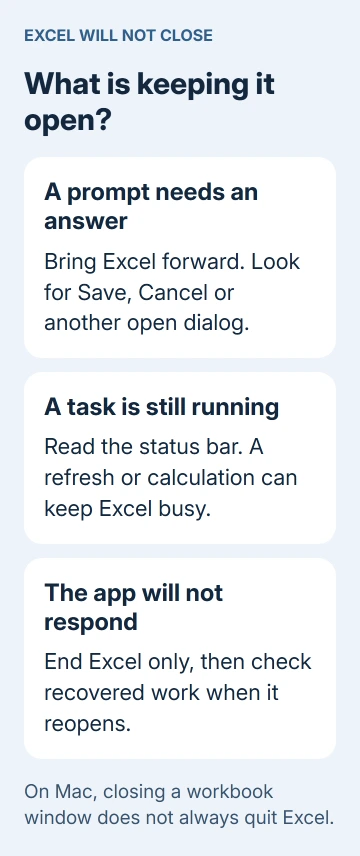
On Windows, use Alt + Tab to move through open windows. Look for a Save As window, a password request, or a message asking whether to save changes. Answer that prompt before clicking the workbook's close button again.
On a Mac, check the workbook for a dialog attached to its title bar. Bring Excel forward from the Dock. A message can be waiting in another workbook while the sheet you're watching appears unresponsive.
A working prompt means Excel is waiting for a decision. Choose Save when you need the changes, or Cancel to return to the workbook. Don't select Don't Save just to make the message disappear unless you're ready to discard that work.
Check the status bar too. A calculation or external-data refresh can keep Excel occupied. If the message describes a query, use the query refresh checks before abandoning the session.
If a prompt responds but closing still fails, save a separate copy and continue. If the workbook and its dialogs won't respond, use the force-close steps for your operating system.
2. Use Quit on a Mac when the window is already closed
Select Excel in the Dock, then choose Excel > Quit Microsoft Excel from the menu bar. Command + Q does the same thing while Excel is the active app.
The red button closes the workbook window. It doesn't necessarily end the Excel application. That explains why a restart, installer, or update can say Excel is still running after you've closed the last sheet.
Watch for a save prompt after choosing Quit. With several workbooks open, Excel may ask about more than one file. Answer each prompt and check that the dot under Excel's Dock icon disappears.
If Quit works, leave your Excel settings and files alone. If the Quit command won't respond, use Force Quit rather than repeatedly opening and closing workbook windows.
3. End an unresponsive Excel session
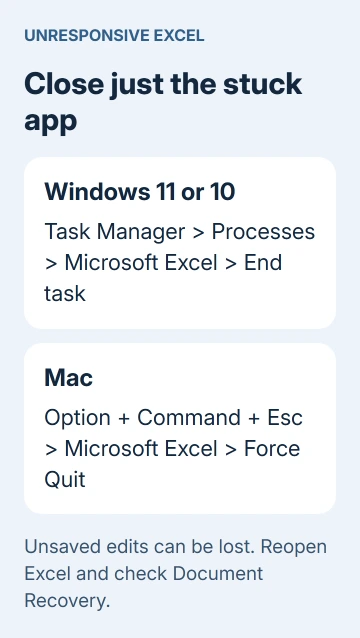
Force closing can lose changes made since the last saved or recoverable copy. I'd try it after checking the prompts, rather than shutting down the whole computer and interrupting your other apps too.
Windows 11: Press Ctrl + Shift + Esc to open Task Manager. Select Processes, find Microsoft Excel, select it, then choose End task. Expand its group first if you need to see which workbook windows belong to it.
Windows 10: Open Task Manager with the same shortcut. Choose More details if the small view appears, select Excel on the Processes tab, then click End task.
Ending the Excel app can close multiple workbooks in that session. Don't select unrelated Office apps just because they appear nearby. Wait for Excel's windows to disappear before reopening it.
Mac: Press Option + Command + Esc, select Microsoft Excel, then choose Force Quit. Apple says to use this Force Quit window when the normal Quit command fails.
If Force Quit itself won't close the app, use the Apple menu's Restart command. On Windows, try Start > Power > Restart if Task Manager can't close Excel. Save anything open in the apps that still respond.
4. Reopen Excel and save anything it recovers
Start Excel without double-clicking the workbook that froze. Look for the Document Recovery pane. Open the recovered copy of your workbook and save it with a new filename. Compare it with your saved workbook.
Check the actual last rows, formulas, and edits you remember making. A recovered file can be older than the moment Excel stopped responding. Even if the file opens normally, your latest changes might be missing.
In Windows desktop Excel, another route is File > Info > Manage Workbook > Recover Unsaved Workbooks. Open an available file, then use Save As. This helps only when an unsaved copy exists.
For workbooks stored in OneDrive or SharePoint, Version History offers a different recovery route. It lists saved versions of that cloud file. Changes from a session that never finished saving may be missing.
Once your work is safe, compare closing a blank workbook with closing the troublesome file. If only one workbook hangs, avoid treating every Excel installation setting as broken.
5. Fix repeated failures after your work is safe
On Windows, press Windows + R, type excel /safe, and press Enter. Open a blank workbook, then close Excel normally. This starts Excel without several startup features and add-ins.
If it quits in safe mode, open Excel normally and choose File > Options > Add-ins. Select COM Add-ins in the Manage list, click Go, and clear the enabled boxes.
Restart Excel, then enable each add-in separately. If enabling one brings back the hang, disable it again. Give its developer your Office version and ask which release fixes the problem.
Excel add-ins have a separate Manage entry. Check those if the COM list doesn't explain the behavior. Note which ones were on so you can turn them back on if they aren't causing the problem.
The excel /safe command is for Windows Excel. On a Mac, use Help > Check for Updates, install available Office updates, and try closing an empty workbook, then compare the troublesome file.
If the freeze happens specifically after copying cells, the Excel copying fixes cover that trigger. Don't change printer and clipboard settings for a fault that happens before any copying.
For repeated hangs in blank workbooks, ask Microsoft Support for Excel crash or hang troubleshooting. Include your Office version, operating system, whether normal Quit works, and whether Excel quits in Windows safe mode.
The Short Version
Answer hidden prompts first. On a Mac, use Command + Q to quit the app. Force close only an unresponsive session, save recovered work, then check repeated failures separately.
Checked November 16, 2026.
 If you have any business, I can build it online





