PowerPoint can reject Chrome's formatted content even when Word accepts it. Click inside the destination text box and use Paste Special with Unformatted Text. Owners used this workaround in an older PowerPoint for Mac discussion.
Check whether the paste produces nothing, an extra object or wrongly formatted text. Choose where the words should go first, then choose the paste format. A PowerPoint-only failure isn't a reason to reset Chrome immediately.
In this guide
1. Put the cursor inside the text box
Copy a short selection of ordinary text from Chrome. In PowerPoint, double-click inside the text box or placeholder until a blinking text cursor appears. Click the exact position where the words should go.
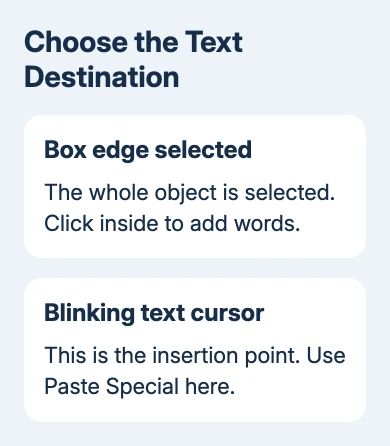
A placeholder is a ready-made title or body-text area in the slide layout. Click its edge to select the object, or inside its text to choose an insertion point. That choice changes how PowerPoint handles a paste.
In the original report, pasting while the box edge was selected worked, but pasting at the text cursor didn't. That tells you the clipboard wasn't empty. PowerPoint handled the copied content differently depending on where it was pasted.
For words that belong in an existing paragraph, undo an extra object pasted over the slide. Place the cursor inside the intended text. Keep the cursor there and change the paste format.
If the slide won't let you place a cursor at all, check whether you're in an editable presentation and whether the item is actually text. A picture of words can't accept typed characters like a text box can.
2. On Mac, paste without Chrome's formatting
With the cursor blinking in the destination, open Paste Special and choose Unformatted Text. This transfers the words without asking PowerPoint to reproduce the web page's formatting.
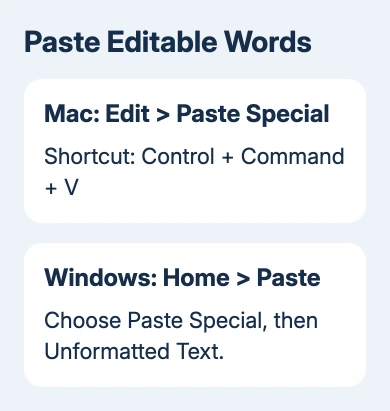
On PowerPoint for Mac, choose Edit > Paste Special. The keyboard shortcut is Control + Command + V. Select Unformatted Text in the dialog, then confirm the paste.
3. In Windows, use the Home tab's Paste menu
On PowerPoint for Windows, open Home, expand the Paste menu and choose Paste Special. Select Unformatted Text and confirm. Use this ribbon route if a keyboard shortcut behaves differently in your installed version.
Microsoft's Paste Special guidance describes Unformatted Text as the option that takes the destination app's formatting. The page covers PowerPoint as well as other Office applications despite its address.
Check that the inserted words are editable and that they're inside the intended box. A picture-format paste may look correct but won't let you change individual words, so choose the text option for material you need to edit.
The reports involved Office 2011 for Mac. One owner later confirmed the Edit > Paste Special workaround. Try that plain-text route today too, but that older report doesn't confirm the cause of a fault in a current release.
If the words now appear, finish formatting them in PowerPoint. Use the slide's font and size rather than repeatedly pasting the web version in search of a visual match. For a whole-slide change, use the PowerPoint font controls.
4. Check whether the clipboard contains usable text
If Unformatted Text isn't offered, copy the selection again. Choose a normal sentence rather than an image, a chart or a web control. The formats shown in Paste Special depend on what the source application put on the clipboard.
On Windows, paste the same selection into Notepad. On a Mac, open TextEdit, choose Format > Make Plain Text for the document, and paste. Read the result before copying it again.
If readable words appear in the editor, copy them from there and paste at the PowerPoint cursor. This was the asker's workaround. It adds a step but can get the slide finished when direct pasting fails.
If nothing appears in the editor either, try copying a sentence from another ordinary page. The failure starts before PowerPoint. Words displayed as an image won't copy as editable text through ordinary selection.
If another page works, keep the working text and handle the original source separately. Don't reinstall Office for a single page that isn't supplying text. Ask its author for an accessible text version if that's the material you need.
5. Compare a new text box with the original slide
Create a blank test slide in a copy of the presentation and add a text box using Insert > Text Box. Click inside it and try the same short text with Unformatted Text. Keep the original slide available for comparison.
If the new box accepts the text, check the original item: is it a text box, placeholder or image? Can you type there? If only one slide fails, work on that slide before changing clipboard settings across the browser.
If the test box fails too but the text editor works, close and reopen PowerPoint, copy the sentence again and retry. Save your work before closing the app. A newly copied sentence avoids testing with an old clipboard item.
Next, check Office updates. On Windows, use File > Account > Update Options > Update Now if offered. On Mac, choose Help > Check for Updates. Copies installed from the App Store use the store's own update controls.
For moving slide content between decks rather than copying web text, use the PowerPoint slide-copying guide. Copying a whole slide brings its layout with it. Pasting unformatted text leaves that layout behind.
Report a repeatable paste failure
Tell Microsoft Support your PowerPoint, operating system and Chrome versions. Include the new-box result, whether a text editor accepts the selection, and whether a different source page works.
If support asks for an example, send a short selection of public text and a blank test presentation. They can check how copying and pasting behaves without needing your full work presentation.
The Short Version
Start the paste at a blinking text cursor and choose Paste Special > Unformatted Text. A plain-text editor is a practical fallback. Compare another page and a new text box before making wider changes to Chrome or Office.
Checked November 26, 2026.
 If you have any business, I can build it online