openpyxl writes formulas into an Excel file but doesn't calculate their answers. Open the saved workbook in Excel, let Excel calculate it, then save it before loading that file with data_only=True to read the stored results.
Formula text, an old answer and None mean different things. The first is the formula itself; the other two can mean the workbook hasn't saved a fresh calculated value for your Python script to read.
In this guide
1. Check whether you're reading a formula or its result
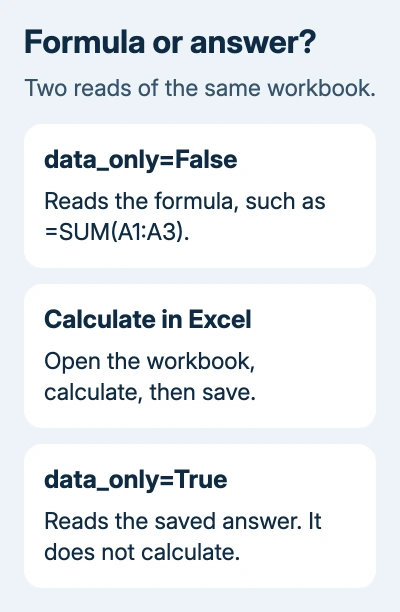
First, load a copy of your workbook with the normal setting. This shows whether the cell contains the formula you intended to write. Reading the cell's .value won't turn that formula into an answer.
For example, use this small script to check the formula stored in B1:
from openpyxl import load_workbook

formulas = load_workbook('report.xlsx', data_only=False)
print(formulas.active['B1'].value)
If the cell contains =SUM(A1:A3), seeing that text is expected. Python has read the formula, but it hasn't calculated it. If you see a plain number instead, check whether you're using the right cell, worksheet and file.
The openpyxl formula documentation makes this limit clear: the library never evaluates formulas. Your workbook can contain a valid formula without having a calculated result saved alongside it.
Now open the same file using data_only=True:
results = load_workbook('report.xlsx', data_only=True)
print(results.active['B1'].value)
This reads the value stored for that formula when a spreadsheet application last calculated and saved it. It doesn't start a calculation. If the value is missing or old, calculate and save the workbook in Excel next.
2. Calculate the saved workbook in Excel
Finish your Python changes and save the workbook before opening it in Excel. Use a separate output file for comparison with your original. Check the filename carefully if your script writes into a different folder.
Excel for Windows
Open the file, select Formulas > Calculation Options > Automatic, then use Calculate Now on the Formulas tab. For a full recalculation of all formulas, press Ctrl+Alt+F9.
Excel for Mac
Open Excel > Settings or Excel > Preferences, depending on the release. Open Calculation and select Automatic. Use Formulas > Calculate Now to calculate the workbook.
Watch the affected cell. It should display an answer rather than remain empty or keep the previous result. If the inputs changed from yesterday's file, compare the answer against those new inputs before saving.
Microsoft explains that the Excel recalculation controls determine when formulas run. A workbook in Manual mode can keep an earlier answer even though the formula text is correct.
For a broader calculation problem inside Excel itself, use the Automatic calculation checks. That problem needs fixing before a later Python read can receive the answer you expect.
Save the workbook after the numbers update, then close it. The save matters: a result visible in an open Excel window isn't enough for another program reading the file on disk.
3. Reopen the calculated file in Python
Create a fresh workbook object after Excel has saved the file. If your script loaded the workbook earlier, that copy still holds the old values. Load it again to read the changes Excel has just saved.
from openpyxl import load_workbook

calculated = load_workbook('report.xlsx', data_only=True)
sheet = calculated['Sheet1']
answer = sheet['B1'].value
print(answer)
Replace Sheet1 with the real worksheet name. All the examples read B1 to keep the comparison on that formula cell. A different active worksheet can otherwise make a working file look wrong.
If you now get the expected number, calculating and saving in Excel fixed the missing result. If the answer is unchanged, compare the exact path Python opens with the workbook you saved in Excel.
I'd check the path before changing formula settings again. Two copies named report.xlsx can contain different inputs and different stored answers, especially when an export folder and a working folder are both involved.
Read answers from the results object, and keep a copy loaded with formulas for future edits. Saving a data-only workbook can replace formulas with stored values. That would change the file you intend to maintain.
4. Correct a formula that Excel cannot calculate
If Excel shows an error rather than a number, the missing result isn't just an openpyxl reading setting. Inspect the formula and the cells it refers to. You'll need to fix a reference to the wrong cell or a function Excel doesn't support.
Write function names in English and separate arguments with commas when creating formulas through openpyxl. A function name in another language or a semicolon copied from a regional Excel installation isn't the format openpyxl expects.
Compare the formula text read by Python with Excel's formula bar. Check the range and worksheet references too. A formula pointing at last month's sheet can calculate successfully while returning a number you didn't expect.
If the Excel cell contains visible formula text, use the formula-text checks. Show Formulas mode and a cell treated as text need different changes from a missing stored result.
Newer functions can require an _xlfn. prefix in the stored formula. Check that function's library guidance instead of adding the prefix everywhere. Some formula types have their own rules too.
5. Plan unattended exports around the missing calculation step
A job that only uses openpyxl won't produce new formula answers on its own. Reopening the file with data_only=True or changing calculation preferences in the workbook won't make openpyxl calculate the formulas.
If the next program needs numbers immediately, calculate those results in your own Python logic and write the numbers to the export. Keep a separate formula-based workbook when readers also need formulas they can edit in Excel.
For formulas that need Excel, arrange an approved step to open, calculate and save the file in Excel. Check the saved results before the next program reads it. A valid workbook file doesn't mean its formulas have run.
If this still fails, give your script maintainer a small workbook with the affected formula and input cells, plus both Python reads. Include the openpyxl version and whether Excel displayed and saved the right answer.
That separates a library reading problem from an Excel formula problem. Use the openpyxl project's issue tracker for a file-reading error they can reproduce; use Excel support when Excel itself can't calculate the formula.
The Short Version
Write formulas with openpyxl, calculate and save them in Excel, then reopen the saved file with data_only=True. That option reads stored answers. It doesn't calculate them, and an unattended export needs its own calculation stage.
Checked November 27, 2026.
 If you have any business, I can build it online