Office usually blocks editing on a Mac when you're signed in with the wrong account or that account lacks the right license. Sign out of Word, then sign in with your licensed account.
For a work subscription, your administrator may need to correct the license assignment. Reinstalling Office can leave it using the wrong activation account.
Check what the plan includes, refresh sign-in, then use the official license removal tool if Office keeps holding onto the wrong license.
In this guide
1. Activate Word using the licensed account
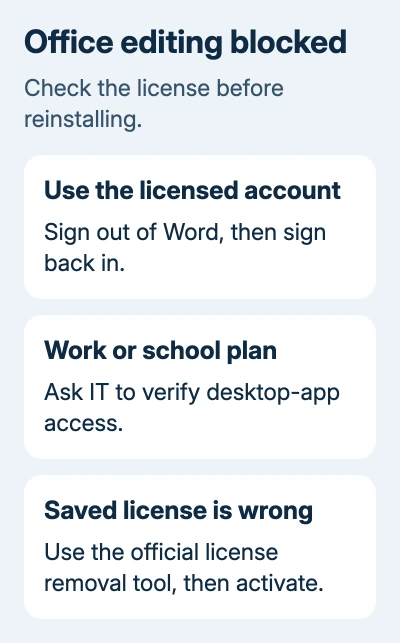
Open Word, select your name or profile icon, and choose Sign out. Select Sign in and activate with the account holding that Office license. For a work or school subscription, use the account provided by your employer or school.
Personal and work Microsoft accounts can have similar addresses but belong to separate systems. Choose the type that received the subscription. Signing in successfully doesn't mean it has a license for the installed Office apps.
For a personal purchase, check that the subscription or purchase appears under that account. For a shared subscription, use the account that accepted the invitation. An account created today won't inherit another account's purchase.
Reopen a document and try editing it. If editing and saving return, the app is using the right license again. If the exact warning remains, check what the plan includes before removing saved licenses.
Microsoft recommends checking the license and refreshing Office sign-in for this warning. Check that you're seeing this exact message. A read-only document or a file that you aren't allowed to edit needs a different fix.
2. Have the administrator check the assigned license
For a business or school account, ask the administrator managing Microsoft 365 whether your license includes the installed apps. Access to email or browser-based documents alone doesn't answer that question.
The administrator can use this route:
- Open Microsoft 365 admin center using an administrator account.
- Go to Users > Active users.
- Select your user row.
- Open Licenses and Apps in the user pane.
- Expand Licenses, select the correct license and choose Save changes.
If the right license is already assigned, the official repair is to uncheck it and save, then check it again and save once more. Let the administrator make that change so they can confirm which subscription is being reassigned.
Sign in to Office again after they confirm the assignment. Try editing in Word and another installed app, such as Excel. The same message across apps points toward activation; a single locked document needs its own file-permission check.
Only an administrator can use those admin center controls. Signing in again with your regular user account won't give you access. Send IT the error and request a desktop-app license check.
I'd verify the plan before buying a second subscription. A correctly purchased license can be assigned to the wrong user, and paying again doesn't repair the assignment your organization already manages.
3. Remove the saved license and activate again
Check that you have the right license first. Office can retain information from an earlier purchase, even when you now use a subscription. Removing that saved information lets activation use your chosen account again.
Keep the licensed account's sign-in details ready. The tool clears every Office license stored on this Mac, so you'll need those details to reactivate. It resets stored licenses without granting a missing subscription.
Save your work and quit every Office app. Closing a document window isn't the same as quitting Word or Excel. Use the app menu's Quit command to close every running Office app.
Open the official Mac license removal instructions and follow its Download the license removal tool link. Use that page's download rather than a third-party cleanup utility.
Open the downloaded .pkg in Downloads, select Continue and follow the installer. Choose Install when ready, then enter this Mac's administrator password if asked. When license removal finishes, select Close.
Open Word and activate it with the account whose license you just checked. If it offers a choice between a subscription and an older one-time license, select the license you intend to use. Then test editing and saving a document.
After activation succeeds, restart the Mac as the tool's instructions direct. Remove the downloaded license removal package from Downloads when finished. If activation still fails, keep the exact new message for the next step.
4. Separate a sign-in fault from the license warning
An Authentication Session Expired message or repeated keychain requests point to trouble accessing your saved sign-in details. The Mac keeps passwords in its keychain. That password store is separate from your Microsoft 365 license.
The Office keychain access repair covers that message and the app's permission to read your saved sign-in details. Repeating license removal won't fix an incorrect keychain password.
Record the app version through Word > About Microsoft Word and the macOS version through Apple menu > About This Mac. Those details matter if the app is too old to activate or update normally.
The Office for Mac installation guide compares installed Office with browser editing and their system requirements. Use it when the problem is an unsupported installation rather than a valid account being refused.
If other documents edit normally, check whether the affected file is read-only or shared without editing permission. A license warning across Office and a restriction on one document need different repairs.
5. Reinstall after checking the license
If Office still won't activate after checking the license and using the official removal tool, follow the uninstall and reinstall links on the support page for this error. Use the same licensed account to install and activate the new copy.
Back up documents before uninstalling. Follow the Mac Office removal instructions instead of deleting miscellaneous Library folders from an old recipe. Keep the verified account ready for the new installation.
With an organizational license, ask IT to raise the activation problem with Microsoft if it continues. Tell them whether reassignment or reactivation changed the warning.
For a personal plan, request Office activation help from Microsoft Support. Include the warning, Word and macOS versions, license type and removal-tool result. Keep account passwords and product keys private.
The Short Version
Check which account owns Office. Ask IT about organizational access, then use the official Mac tool if saved licenses remain wrong. Reinstall afterward, and handle keychain or single-document restrictions separately.
Checked November 27, 2026.
 If you have any business, I can build it online