

Windows protects ntdll.dll because running programs depend on it. Repair a damaged copy with DISM followed by System File Checker instead of forcing a replacement from another PC.
A crash report naming ntdll.dll also needs the app checked. The module name alone doesn't mean the DLL is damaged.
An access-denied message while copying the file and a game crash that mentions the file need different next steps. Keep the original Windows file untouched during those checks.
In this guide
1. Stop the file swap and read the crash entry
Close the copy dialog. Don't take ownership of the System32 folder or use a downloaded DLL to get past its permissions. Matching filenames can hide different Windows builds.
Press Windows+R, enter eventvwr.msc, and open Windows Logs > Application. Select the error recorded when the program closed. In General, note the faulting application, faulting module, exception code and time.
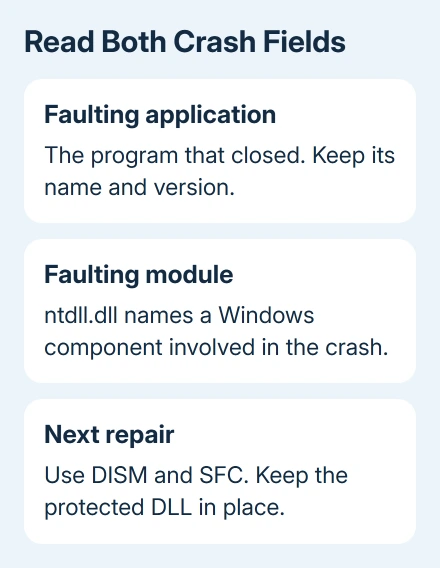
The application name tells you which program crashed. The module name records where the failure surfaced. Save both, rather than sending a support request that says only ntdll.dll is broken.
For example, a game executable listed as the application still needs game troubleshooting even when the module path ends in Windows\System32\ntdll.dll. Seeing a shared Windows component in the report doesn't tell you that it needs repair.
The person who reported the game crashes tried SFC and a fresh Windows installation, but the crashes continued. The accepted reply didn't report a successful DLL replacement. Keep that in mind before repeating those disruptive repairs.
If copying the DLL was your only problem and Windows otherwise works, stop the replacement attempt. If an app still crashes, continue with the supported file check, then return to that app's result.
2. Repair the Windows files in the right order
Save open work and install any waiting Windows updates, then restart. Open Start, type cmd, right-click Command Prompt, and select Run as administrator. Approve the Windows permission prompt.
Microsoft says to run DISM first in its system-file repair instructions. DISM repairs Windows' supply of components for System File Checker to use when replacing damaged files.
Enter the DISM repair command:
DISM.exe /Online /Cleanup-image /RestorehealthLeave your internet connection active throughout DISM's work. DISM can use Windows Update to fetch repair files. A pause at one percentage isn't a reason to close the window; wait for its final success or error message.
After DISM succeeds, run:
sfc /scannowSystem File Checker checks Windows' protected files and attempts to restore damaged ones. It lets you repair system files without taking ownership of the DLL.
Let verification reach 100%, then read the final sentence. A successful repair is useful, but the next check is whether the original app now opens and runs without its previous crash.
If DISM ends with an error, keep its exact code. Don't treat a failed command as a completed repair or keep changing permissions to compensate for it.
3. Use the scan result to choose the next move
An SFC result reporting no integrity violations means it didn't find damaged protected files in that scan. Leave ntdll.dll alone and move to the application checks. Replacing a file the scan accepts isn't the next step.
A repaired-files result means Windows changed something. Restart and try the app's failing action again. Keep the earlier crash time so you can tell a new event from the old one.
If SFC leaves damaged files unrepaired, use the SFC repair follow-up for its log and repair choices. That case needs the scan's specific result, rather than another copy of the DLL.
If SFC says it couldn't perform the requested operation, it hasn't completed the check. Save that message along with the DISM result before moving to recovery options.
I'd keep these results in one short note. An app support team can do much more with the crash entry and completed scan results than with a folder full of replacement DLLs.
4. Return to the program that actually crashes
Check whether the fault happens in one program or across unrelated apps. Record its version alongside the action that triggers the failure. A failure you can reproduce while loading a game gives support a specific starting point.
For a game, use its launcher's own file-verification or repair control if it provides one. Follow that game's support instructions for the current launcher, rather than reinstalling Windows because its name appears in Event Viewer.
If the problem began after an app update, send the app maker the new version number and crash entry. Let its support team identify a known issue or supported rollback. DLL-swapping instructions aren't a substitute for an app-specific fix.
The original Black Desert Online thread doesn't confirm what finally stopped the crashes. Its accepted answer explains why the event needs a closer look, but doesn't say that reinstalling the game solved it.
When several unrelated programs fail, include that pattern in your Windows support request. Support can use that pattern to choose the next checks, particularly if the system-file scans also report damage.
5. Repair Windows without sacrificing apps first
On supported Windows 11 systems, go to Settings > System > Recovery. Find the Reinstall now button in the section labeled Fix problems using Windows Update.
Reinstallation keeps your apps, settings and personal files while rebuilding the existing Windows version.
The Windows repair-install guide covers that option and why some PCs don't show it. Copy important documents to separate storage before this recovery work, even with a keep-files repair.
This button isn't the same as Reset this PC. Reset can remove installed apps, so check the heading and summary before approving anything. Windows 10 doesn't offer this Windows 11 repair button.
If repairs finish but that app still crashes, send its support team the executable name, exception code, Windows version and scan results.
For failures across Windows, open Get Help and request system-repair support.
The Short Version
Keep the protected DLL in place. Run DISM, run SFC, and use their final results to decide whether Windows needs repair. A clean scan and one crashing program point you back to that program's support process.
Checked November 16, 2026.






