
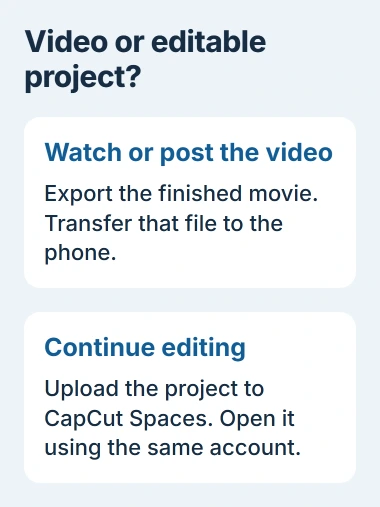
A finished CapCut video reaches a phone as an exported movie. Export on the PC, upload the file to your Google Drive, then download it on the phone. This gives the phone a playable copy without transferring the editing timeline.
To continue editing the original project, use CapCut's cloud Spaces with the same CapCut account instead. An exported movie and an editable project carry different information.
Export the finished video to a known folder
In CapCut Desktop, open the completed project and choose Export. Check the output location and video settings, then let the export finish. Open the resulting file on the PC to verify its picture and audio.
CapCut documents saving a local file through Export in its sharing guidance. That saved file is what goes to the phone, rather than the editor's project folder.
Status: CapCut export and Spaces guidance, plus Google Drive's Android and iPhone download routes, checked November 3, 2026. No project transfer performed.
If the project contains narration, check the voiceover and exported-audio workflow before sending it. A working timeline preview does not replace checking the saved movie.
Do not assume every export lands in Downloads. Use the location chosen in CapCut. For a video previously downloaded through a browser, the saved-file location checks can locate that separate copy.
Upload the file, then download it on the phone
On the PC, open drive.google.com and sign in. Google says to choose New > File upload in its Drive instructions. Select the exported video for uploading.
Wait until the upload finishes. In the phone's Google Drive app, use the same Google account and find that filename. There is no need to make the file public merely to retrieve it on another personal device.
On Android, tap the file's three-dot More menu and select Download. Google states in its Android download help that Data Saver can make Download unavailable.
On iPhone, use More > Send a copy > Save video to put a compatible video in Photos. To keep it as a file, choose Open in > Save to Files and select the destination.
Google's route for iPhone downloads distinguishes those destinations. A video visible in Drive has reached cloud storage; confirm the local phone copy before deleting the PC export.
Play that copy on the phone and check its beginning, ending and sound. If the upload failed, retry from the verified PC file rather than exporting a different version without a reason.
Move the editable project through CapCut Spaces
Check capacity before uploading. CapCut's Web storage notice says new Web spaces have 0 GB of free storage. Do not assume an unused account includes room for projects.
Sign into CapCut on both devices using the same CapCut account. In the desktop project library, find the original project and use its cloud-upload option to put it in Spaces. Wait for that upload to finish.
CapCut's saved-project documentation explicitly requires upload to Spaces for use across devices. A project remaining in Local Projects is not available to the phone just because both apps are signed in.
On the phone, find the uploaded project in CapCut's library. Open it and check the media and timeline before continuing. Read the account's storage allowance if uploading is unavailable.
Importing the exported movie into a new project produces a video clip. It does not reconstruct the original separate text, audio and effect tracks.
Report the stage that actually failed
For a missing cloud project, check the CapCut account and the desktop's Local versus Cloud view first. For a missing Drive video, check the Google account and upload completion instead; those are separate services.
If the file already fails to play on the PC, resolve the export with CapCut Support. If only phone saving fails, report the file type, phone model and download message. Keep the working project and source media while seeking help.
The Short Version
Export and transfer the video file to watch or post the finished result. Use the same CapCut account and an uploaded Spaces project to continue editing. Verify the phone copy before removing the computer's files.

Isaac Smith is the founder and editor of PC Glance, a website that covers computers, laptops, and technology. He is a tech enthusiast and a computer geek who loves to share his insights and help his readers make smart choices when buying tech gadgets or laptops. He is always curious and updated about the latest tech trends.