

CarPlay's iOS 26 Messages update adds Tapbacks and brings your iPhone's pinned conversations onto the car display.
Open a received message to react without dictating a full reply, or pin a conversation on the iPhone to make it easier to reach in CarPlay.
These are Messages features, separate from the new visual design, and they don't require an Apple Intelligence-capable iPhone.
In this guide
Find Messages on the CarPlay display
Connect your iPhone to CarPlay as usual, then open Messages on the car's screen. If the Dashboard only shows navigation, music, and recent apps, select the CarPlay Home button to reach the app pages.
A missing Messages shortcut in the recent apps column doesn't mean the app was removed by the update. Check the full app grid before changing iPhone settings.

Check Settings > General > About > iOS Version on the iPhone when you're unsure which release it runs. These features arrived with iOS 26; later releases can change the layout and available settings.
CarPlay runs through the connected iPhone. The phone needs the software that includes these features. Updating the car won't add them, though the car maker's updates can help with connection faults.
Set up your preferences while parked. These controls make messaging quicker once you know them, so try unfamiliar ones before the journey starts.
Reply with a Tapback instead of a new sentence
A Tapback is a reaction attached to a message, such as a thumbs-up or heart. It's useful when you want to acknowledge what someone sent without starting another spoken exchange.
- Open an incoming message in CarPlay and let Siri read it.
- Select the Tapback control when it appears.
- Choose the reaction you want to send.
Apple says like that message sends a thumbs-up in its CarPlay Messages instructions.
You can use the reaction control to choose another emoji.
Choose Reply to send a new text response or Tapback to react to the message you received. Choose Reply when you need to add information, rather than acknowledge it.
I'd use a simple reaction only when its meaning is clear. A thumbs-up can acknowledge an arrival time; a changed address usually deserves a spoken reply so the other person knows what you understood.
Don't look for a separate Tapbacks app or an App Store download. The control belongs to Messages in the iOS 26 CarPlay experience.
If you can't find it, first confirm that you're opening an incoming message rather than the new-message screen.
Pin the conversation on your iPhone first
Pinned conversations in CarPlay come from the pins in Messages on the iPhone. You don't need to rebuild a second favorites list in the car or put someone in the Phone app's Favorites list.
On the iPhone, open the Messages conversation list. Hold your finger on the chosen conversation, then tap Pin. That moves the chat into the list's pinned area.
Reconnect or return to Messages in CarPlay and look for that pinned conversation. If a different person's chat is there, check the pins on the connected iPhone, rather than the contacts stored by the car's separate Bluetooth phone system.
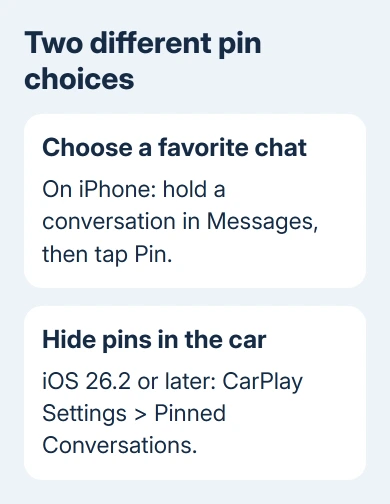
To remove an individual pin, touch and hold that pinned conversation on the iPhone and choose Unpin. That changes the phone's own conversation list too. Hiding the pinned area only in CarPlay is a separate choice.
A pin gives you a shortcut to a conversation you already have. It doesn't move messages to another account, recover a deleted thread, or change which phone number a contact uses for messaging.
If that chat is also missing from the phone, use our checks for messages missing after an iOS update.
Changing the car's display preferences won't restore a deleted conversation.
Hide pinned conversations in iOS 26.2 or later
The original iOS 26 and iOS 26.1 versions didn't offer a separate CarPlay switch for hiding pinned conversations. That control was added in iOS 26.2, so instructions for it won't match an iPhone still running the first release.
In CarPlay, open Settings, scroll to Pinned Conversations, and turn it off. You'll find this switch on the car's CarPlay display, rather than in the iPhone's main Settings app.
Use this when you prefer a simpler CarPlay Messages view but want to keep your favorite chats pinned on the phone. It saves you from unpinning each thread just to change the car screen.
If the switch isn't available, check the iPhone version before assuming your vehicle is incompatible. This option needs iOS 26.2 or later on your iPhone.
Keep spoken replies and send confirmation separate
Ordinary messaging still works through Siri. Ask Siri to send a message, specify the contact, and dictate the text. When Siri offers the confirmation, check the recipient and the message before agreeing to send it.
To change that confirmation behavior, open Settings in CarPlay, choose Siri or Apple Intelligence & Siri, then select Automatically Send Messages. The label can depend on the iPhone and software version.
Turning this on lets Siri send messages without the usual confirmation step unless you ask to change or cancel them. Leaving it off gives you that check before sending. It doesn't turn Tapbacks on or decide which conversations are pinned.
If your problem is announcements being too frequent, treat that as another preference. Reply confirmation controls what you send. Message announcements control what Siri reads when a message arrives.
When the new controls still aren't available
Check what's missing. For a missing pin, check the iPhone's conversation list or the CarPlay display switch. A missing reaction control needs a received message to respond to. A connection that drops is a separate CarPlay fault.
For the connection case, our wireless CarPlay disconnect checks cover pairing and the wireless connection.
Don't reset network settings just because the pinned area looks different.
For a broader CarPlay failure, update the iPhone and check the vehicle manufacturer's firmware guidance.
Apple's CarPlay troubleshooting also covers restarting the phone and car, and forgetting and setting up the vehicle again if connection checks fail.
If CarPlay connects but a Messages feature is still missing, give Apple Support your car model, the missing control, your iPhone model, and the exact iOS release.
A photo taken while parked can show whether you're in Dashboard, the app grid, or Messages.
The Short Version
Use Tapbacks for quick reactions and pin conversations in iPhone Messages to bring them into CarPlay. From iOS 26.2, CarPlay Settings can hide pinned conversations without removing the phone's pins.
Siri's automatic sending is a separate choice.
Checked November 12, 2026.
 If you have any business, I can build it online






