To fix Access is denied when renaming Catroot2, start with an administrator Command Prompt and stop Cryptographic Services. Even with an administrator account, commands need that extra approval. The service can also keep the folder busy.
Start with the command that failed. A denied net stop command, a denied folder rename and an existing backup folder need different responses. Changing ownership of the Windows folder isn't a useful first move.
In this guide
1. Check which command Windows refused
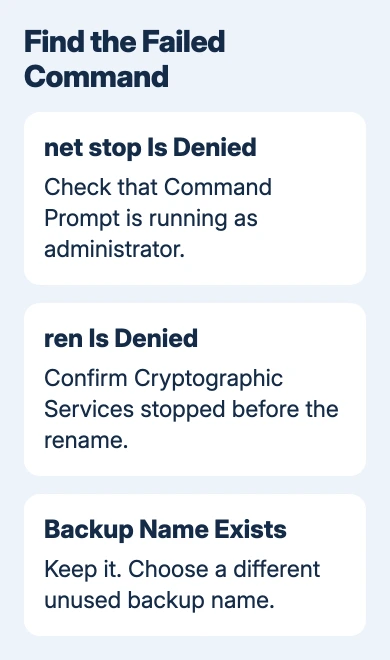
Check which command appears just before the error. Keep that command and its full response together. An update code such as 80246005 describes the update problem; the later command error describes what prevented your repair.
A refusal after net stop cryptsvc means the service-stop step didn't finish. A refusal after ren means the folder wasn't renamed. Don't paste the rest of a reset script and assume either operation succeeded.
Windows uses the files in Catroot2 to check update packages. Renaming it lets Windows create fresh working data. You don't need to make your personal account the owner of the whole Windows directory to do this.
Check the path too. The target is Catroot2 inside Windows\System32. Catroot is a separate folder. Leave it alone rather than applying a similar-looking command to both names.
If your original symptom is simply a stalled update, the Windows Update checks start with the easier causes. This procedure is for a reset that stopped because the commands were refused.
2. Open a new administrator Command Prompt
Close the failed command window. Open Start, type cmd, open the Command Prompt result's right-click menu and select Run as administrator. Approve the request using an administrator account.
Use this route on Windows 10, Windows 11 and the original Vista or Windows 7 systems. On the older Start menu, Command Prompt can also be under All Programs > Accessories.
The window title normally includes Administrator. Being signed into an administrator account isn't the same thing: Windows normally starts programs with limited permission until you approve this extra access.
Use Command Prompt for the commands here. The %Systemroot% variable uses Command Prompt syntax. Pasting it into a PowerShell tab can give you a path error unrelated to the folder's permissions.
Ask your work or school IT team to handle the update repair if administrator access is blocked. Your account's rules control that access; a folder command can't grant it.
If the new administrator prompt still refuses the service command, save that result for step 5. Don't compensate with broad System32 access permissions or drive-wide ownership changes.
3. Stop the services and read each result
Finish any active update installation and restart if Windows is waiting for one. Then return to the administrator Command Prompt. Run these commands individually, pressing Enter after each:
net stop bitsNext stop Windows Update:
net stop wuauservFinally stop Cryptographic Services:
net stop cryptsvcThese stop Background Intelligent Transfer Service, Windows Update and Cryptographic Services. The last one is important for Catroot2: leaving it running can prevent the folder operation even when your prompt has administrator access.
A message saying the service stopped successfully means that step completed. A message saying the service isn't started means it was already stopped. Access is denied means the stop failed. Resolve that error before trying the rename.
If Windows lists dependent services and asks whether to continue, read their names. Your work or school PC's security or update tools may depend on them; ask IT before agreeing to disrupt something you don't recognize.
Microsoft recommends stopping these services before folder repairs. The same instructions reserve more aggressive permission resets for later troubleshooting.
I'd read all three responses before typing a rename. A failed service stop needs attention before you consider changing folder ownership. If the services have stopped, continue in this same window.
4. Rename Catroot2 without deleting its contents
First check whether the backup name is already present:
dir "%Systemroot%\System32\catroot2*"If catroot2.bak isn't listed, run:
ren "%Systemroot%\System32\catroot2" catroot2.bakWhen the rename works, the command window normally shows a fresh prompt without a success message. Run the dir command again to check that the backup name exists. If Access is denied remains, skip to the next section.
If catroot2.bak already exists, use an unused name such as catroot2.bak2 instead. Preserve the existing backup rather than deleting it just to make the same command work. The new name must not already be in that directory.
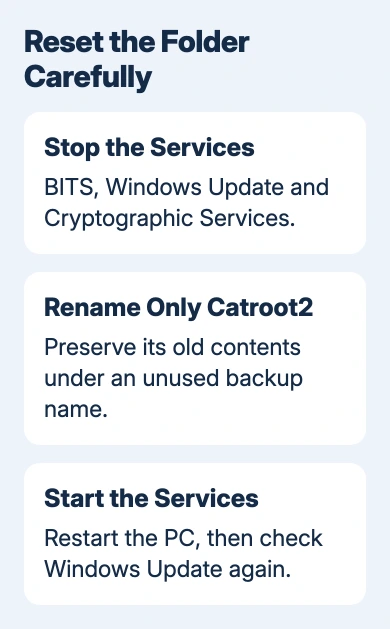
Restart the services, even if the rename failed:
net start bitsRestart the updater:
net start wuauservThen restart Cryptographic Services:
net start cryptsvcRestart the PC, then check Windows Update again. On Windows 11, open Settings > Windows Update. On Windows 10, open Settings > Update & Security > Windows Update. Select Check for updates.
These steps repair the Catroot2 part of an update reset. A full reset has other steps too. If access is repaired but the update still fails, follow its remaining error rather than repeating the rename with new backup names.
5. Stop at a permission failure that survives elevation
A shaded Read-only box in a folder's Properties doesn't tell you who can change its files. Repeatedly clearing it doesn't show whether the service released the folder or whether your command window has the needed access.
The original Vista owner changed ownership of C: without fixing the folder state. They later reported success without naming the action that worked. That report gives no confirmed fix to support changing ownership of the whole drive.
If an elevated prompt still can't stop Cryptographic Services, give support the exact stop command and response. If the service stops but the rename fails, provide the failed path and the existing backup-folder names instead.
Ask your PC maker's Windows support team, Microsoft Support, or your IT department to check the update services and Catroot2 permissions. Mention any earlier ownership changes so they can assess those too.
For the broader message about an issue with the Windows Update service, the next checks include disabled services and Windows-file repair. Use that route when the folder command succeeds but updating remains broken.
Avoid an old batch file that registers dozens of DLLs just because it appears in this historical thread. Keep the focus on the command that failed. Its exact response tells support where the repair stopped.
The Short Version
Open an administrator prompt and stop the required services before renaming Catroot2. Check each response, preserve old backups and restart the services. If access still fails, ask support to check the specific folder permissions.
Checked November 26, 2026.
 If you have any business, I can build it online