An issue with your Windows Update service means Windows can't check for updates properly. Restart, then run its troubleshooter. A disabled update service must be enabled before downloading again.
The warning alone can't tell you whether a damaged file, a service setting or company policy is responsible. Write down the error code shown with it. Code 0x80070422 points to a disabled or stopped update service.
In this guide
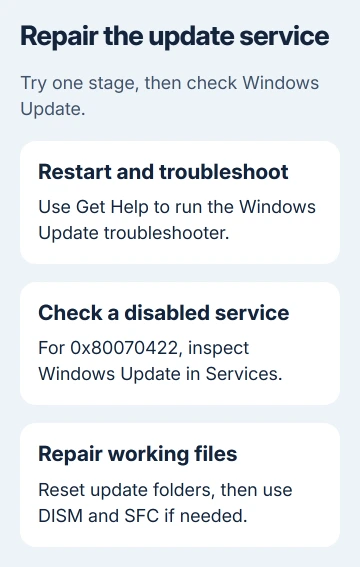
1. Restart and let the troubleshooter check the service
Save your work, open Start > Power, and choose Restart. After signing in, open Settings on Windows 11, choose Windows Update, then select Check for updates.
On Windows 10, use Settings > Update & Security > Windows Update. If the message returns, launch Get Help and search for Windows Update troubleshooting. Follow the questions and apply the repair it offers.
Microsoft recommends the automated troubleshooter in its update repair instructions. It can fix common faults without resetting folders.
Check for updates again when it finishes. A successful check should load available updates or report that Windows is up to date, rather than returning the service message. Note any new code if the wording changes.
If this PC uses an update-blocking tool, return that tool to its normal update-enabled setting. The update-blocker explanation covers why disabling the service can keep updates from working later.
2. Check for a disabled Windows Update service
Press Windows + R, enter services.msc, and press Enter. Find Windows Update in the Services window and double-click it. Read both Startup type and Service status before changing anything.
For error 0x80070422, set Startup type to Automatic. If the service is stopped, select Start, then Apply > OK. You may need administrator permission to make these changes.
Restart the computer and try another update check. If it works, the check was failing because the service was disabled or stopped. Keep updates enabled rather than switching the service off again afterward.
A service showing Manual isn't the same as Disabled. Windows can start services when needed. Don't change every service in the list to Automatic just because the Windows Update page reports a problem.
If Start fails, write down its exact message and error number. Access denied, a missing service and a service that starts then stops are different failures. That information is more useful than repeating the same button press.
On a managed PC, leave locked service settings to IT. Give them the service status, code and update message. They'll need to fix the policy that controls it rather than work around it in the registry.
3. Reset the downloaded update components
If the service runs but the same error returns, reset the folders Windows uses to prepare updates. Renaming them keeps the old files and lets Windows create a fresh set on its next attempt.
Search Start for Command Prompt. Right-click its result and select Run as administrator. Accept the permission prompt. Run the following commands individually, pressing Enter and waiting for each one to finish.
net stop bits
net stop wuauserv
ren %systemroot%\softwaredistribution softwaredistribution.bak
ren %systemroot%\system32\catroot2 catroot2.bak
net start bits
net start wuauserv
The two stop commands pause the download and update services; the start commands turn them back on. The rename commands keep the old folders so Windows can create new ones for its update files.
Stop and save the error for support if a required service won't stop, a command reports access denied or a .bak destination already exists. Don't delete folders to force the rename commands through.
Close Command Prompt and restart the computer after the commands finish. Open Windows Update and check again. It may need to download update files again, so allow the new check to finish before judging the result.
I'd check the service itself before rebuilding its downloaded files. Fresh files won't help while a tool or an administrator's policy keeps the update service disabled.
4. Repair Windows files if the service still fails
Reopen an administrator Command Prompt. Run DISM, the Windows image-repair tool, first. It checks the Windows components that the file checker relies on, so the order matters.
DISM.exe /Online /Cleanup-image /RestorehealthLeave the command running until it reports its result. Check for a successful completion message. Then run the system file checker, which checks protected Windows files and attempts repairs.
sfc /scannowLet verification reach 100%. Read the final result instead of closing the window as soon as the progress stops moving. If it reports files it couldn't repair, save that message before restarting.
The official system-file repair sequence explains these two tools. Neither is a reason to start deleting Windows folders manually.
After a restart, try Windows Update once more. If the service warning has disappeared but a particular update now fails, follow the new update error code rather than repeating the service repair.
5. Match the remaining problem to the next repair
If the service is missing, won't start or keeps becoming disabled, describe that exact problem in Get Help. Use its support options if the troubleshooting steps can't fix it.
Include the Windows version from Settings > System > About, the message in Windows Update, the Services error and the results of DISM and SFC. Mention any update-blocking or system-tuning software you've used.
Free support for Windows 10 ended October 14, 2025. Fixing the updater won't give you ongoing security updates on its own. Check your Extended Security Updates enrollment or your options for a supported upgrade separately.
For a managed computer, send those details to IT instead. If support recommends reinstalling Windows, make a current backup before that repair. Don't jump to wiping the computer simply because the update screen uses the word service.
The Short Version
Restart and run the update troubleshooter. Check a disabled service when the code points there, then rebuild update folders and repair system files if needed. Take a missing or repeatedly disabled service to support with its exact error.
Checked November 10, 2026.